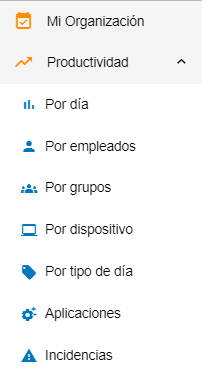
To mark key Applications those applications crucial for daily work performance, we will access the Productivity > Applications section.
Once here, we will access the section to edit the application settings by clicking on the icon.
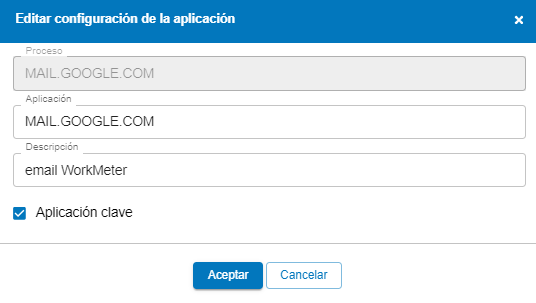
A box will appear where we can edit the application settings. We will check the box Key Application . If we want to undo this action, we just have to uncheck the box.

Often within the same application there are parts that we want to divide into two different activities or processes to see the uptime in each of them. Or, for example, to be productive for certain work groups and not for others.
For these cases, our software has an option called "application sub-patterns," with which you can define a part of an application as if it were another different one and be able to establish different productivity criteria.
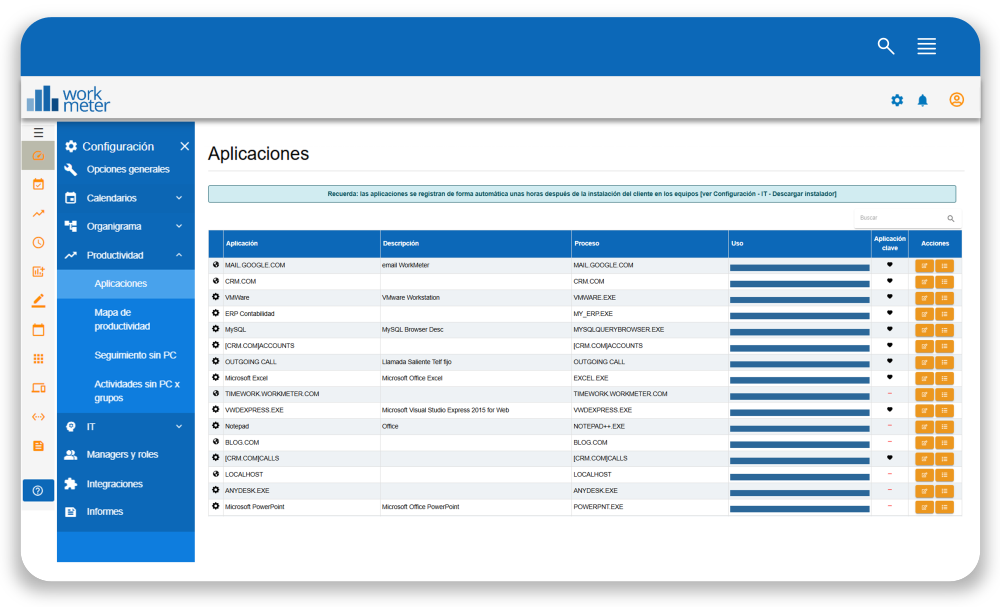
Go to Settings > Productivity > Applications and click on the orange icon located on the side (indicated in the image) next to the application in which you want to create sub-patterns.
For example: If we use Microsoft Excel we can define the following sub-patterns:
- 2021PRESU, where files containing this name will appear as Budgets 2017
- 2021CLI , where files containing this name will appear as Client List 2017. (is a wildcard meaning "any text")
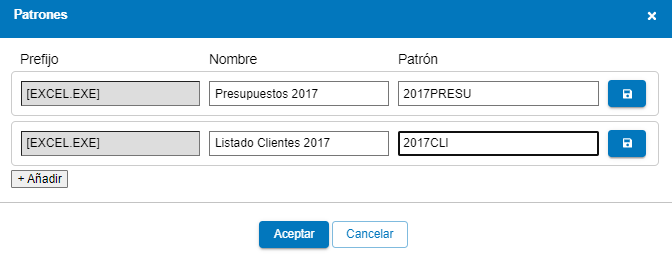
An application called Microsoft. Excel will continue to appear, but two more applications called [EXCEL.EXE] Budgets 2017 and [EXCEL.EXE] Client List 2017 will also appear.
Each of them can be configured in the Productivity Map as productive or non-productive independently of each other.
In the previous example, it is possible that for the IT group, the books defined as ‘client list’ will not be productive but the remaining tasks with Microsoft Excel will be.
It is also possible to define this same thing in different sections of a website as long as the name of the section keeps changing. For example, we can define the website .miempresa.com/producto as productive and .miempresa.com/portal_social as non-productive.