You can see notifications in the top right corner. There you will find a bell-shaped icon that indicates the number of pending notifications to validate. Clicking on the notifications icon will open the panel where you can validate them.

In this panel, the administrator or the person responsible for your group can consult, accept, or deny calendar change requests and activity edits.
Within this panel, there is also the option to view "Only pending" to see the entire history of requests, both accepted and rejected. You also have the option to view "Only by main groups" which allows you to see notifications from the highest-level groups (for the Administrator, this will be the All group, and for group managers, it will be the highest groups). This option can be toggled on or off according to your preference.
Inside the notifications panel, a persistent selector has been implemented that allows you to choose how to view notifications according to the level of responsibility and consultation needs. The following options appear in this selector:
- View - My notifications: Shows only notifications assigned directly to you.
- View - My notifications and those of my main groups: Includes both notifications assigned to you and those of the managers of the first-level groups you manage.
- View - All: Shows all notifications, both those assigned to you and those of all the groups you manage.
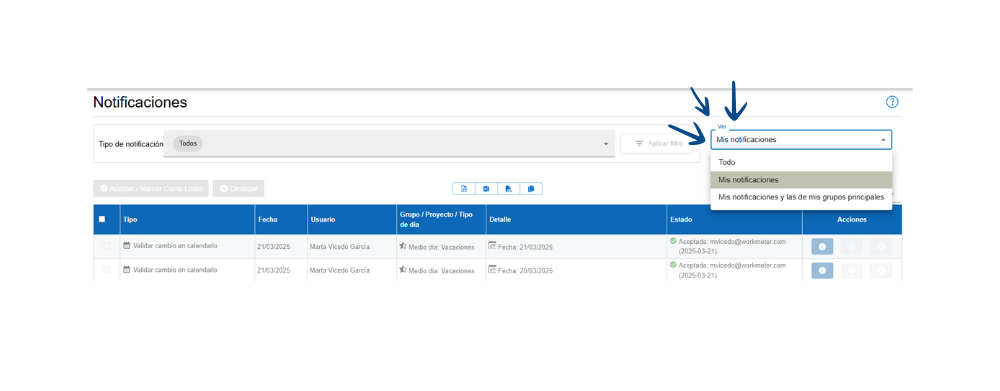
The "Status" column shows whether the notification is pending or accepted/denied and the name of the person responsible who accepted or denied the request.
There are 2 types of notifications:
- Validate activity
- Validate calendar changes
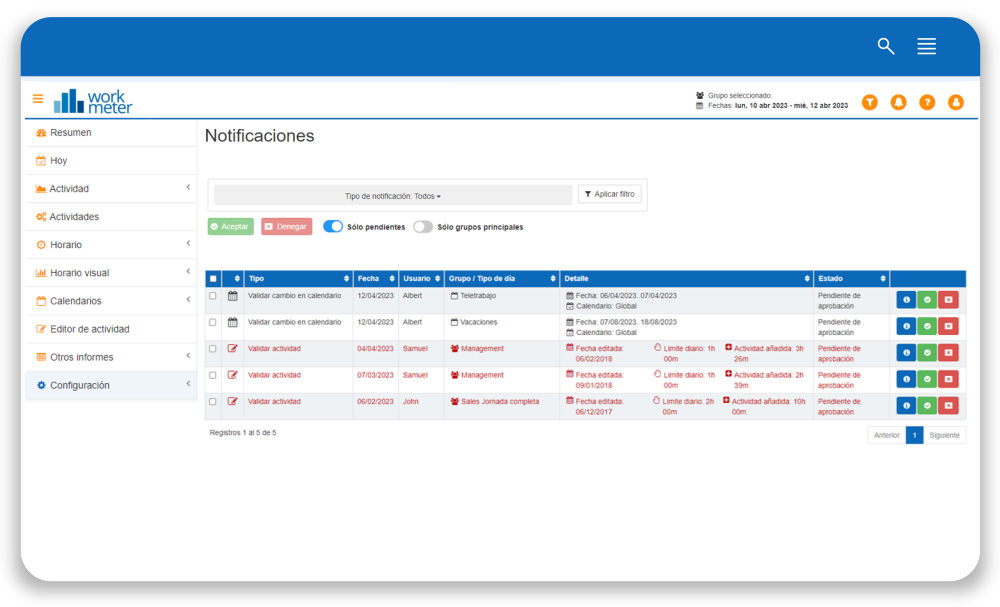
There is also the option to search notifications directly using the search bar located in the upper right corner. For example, you can use it to filter only activity edits, a specific employee, or an entire workgroup. As you type letters, only the options matching your search will be filtered.
In activity validation notifications, we show you the balance of activity or productivity hours accumulated over the last 120 days compared to the expected.
The balance will be calculated based on productivity or activity depending on how the overtime calculation has been configured in the general options.

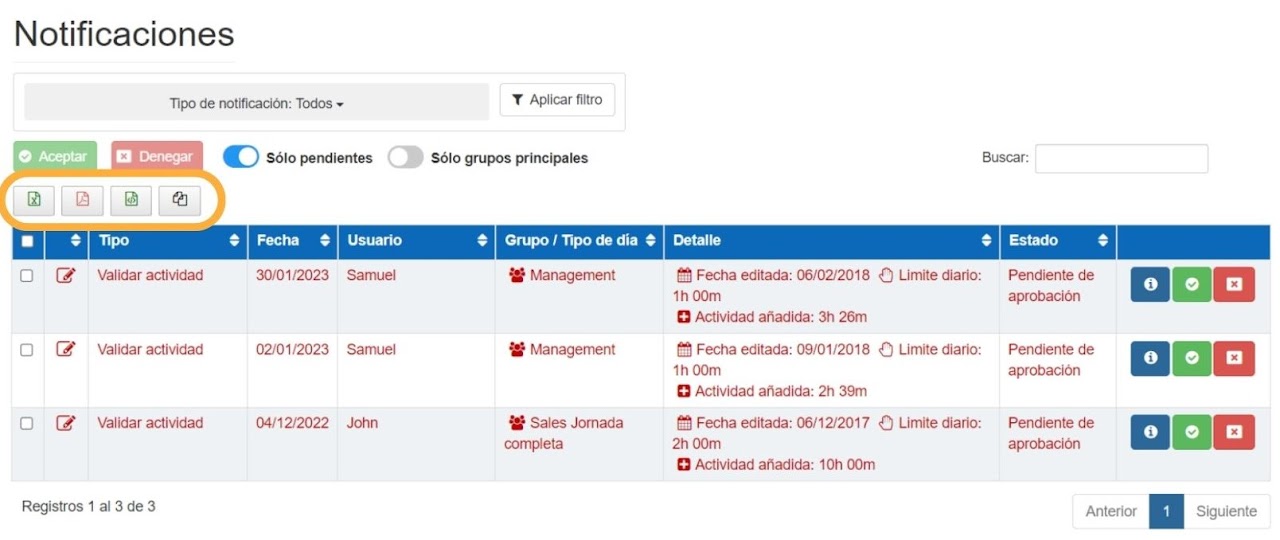
You can export notifications in different formats, both pending and historical.