In this panel, you can create and modify your employee groups. Having a group structure will allow you to:
- View the organizational chart in an orderly manner and quickly locate employees
- Analyze activity data at the company-wide level, by groups or subgroups at the desired hierarchical level
- Configure schedules, expected activity, and offline activity query options for the entire company or for a specific group.
Before entering the options of the "Groups" panel, remember the following:
- All employees belong to the virtual group "Everybody"
- Each employee can belong to a maximum of one group or subgroup
- If an employee does not belong to any group, they are considered to belong to "Everybody", therefore, the configuration of that group will apply to the employee in question
- You can create a hierarchical group structure, allowing the creation of subgroups within the main group
- By default, subgroups will inherit the configuration of the main group, allowing for later editing.
- The rules configured for a group will be applied to all employees in that group.
- Users with "Administrator" permissions can see data from any group, while those with "Group Manager" permissions will only see information corresponding to the group previously assigned to them.
Create or delete groups 🔗
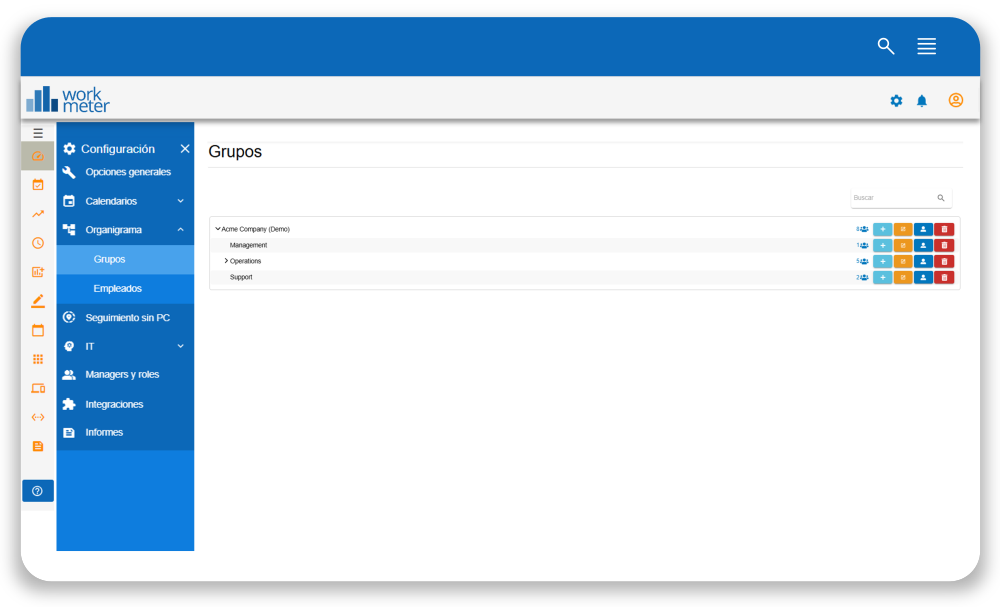
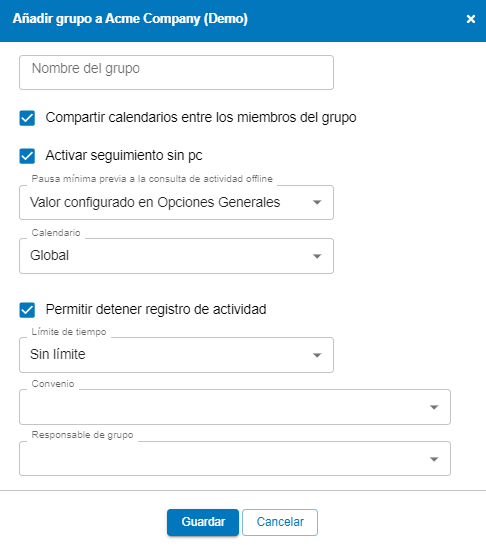
To create a group, go to Settings – Organizational Chart - Groups and position yourself over the "Everybody" group and click the + icon. Similarly, you can create a subgroup within another group. You can nest as many subgroups as you want to reflect your company's structure.
You can delete any group by clicking the trash icon, except the "Everybody" group (which cannot be deleted). You can hide or show the groups/subgroups already created by clicking on the ">" or "˅" symbol that appears to the right of the group name.
Edit groups 🔗
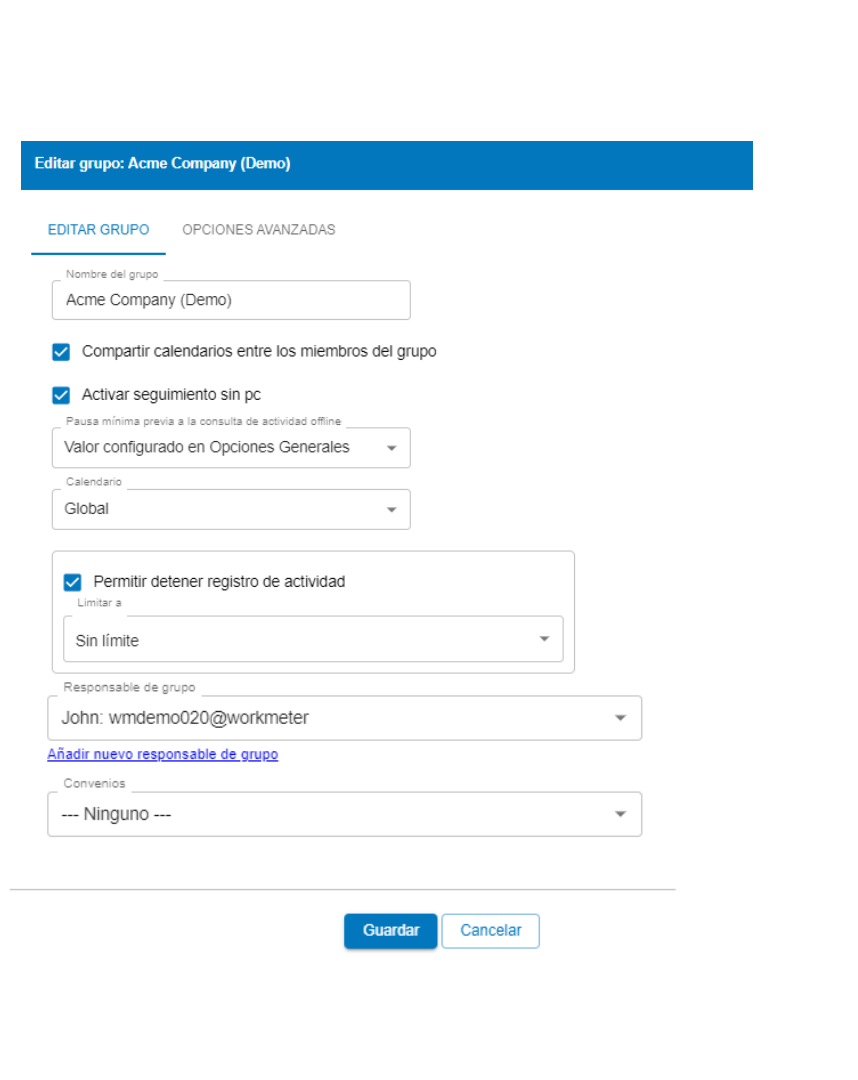
Just as you can create and delete groups, you can also edit an existing one by clicking on the edit group icon that appears to the right when you hover over the group name. You have the following configuration options:
- Group name: Name that will represent the group of employees (it can be a department of your organization or any other criterion you find convenient).
- Expected activity: Estimated activity time per day for the group members. If your employees work 8 hours a day, that should be the value set in this field.
- Enable tracking without PC: If enabled, pause times and offline activity performed by this group outside the PC will be collected.
- Assign calendar: With this option, you can assign the work calendar that belongs to this group. Read more about calendar configuration
- Stop activity recording: Allows setting a time limit after which employee activity recording stops.
- Group manager: Allows determining the manager or managers in charge of a specific group.
- Agreements: This option allows determining the agreement to which each worker belongs.
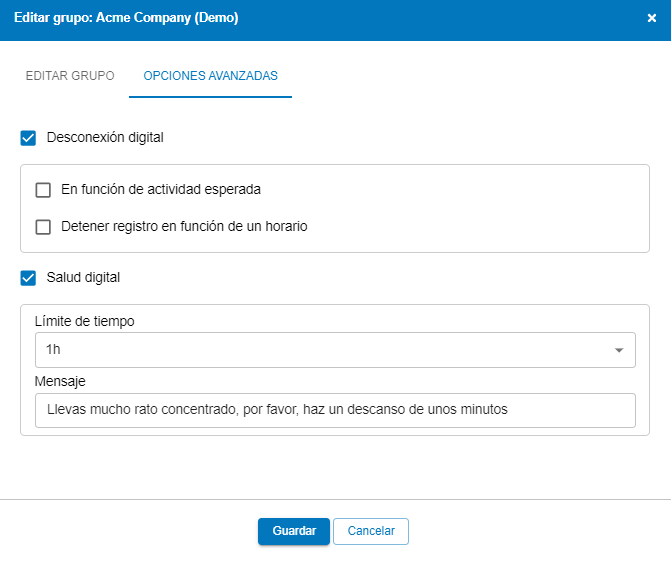
Within "Edit group" we also find the "Advanced options" section, where there are options related to disconnection and digital health.
Assign group managers 🔗
By clicking on the icon, a dropdown will open showing a list of the managers of each group.


Additionally, to facilitate supervision for group managers, in the first column starting from the left you will see a numerical indicator of the number of employees in each group.
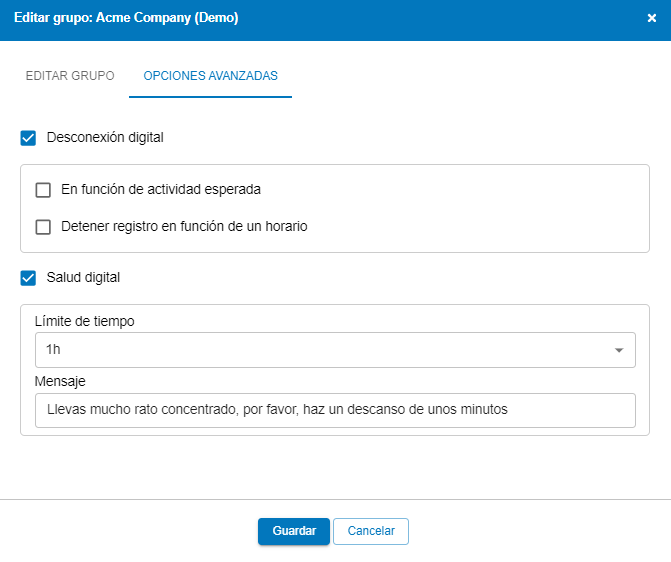
Advanced options allow you to define digital disconnection rules.
These options ONLY apply to Windows operating systems.
To configure the digital disconnection rules you must go to:
Settings – Organizational Chart - Groups - Edit Group - Advanced Options

Configure digital disconnection rules 🔗
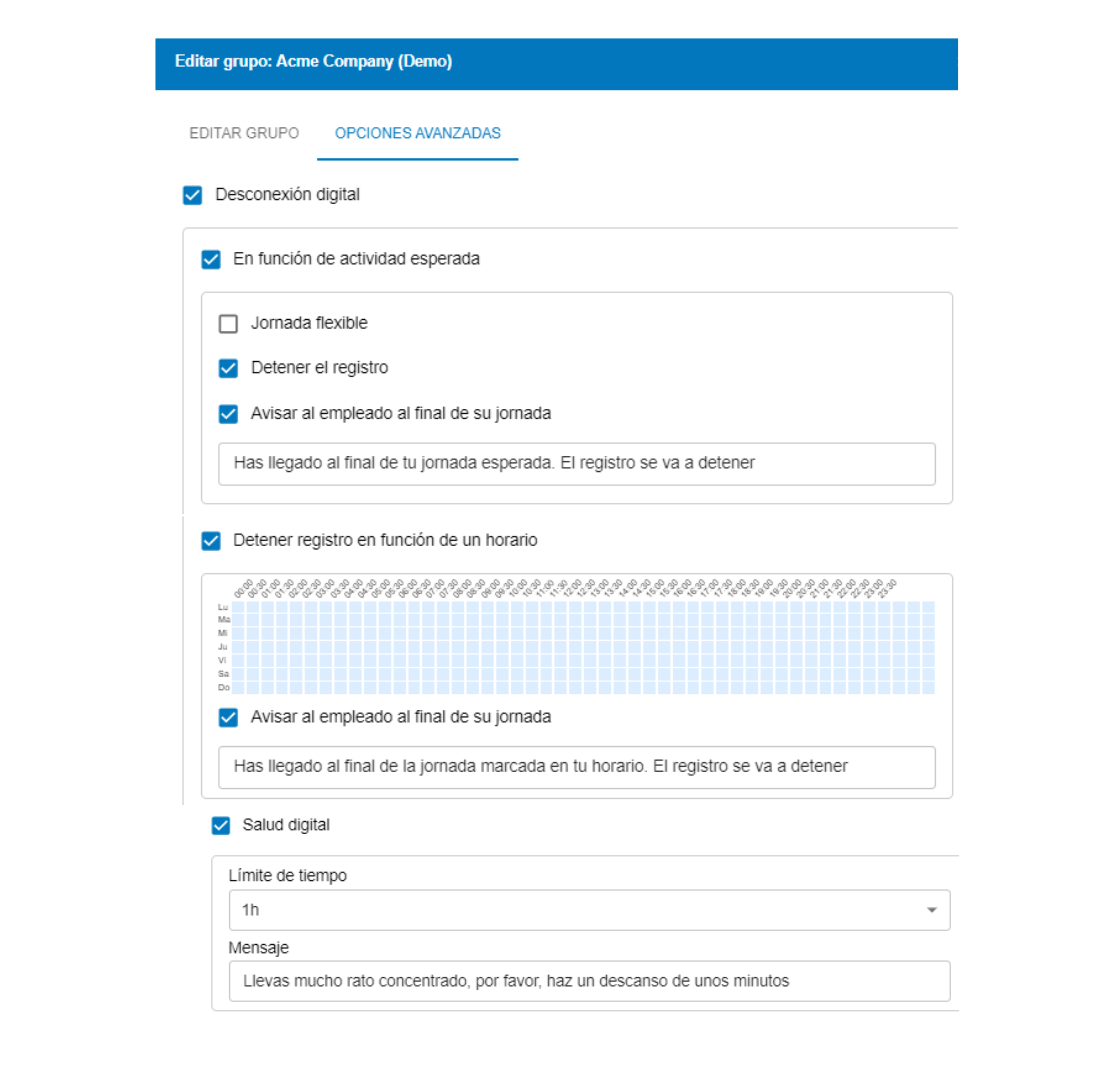
Once in "Advanced options" you can configure the digital disconnection rules based on the expected activity and/or working hours.
Based on the expected activity
- Stop recording: This means that recording will stop when the user's activity reaches the activity configured as expected, or the effective work activity.
- Flexible working hours: This option allows adding a 10-hour flexibility buffer and the calculation is done over a 4-month period. That is, recording will stop when, over a 4-month period, the actual activity reaches the expected activity plus the 10 hours of flexibility.
Stop recording based on a schedule: You can select, in the table, the schedule during which you want data to be recorded. In our example, data is recorded from 09:00 to 18:00.
You have the recommended option to notify the employee, through a message in a pop-up window, when recording will stop.
Configure digital health rules 🔗
Within the advanced options, you can also configure a notification for the employee to take a break after a set concentration/activity interruption time (from 1h to 3h).
You have the recommended option to notify the employee, through a message in a pop-up window, when recording will stop .

Minimum pause before offline activity query 🔗
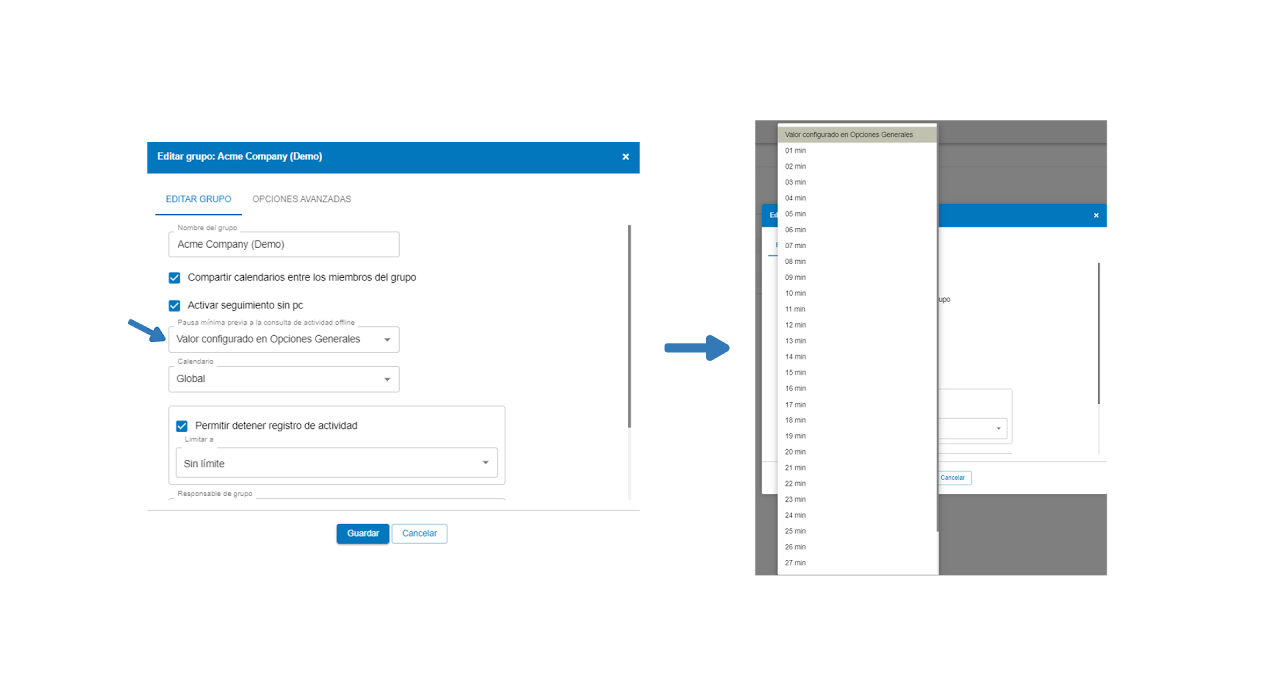
You can customize the "Minimum pause before offline activity query" time. Initially, it can be configured in general options and applied company-wide.
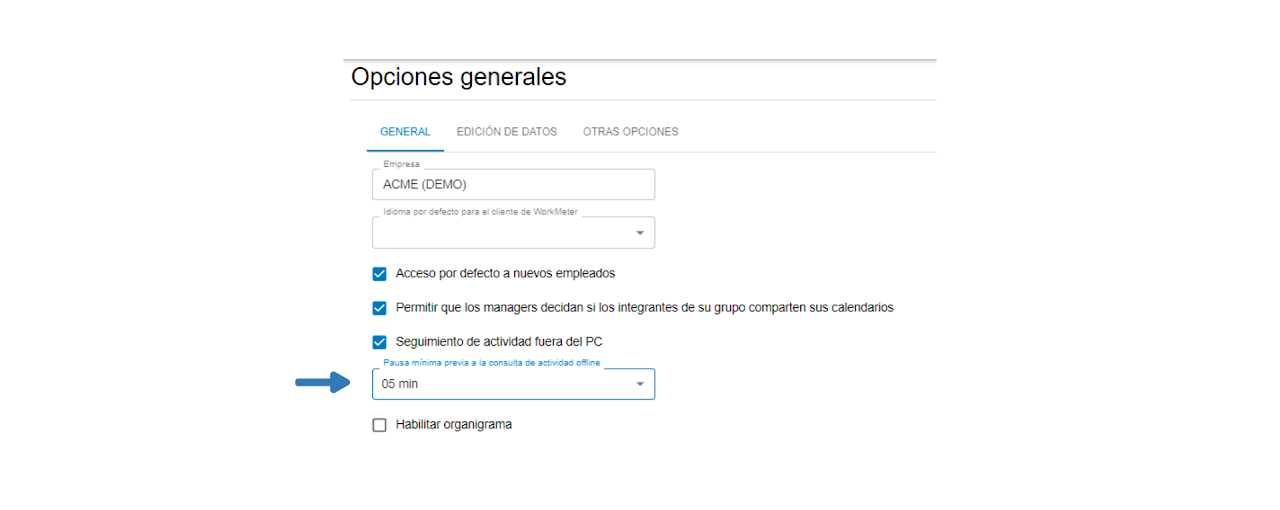
Exceptions can also be applied by groups and subgroups in Settings > Organizational Chart > Groups.
By default, the value taken is the one from general options, but it is possible to modify the minimum pause time before the offline activity query. Subgroups will inherit the rule from the main group unless another rule has been defined for a specific subgroup.