The first step to obtaining metrics is to start collecting data. For this to happen, the product must be installed and running on the employees' devices. Therefore, we need to download "the client" of our tool so that productivity measurement can begin.
Log in with your account from WorkMeter and the client download screen will automatically appear. If it does not appear, please go to Settings > IT > Download installer.

In this panel, you can download the installation client to install our software on the employees' devices. Select the installer type according to the operating system of your devices. This step will only download the client, but will not install the software on any device.
To start the installation on the employees' devices, you can copy the downloaded file and install it on each device (for example, with a USB flash drive); or as a manager, another additional way to install the tool on the employees' devices is for the administrator to log in with their account from the employee's own device and go to the Settings > IT > Download installer panel.

Remember that you can also send the downloaded installer by email. On the same Download installer page, clicking on the icon will open a new window where you can send it by email to any of your contacts. This method only works if you have configured a mail client in your web browser that automatically opens external applications (for example GMail, Outlook, Thunderbird, etc.)
If you have problems installing the tool or lack permissions, try running the installer as administrator. To do this, right-click on the executable (*.exe) and select the option "Run as administrator".
If you prefer us to help you with any of the installation steps, do not hesitate to contact us at support@workmeter.com for guidance.
How to install on Mac OS 🔗
1) The first step is to download the installer corresponding to Mac OS in the Settings > IT > Download installer panel.
2) When running the installer for the first time, it is very likely that the Mac operating system will block the installation for security reasons
3) Once the message window from the previous step is closed, you must go to System Preferences > Security & Privacy and from there, click "Open Anyway" or "Open anyway" in the message referring to our installer.
4) When the installer opens, simply follow the indicated steps

Getting Started 🔗
Once installed on the devices, the software will automatically start collecting information about your projects' activity. Activity data accumulates and is sent to the server. Check your WorkMeter account after a few minutes for the recorded activity.
To access the web interface you have two options:
- Use the following link: https://timework.workmeter.com/ (we recommend bookmarking it in your favorites bar for easier access)

WorkMeter allows you to quickly log in to the platform through your Microsoft or Google account.
- Right-click the icon in your operating system's taskbar and select the option "Access your account"
If you just installed the product, you might not see the icon yet. In a few moments, you will see the WorkMeter icon near your desktop clock. If it does not appear, it might be hidden, and you will need to manually drag it to the notification area:

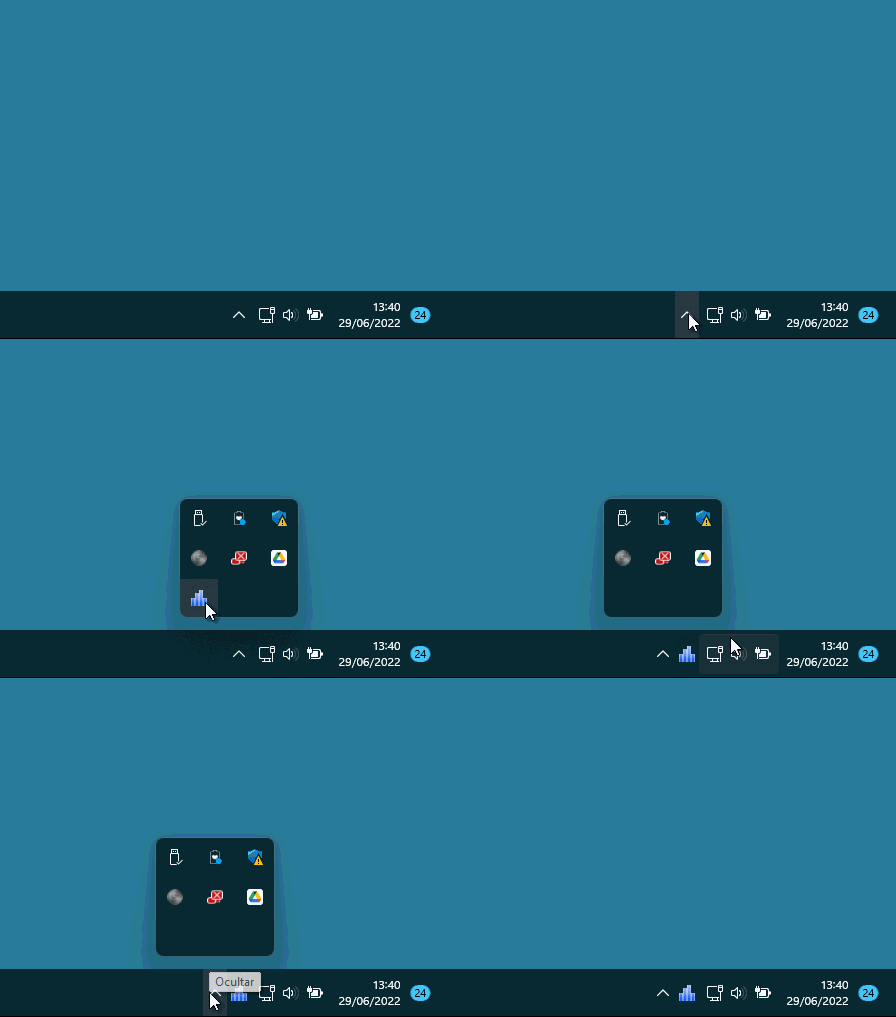
To access the web interface you have two options:
- 1. Use the following link: https://timework.workmeter.com/ (we recommend bookmarking it in your favorites bar for easier access)
The first time you access it you will see the main panel called “Summary”.

The filter at the top right of the screen will allow you to analyze data by date ranges, employee, subgroups, or employee groups.

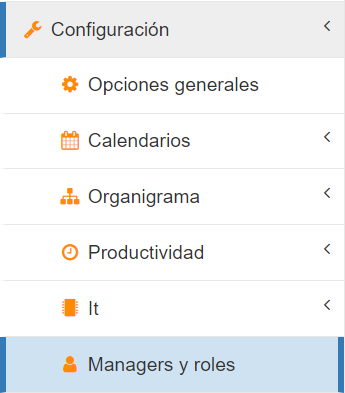
Within the "Settings" options, under "Managers and roles", you can create new administrator users with different permissions to access the platform and determine the options they will or will not have access to. This way, you can create supervisors by groups, who will be able to review the data of their work teams. Click here to learn how to configure different groups and employees .
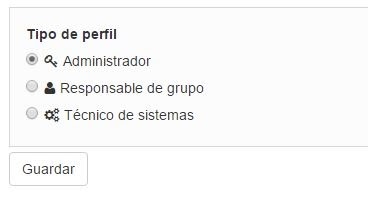
In this same "Managers and roles" section it is also possible to limit configuration permissions to group managers, or select the actions they want to control, among these are: Configure organizational chart, productivity, or projects.
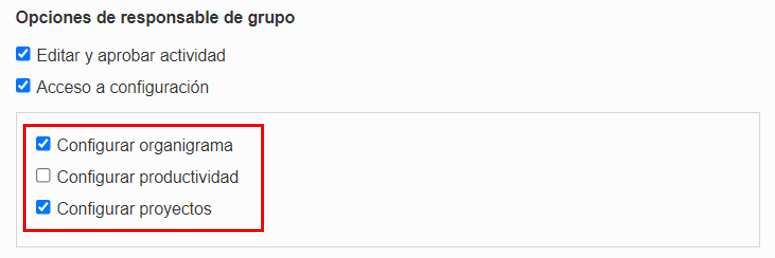
This setting affects notifications, or corresponding requests, such as: Project expense notes and productive application proposals.