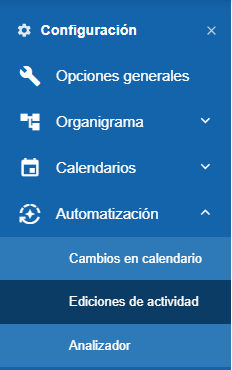
In Settings > Automation you can write in your own words which repetitive tasks you want WorkMeter to do for you. No need to program anything or learn rules: you write a text, WorkMeter shows you how it understood it and, if you agree, you save it.
There are three options:
- Calendar changes: automatically approves calendar requests (vacations, personal matters…) that meet your company’s criteria.
- Activity edits: automatically approves activity edits that add time to a day and meet your criteria.
- Analyzer: sends you a report every day, week, or month with whatever you want to know, for example “employees who start their shift after 10:00 AM.”
Who can use them 🔗
Automations are an account-activated module. If you don’t see the Automation option in the Settings menu, contact WorkMeter to activate it.
Within the account, only users with the administrator role can configure Calendar changes and Activity edits. The Analyzer can also be used by group managers with access to settings, except those who can only view aggregated data: in their menu, Automation only shows the Analyzer, and their reports only include employees from their groups. More details at Analyzer.
Note: after activating the module, log out and log back in to see the option in the menu.
How automatic approvals work 🔗
The options Calendar changes and Activity edits work the same way:
- You write one or more policies: texts that say which requests you want to approve, with their conditions. For example: “Approve vacation requests if they are less than 5 calendar days and not in December.”
- When saving, WorkMeter converts the text into concrete checks. If any part of the text cannot be checked with WorkMeter data, it is not saved and tells you which part it is, so you can write it differently.
- Every few minutes, WorkMeter reviews pending requests against all your policies. If any policy approves it, the request is approved (or marked as "would approve," depending on the mode). If none approve it, it remains pending for its manager, with the reason.
Guarantees:
- Never denies. A request that does not meet any policy is not rejected: it remains pending for its manager, who decides as always.
- A person's decision always prevails. The manager can accept or deny any request, and you can pause the automation at any time.
- The program decides, not the AI. The AI only translates your text into checks when you save the policy. After that, each request is checked against those rules, objectively and equally for everyone.
- Data does not leave the WorkMeter platform.
The two modes 🔗
Each automatic approval has two modes:
- Suggest only: nothing is approved automatically. In Notifications you will see marked the requests that would be approved and those that require manual review, and their manager decides them. This is the mode every account starts with, so you can verify that your policies do what you expect.
- Apply: new requests that meet any policy are approved automatically. The rest remain pending for their manager.
What you will see in Notifications 🔗
With automation activated, the Notifications list shows the Automation Review column, with one of these marks:
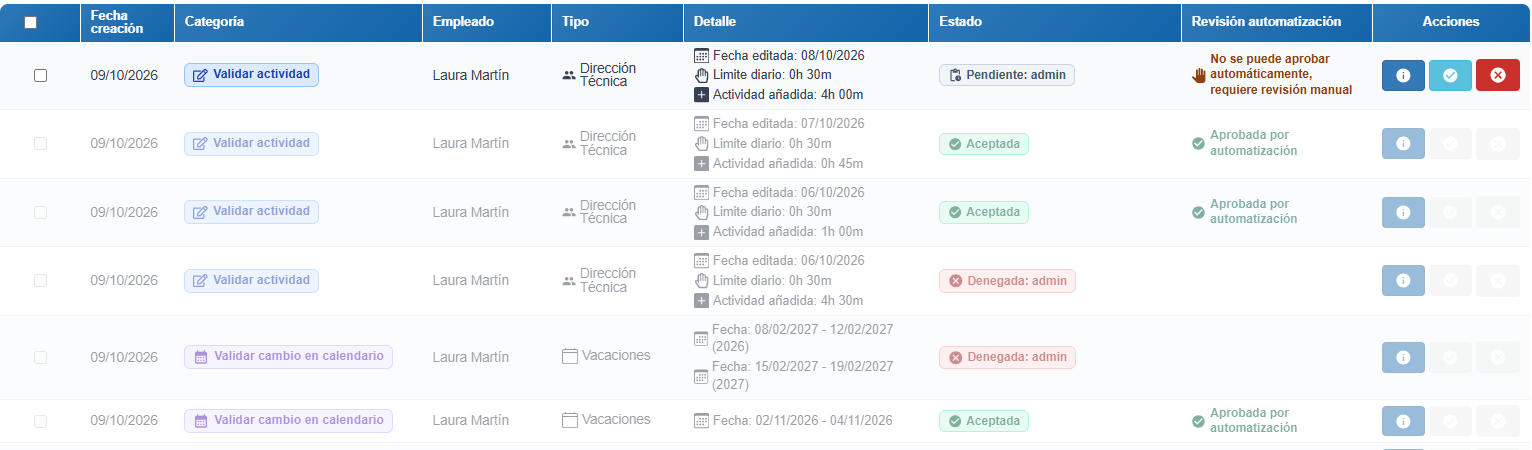
- Approved by automation: the request was approved automatically.
- Would approve: meets a policy, but the account is in Suggest only mode.
- Cannot be approved automatically, requires manual review: it is not approved by any policy. In the detail window, the dropdown View reason explains why.
- Does not yet meet the policy: it will comply later (for example, when it has been pending for more days). WorkMeter reviews it again every night.
- Outside automation: it is a request that is never reviewed automatically (for example, a type of day restricted to Human Resources).
The employee does not see the reason or the review: in their notifications, a request approved automatically appears as "Approved according to company policy".