In Settings > Automation > Calendar Changes you can specify in your own words which employee calendar requests (vacations, personal matters, teleworking…) you want to be automatically approved. WorkMeter reviews each request with all your policies and never denies: those that no policy approves remain pending for their manager.
Before starting, read how Automations work.
Note: for there to be something to approve, employees must be able to request calendar changes with approval. If not, the panel will notify you.
Writing a policy 🔗
A policy is a text that states which requests to approve and under what conditions. Each policy has a title and a text.
- Write a Title that identifies it, for example “Summer Vacation.” It is mandatory, up to 80 characters, and cannot be repeated.
- In Approval Policy, write what you want to approve. Start with “Approve requests if…” and put each condition in a sentence.
- Click Validate and save (or Save and activate, if automatic approval is still off). WorkMeter analyzes the text; this may take up to a minute.
- If everything is correct, you will see Request accepted and the policy will be marked as Saved on (date). If not, WorkMeter will tell you why it did not save it: missing data, a part of the text it could not interpret, or a “do not approve” phrase.
Examples of policies:
- Approve vacation requests if they are less than 5 calendar days and not in December.
- Approve vacations of less than 3 calendar days and also single days of personal matters.
- I want to approve all vacation requests that have been pending for more than a week. I also want to approve vacation requests in July and August of less than 15 calendar days, provided the employee has not used 50% of their vacation days.
In the panel, the See examples button lets you copy these texts and adapt them.
Only state what to approve 🔗
A policy only states which requests to approve. What you want to exclude is written as a condition of what is approved:
- Correct: "Approve vacations of less than 5 days if they are not in December."
- Not saved: "Approve vacations of less than 5 days. Do not approve anything in December."
If the text contains phrases like "do not approve" or "deny," the policy is not saved and WorkMeter shows you the phrases that need to be changed. There is no need to write what is not approved: everything that no policy approves remains pending for its manager.
Data a policy can use 🔗
The Available Data dropdown in the panel shows all the data a policy can use. For example:
- From the request: type of day requested, first and last day, calendar or working days, if it is half a day, months and days of the week covered, days in advance, days pending, if there is a justification.
- From the employee: group, seniority, if assigned a collective agreement, other pending requests.
- From the day balance (agreement): days given by the agreement, days consumed, days remaining, percentage consumed, if the request fits in the balance.
- From the team: number of employees in the group, colleagues absent on those days, percentage of the team that would be absent.
If your text needs data not on the list, when saving WorkMeter tells you which is missing and the policy is not saved.
Multiple policies 🔗
You can have up to 10 policies. A request is approved if any of them approve it; if none approve it, it remains for manual review.
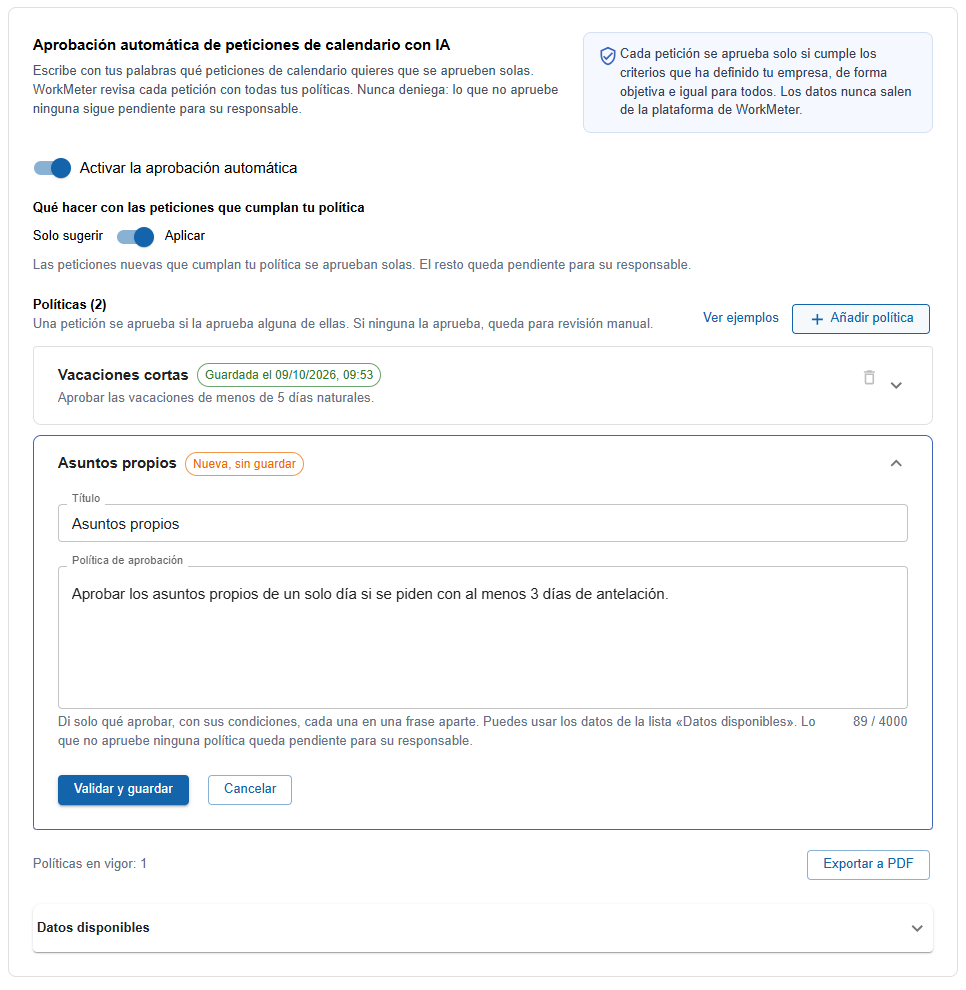
- Add policy: the button on the right opens a new policy and collapses the one that was open. Whatever you wrote in it without saving is preserved.
- Each collapsed policy shows its title and status: New, unsaved, Unsaved changes or Saved on (date).
- Delete the policy: the trash icon. WorkMeter asks for confirmation. New requests will no longer be reviewed with it; those already reviewed keep their reason. There must be at least one policy remaining.
- Changing only the title is saved immediately, without reanalyzing the text.
Policies are reviewed in the order of the list. The first one that approves a request is the one shown in the reason.
Activate, pause, and choose the mode 🔗
- Activate automatic approval: the switch on the panel. To activate it, at least one saved policy is required.
- Pause: turns off the switch. Policies are preserved.
- Mode: choose Suggest only or Apply. Every account starts in Suggest only, so you can check in Notifications that your policies do what you expect before anything is approved.
When saving a new policy, if there are already reviewed and not approved notifications, WorkMeter asks if you want to apply the new policy to them as well.
What is not reviewed 🔗
These requests are never automatically approved and are always decided by their manager:
- Those for day types restricted to Human Resources (for example, medical leaves).
- Cancellations of an already approved change.
- Requests whose first day has already passed.
- Day fractions that are not half a day.
- Requests from employees who are not active.
The content of supporting documents is never read either: only whether the request includes one or not.
The reason for each decision 🔗
Each reviewed request has a reason, which the manager sees in Notifications:
- If it is approved (or would be approved), the reason explains why it complies with the policy. If you have several, start with the title of the one that approves it.
- If none approve it, the reason states what is missing to comply with each policy. In the notification detail window, click View reason to read it.
The employee does not see the reason: if their request is approved automatically, they see it as “Approved according to company policy”.
Export to PDF 🔗
The Export to PDF button generates a document with the account settings: if automatic approval is enabled, the mode, all current policies (each with its title, date, and literal text), the data that can be used, and the guarantees. It is useful for informing the staff or the workers' representation.