With our software, you can create agreements and add the types of days for which it is necessary to control the balances. The configuration of the agreements is done per year, so the pending days from previous years are not recorded in the agreement; they must be added and modified for each employee or group.
Below you will find a video that will guide you through its creation.
Create agreements 🔗
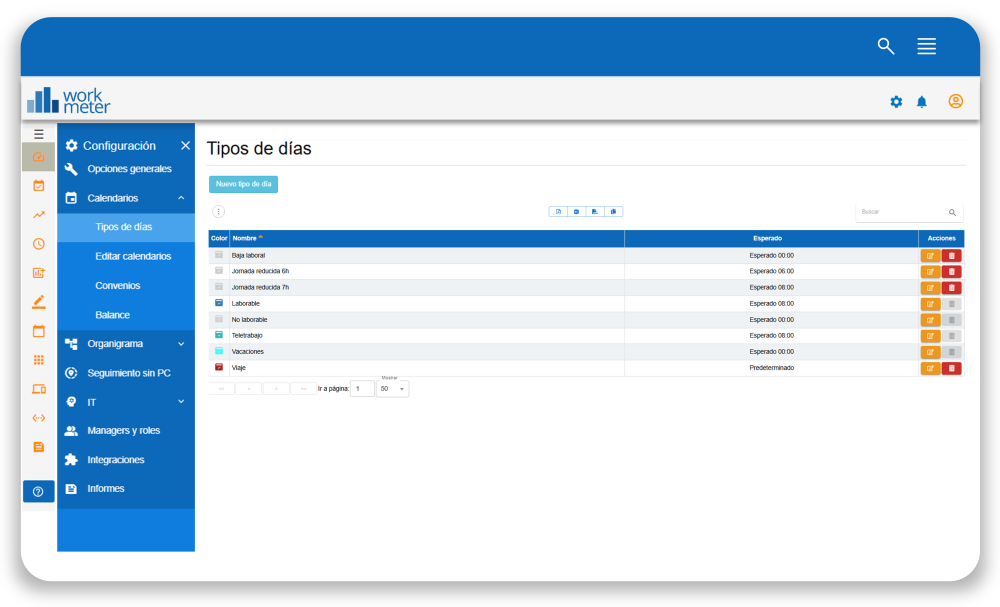
To configure this functionality, you must create or select the types of days in Settings > Calendars > Types of days and enable the option “Day type suitable for balances in agreements. (Day balance)”.
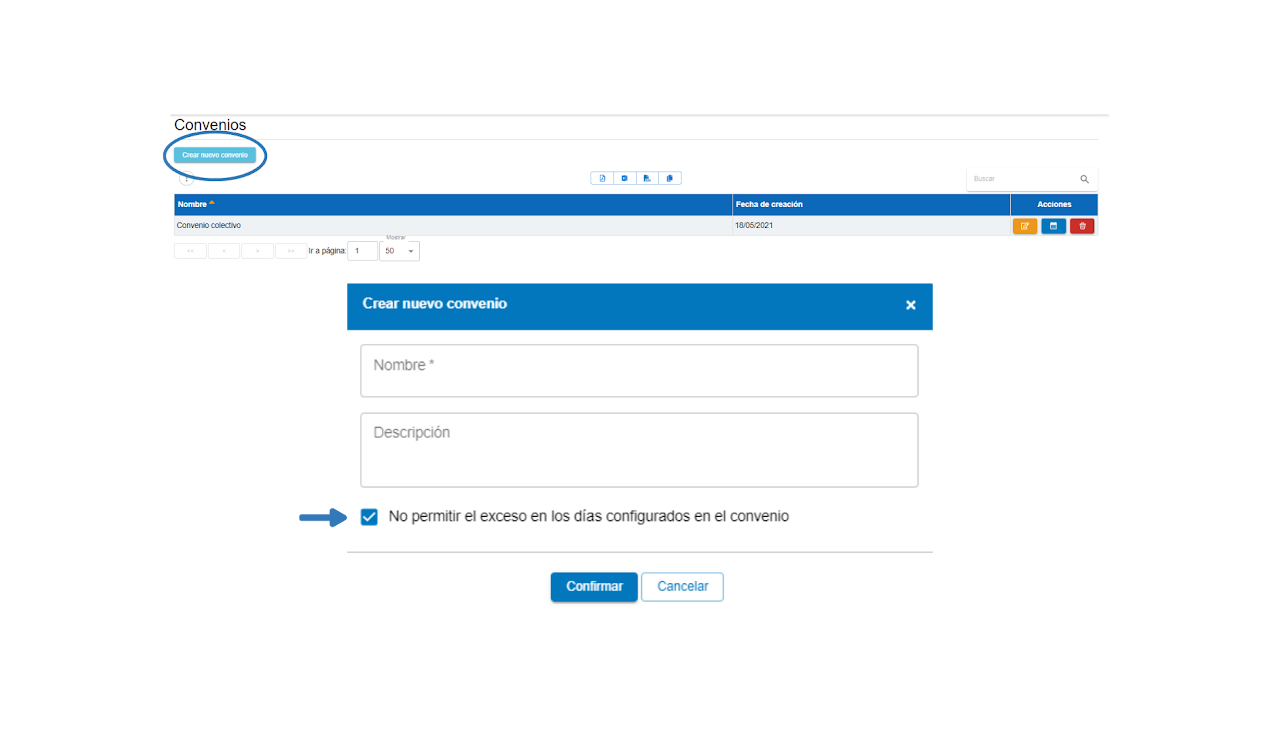
Once the types of days are configured, go to Settings > Calendars > Agreements to create a new agreement.
By default, the option “Do not allow excess in the days configured in the agreement” is checked.
This option allows controlling requests for extra days in the calendar.
For example; if an employee who has 22 working vacation days by agreement tries to request more than this number of days, an error pop-up will appear.
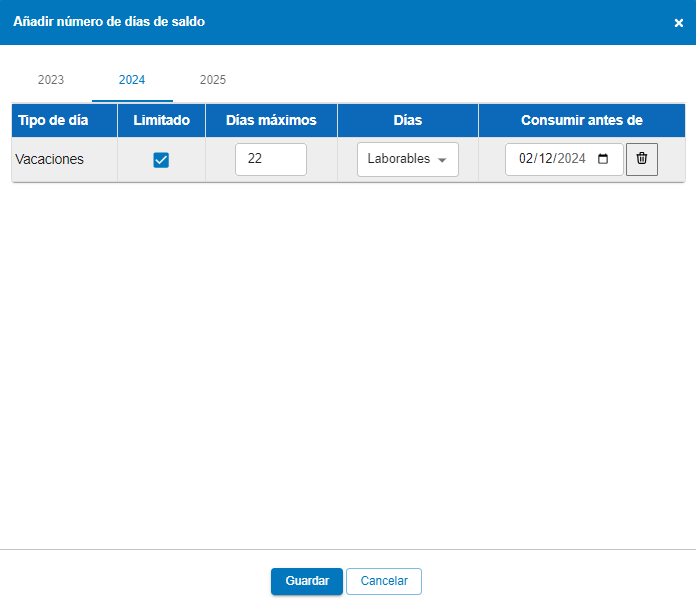
You can now set a limit , adapt the types of days for your organization's agreements, or set the end date to use them.
The types of days may not be the same for each agreement. That is why we facilitate their management and administration by adding the possibility to limit and mark the corresponding maximum days.
Remember that to modify the days you must click the button:

Half days 🔗

Employees can request half days of vacation or other agreement days. Therefore, half days will be reflected in the agreement limits.
The employee will also see this change in their day balance on the summary panel.
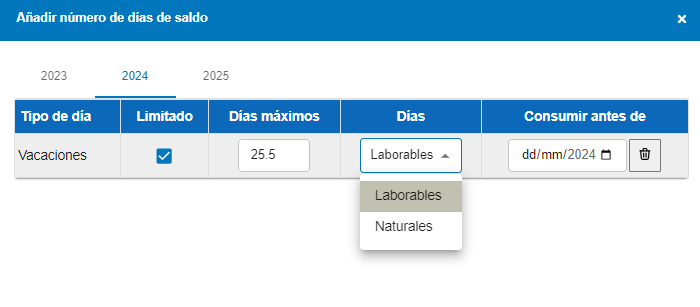
Note: It is necessary to remember to use a decimal point when entering it in the agreement.
Natural or working days 🔗
You can also set the number of agreement days based on calendar days or working days.
Types of days expiring the following year 🔗

There are employees who often still have vacation days from the previous year. You can set deadlines to apply those types of days in "Consume before".
Note: We recommend limiting this deadline within the first quarter of the year.
Assign agreements to groups or employees 🔗
You can also assign agreements to groups and employees. Follow our illustrative video shown below.
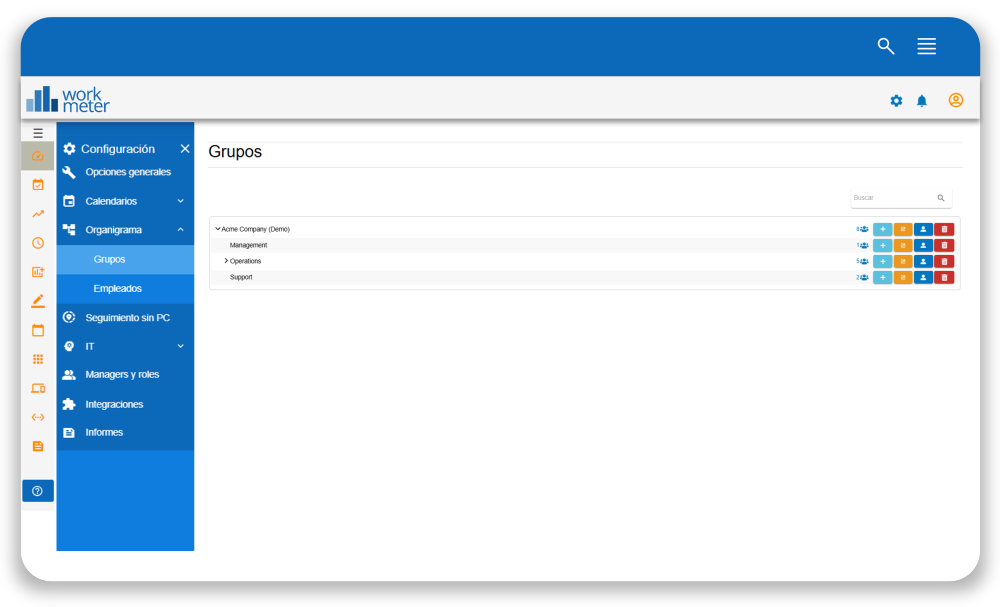
To assign an agreement to a group or employee, you must go to Settings > Organizational Chart > Groups or Employees according to your configuration preference.
In the "Groups" panel, you must click on the edit icon of the selected group and select the created agreement from the "agreements" dropdown.
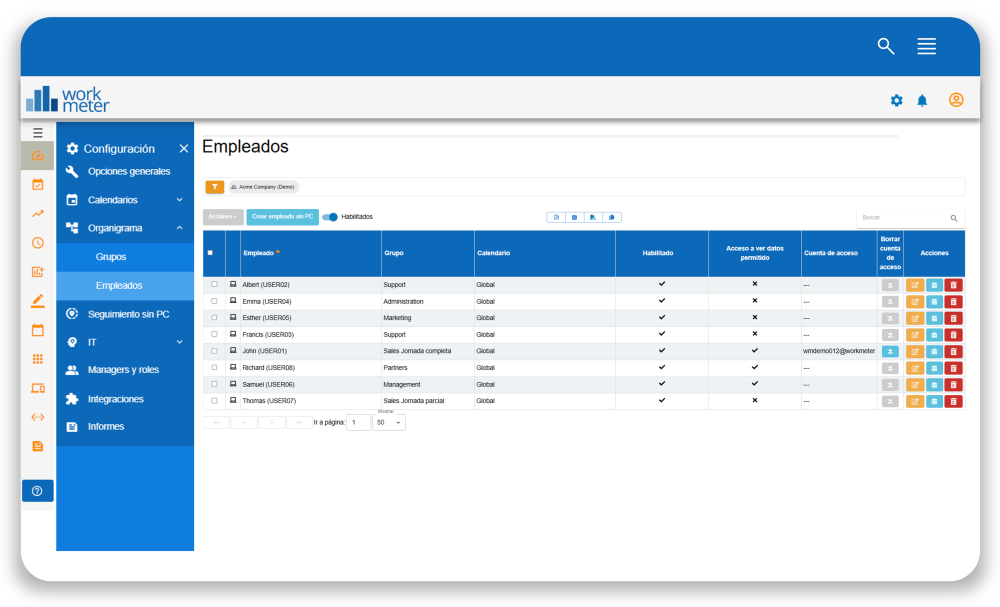
In the "Employees" panel, you must click on the column with the calendar icon and select the created agreement.