All profiles can view the calendar: the employee can see THEIR calendar, Administrators and group managers can filter a user and view their calendar.
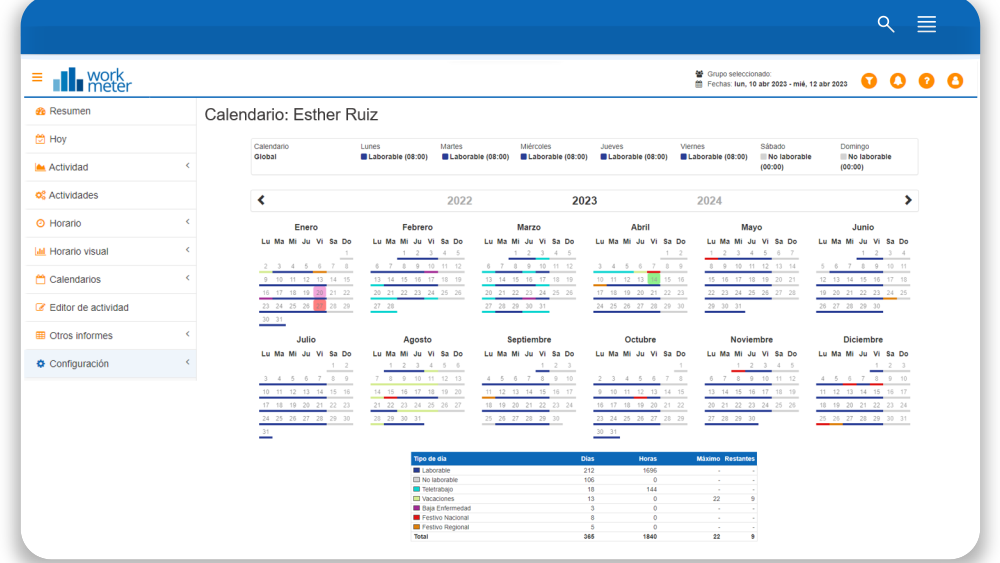
How do we view the days? 🔗
When filtering by employee within the Calendar section, the types of days used are shown by colors according to the summary at the bottom of the screen. This will make them easier to identify.
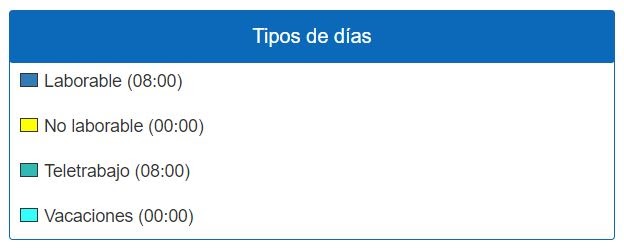
Bottom part: a line that indicates the type of day
What does the background color of each day indicate? If there is no background, it means it is a normal day, for example, a holiday without expected activity or a working day where we have reported activity close to the expected.
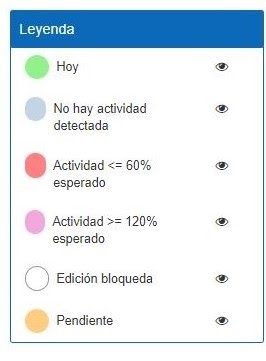
- Today
- Day with no detected activity (these are the ones we can edit to add activity)
- Activity below expected (below 60% of expected)
- Blocked edition: because we have date blocking enabled, because there is an edition pending processing or approval...
- Day pending approval: we have requested a change of day type and it has not yet been approved
Employee Guide: 🔗
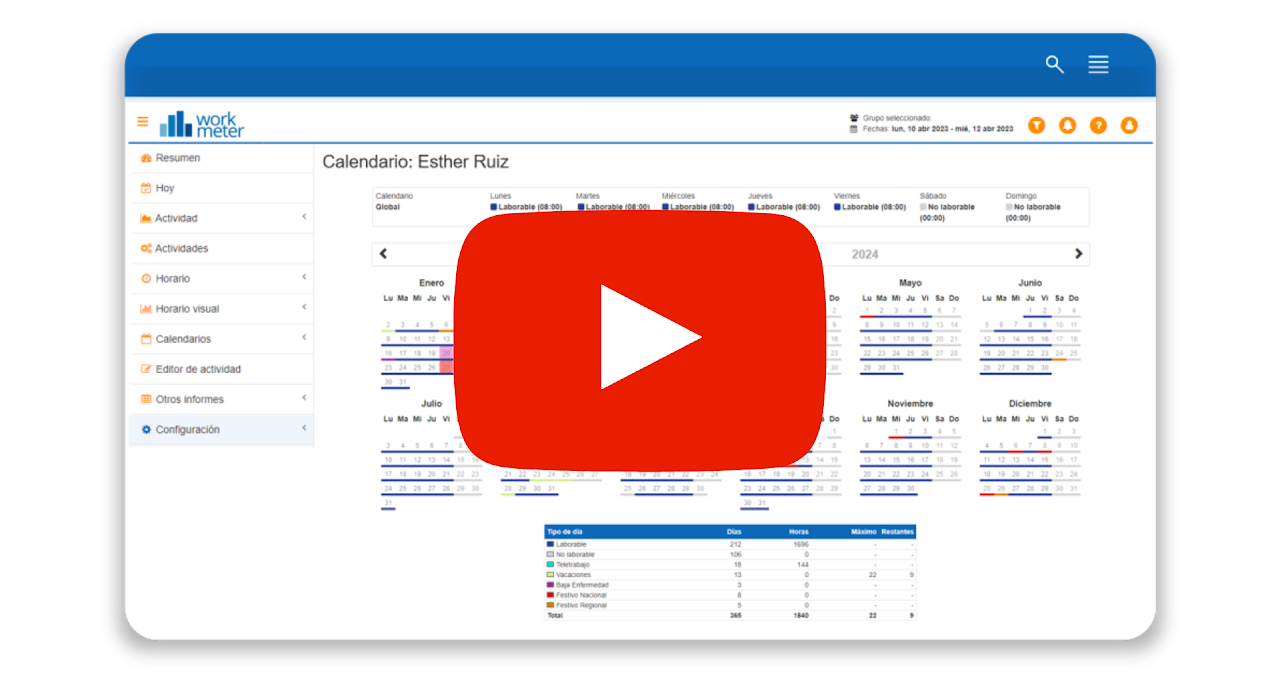
Employee Options: 🔗
- If the general configuration option allows calendar editing without approval: The employee will be able to change their calendar day types to mark holidays, vacations, telework, etc.
Can be modified:
A specific day
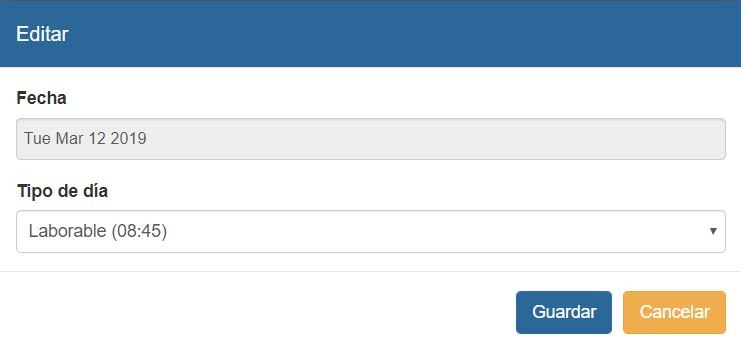
Half day
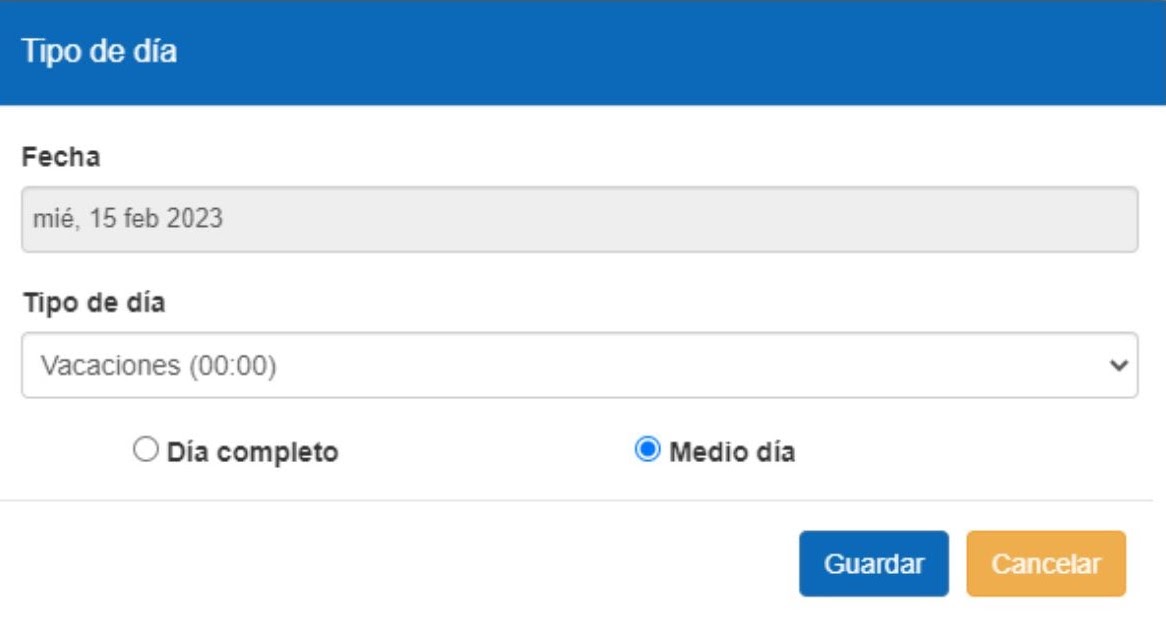
A date range
To select a range, just click and drag. Editing a range does not allow applying the change for all years, only for the current year.

- If the general configuration option allows calendar editing with approval: The days will be marked as pending, waiting for the manager to validate the change. Until then, they will have the type of day prior to the change.
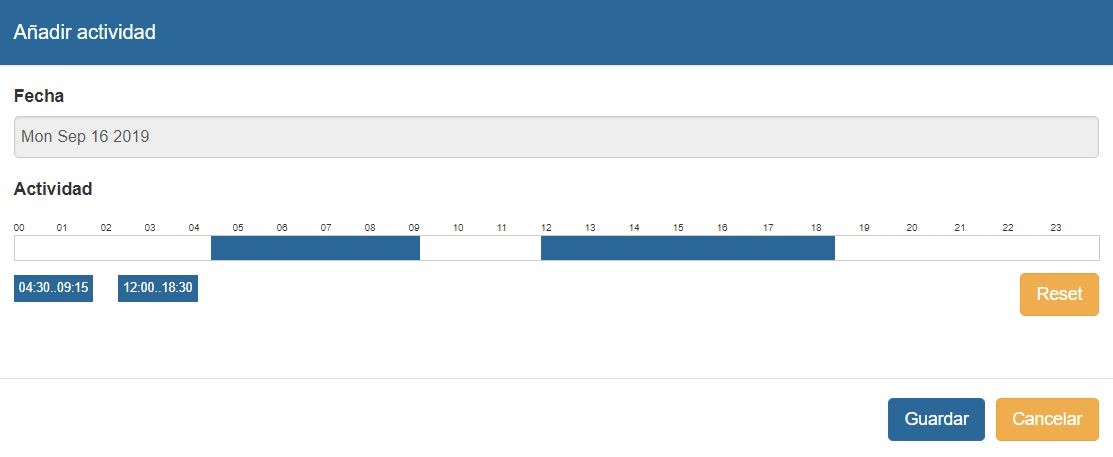
- If the general configuration option allows activity editing: If activity editing is allowed, you can add activity from the calendar on days when there is no activity (ONLY DAYS WITHOUT ACTIVITY)
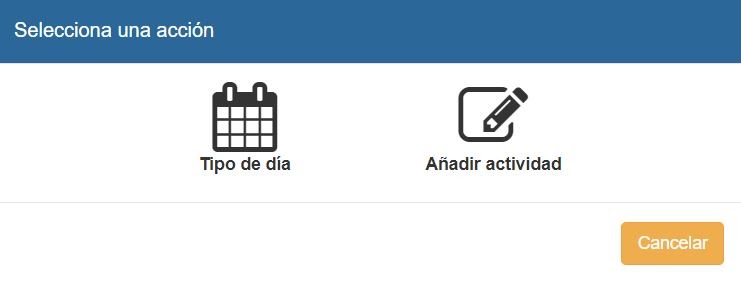
To add activity, just drag the mouse.
Group manager options: 🔗
Group managers will always be able to edit an employee's day types.
- If calendar editing by the employee is subject to authorization, managers will see employees' pending requests on the right side of the screen (they will also receive notifications about this)
- If the general configuration option allows activity editing, group managers will also be able to add activity on the employee's empty days
Filter data based on the day 🔗
In all panels that display data based on an expected value, we have added a filter. These panels are:
- Time map
- Productivity by day, employee, and group
- Summary schedule by employee and by group
- Detailed schedule
- Overtime reports and Work reconciliation
You can now filter data by day type. More than one day type can be selected at the same time. Once you have selected the day types you want to include in the filter, press the
Apply Changes button. If the day type we filter is not included within the selected date range, the data table will appear empty. Otherwise,
there is always an expected value and it appears, at minimum, as expected.


Important notes:
- If there are employees with expected activity days, they affect the data even if they do not report.
This means that if an employee does not report activity but remains active, they
will be included in the calculation of averages and the % of activity over expected. Therefore, it is important to keep the employee list updated
(configuration_Organigrama_Empleados).
When you disable a user, by default, the termination date is today's date. You can modify this date to an earlier date by following these steps:
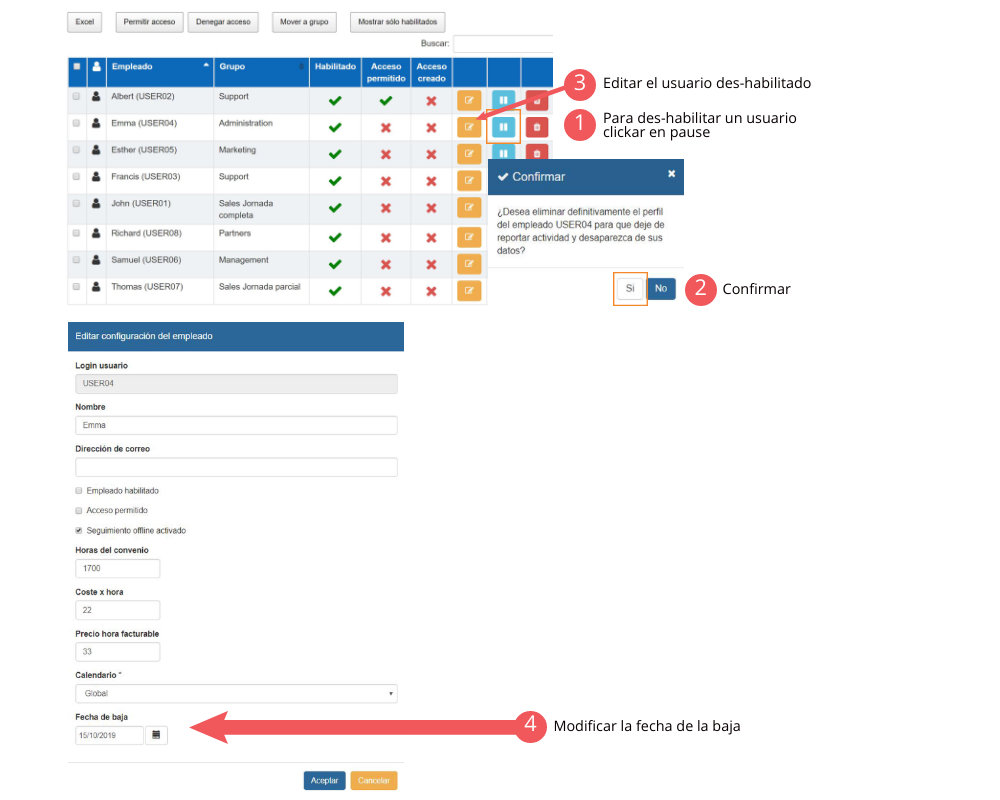
- If there are days without expected activity (for example, weekends) and some employees report activity, this activity will be shown in the total activity hours but will not be considered in the calculation of averages.
Group Calendar 🔗
Within the "Calendar" section, it is possible to view the employees' calendar by clicking on the "Group comparative view" box.
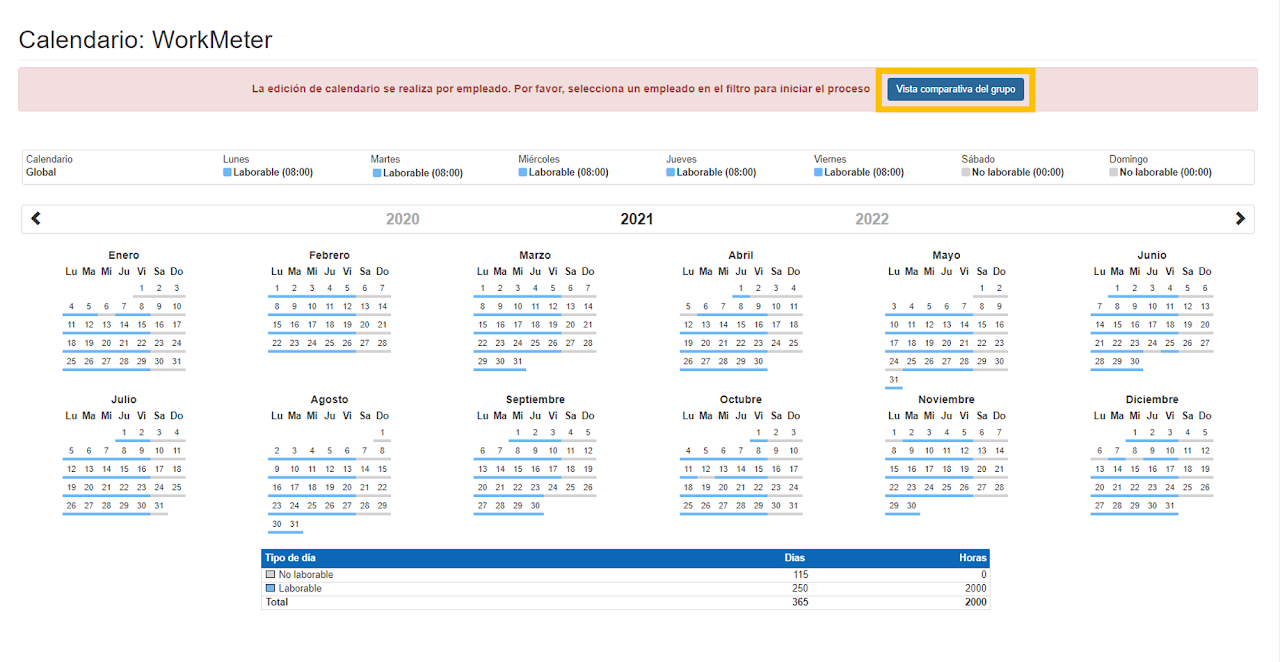
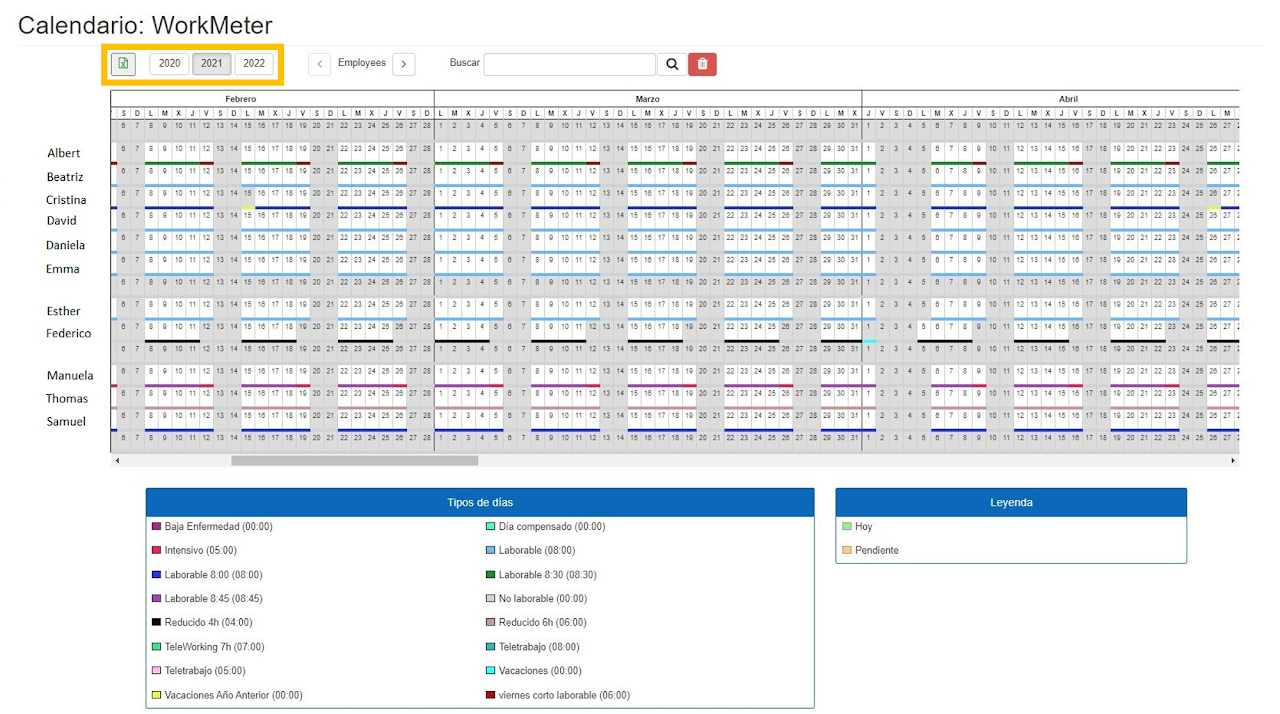
Once in the Group Calendar, you can view the types of days for each employee, as indicated in the legend box at the bottom of the screen, also selecting the year you are most interested in viewing.
Export the Calendar 🔗
You can export it to an Excel document with just one click. This way, you have a more complete and accurate view of the total days assigned to each employee: absences, vacations, intensive shifts, reduced hours, etc.
