In Settings > Automation > Activity Edits you can specify in your own words which employee activity edits you want to be automatically approved: for example, meeting time or PC-free work time added to a day. WorkMeter reviews each request against all your policies and never denies: anything not approved by any policy remains pending for its manager.
Before starting, read how Automations work. Policies are written, saved, and managed the same way as in Calendar Changes.
Note: this option can only be activated if the account has activity editing enabled (Activity Editor enabled by default, in Settings > General Options > Data Editing). Otherwise, the panel will notify you.
Which edits are reviewed 🔗
Only edits that add activity to a day are reviewed:
- Those that exceed the maximum time the account allows to add without validation.
- Those that make the day reach the employee’s expected working hours.
They are never automatically approved and are always decided by their manager:
- Filling or deleting an entire day.
- Edits from employees who are not active.
- Those that combine several different activities in the same request (for example, one hour of Meeting and two hours of Travel). These are multiple edits in one, and each could correspond to a different policy. They remain pending with the reason “The request combines several different activity edits, which may correspond to different policies. Manual review required.”
Multiple segments of the same activity are reviewed normally, summing their time.
Writing a policy 🔗
- Write a Title that identifies it, for example “Short meetings”.
- In Approval Policy, write which edits you want to approve. Start with "Approve edits if…" and put each condition in a sentence.
- Click Validate and save (or Save and activate, if automatic approval is still off).
- If everything is fine, you will see Request accepted. If not, WorkMeter will tell you why it didn’t save it.
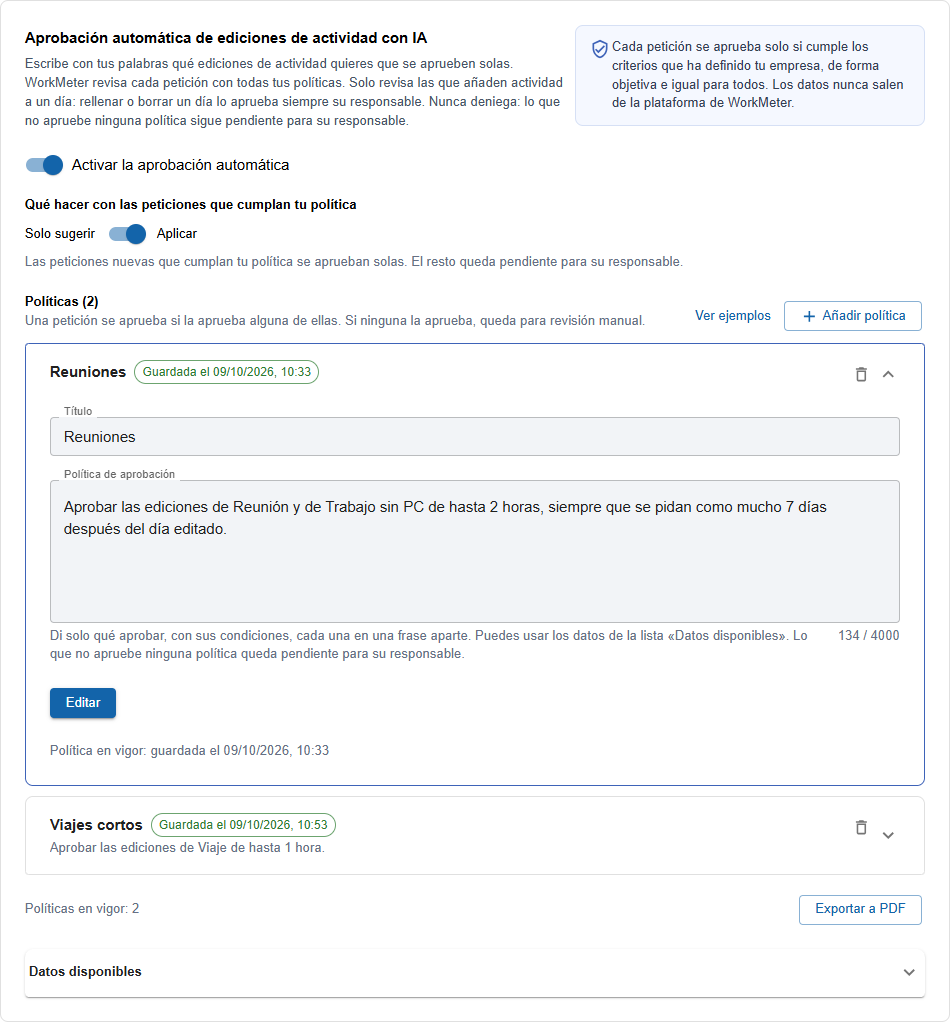
You can name the manual activities in your account (Meeting, Work without PC, Travel…) just as they appear in WorkMeter.
Examples of policies:
- Approve Meeting and Work without PC edits of up to 2 hours, as long as they are requested no more than 7 days after the edited day.
- Approve edits that do not make the day exceed 9 hours of activity.
- Approve edits of up to 4 hours that have a supporting document, if the employee has more than 6 months of seniority.
- Approve Work without PC edits requested the same day or the next day, unless the employee has other pending edits.
As in the calendar, a policy only says what to approve: what you want to exclude is written as a condition ("unless…", "if not…"). A text with "do not approve" phrases will not be saved.
Data a policy can use 🔗
The Available data dropdown in the panel shows the full list:
- From the edit: edited day and its day of the week, days between the edited day and the request, minutes added, manual activity, whether it has a comment and whether it has a supporting document.
- From the edited day: minutes the employee had to work that day, minutes already recorded, and minutes the day will have if approved.
- From the request: request date and days it has been pending.
- From the employee: group, seniority, and other pending edits.
The employee comments text or the content of the justifications is never read: only whether there is one or not.
What does approve mean 🔗
Approving an edit automatically does exactly the same as when your manager accepts it: the activity is added to the day and WorkMeter recalculates the data shortly after.
You can have up to 10 policies, activate or pause automatic approval, choose the mode (Suggest Only or Apply) and Export to PDF the configuration, just like in Cambios en calendario.