From our solutions, it is possible to configure permissions for Managers and employees. To help you better understand how to do this, below you will find an explanatory video.
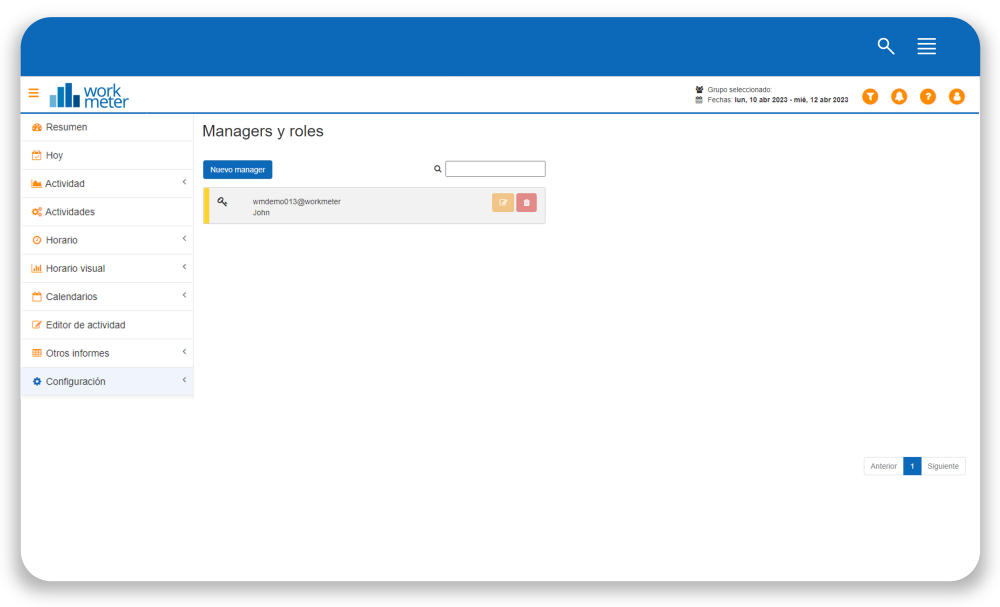
By clicking the "New administrator" button, a panel will appear where you can create a new profile or modify an existing one.
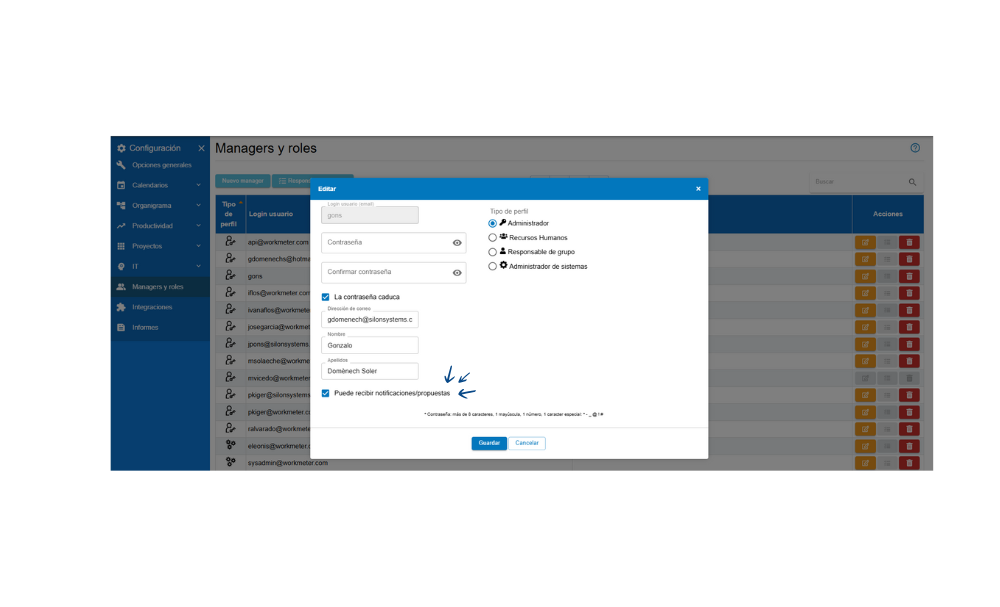
There are two ways to create manager access:
1. With username and password (standard method) 🔗
- Enter the manager's email address.
- A password and its confirmation are set.
- This will be the direct access method via login with username and password.
Also, in this same tab, you can disable the option "Can receive notifications/proposals."
Note: To set the maximum password expiration time for access accounts, go to Settings > General options
Note 2: If the person for whom the Manager profile is being created already has an employee profile, it will not be necessary to manually define a password. The system will complete it automatically, even if the profile is created with the normal option.
2. With external access (SSO) 🔗
- The External Access (SSO) option is activated.
- In this case, it is not necessary to create or remember a password. Access will be done directly through the identity provider (Google, Microsoft, etc.).
- When a Manager account is created using this method, the account will remain in a pending state until the user logs in for the first time with their SSO.
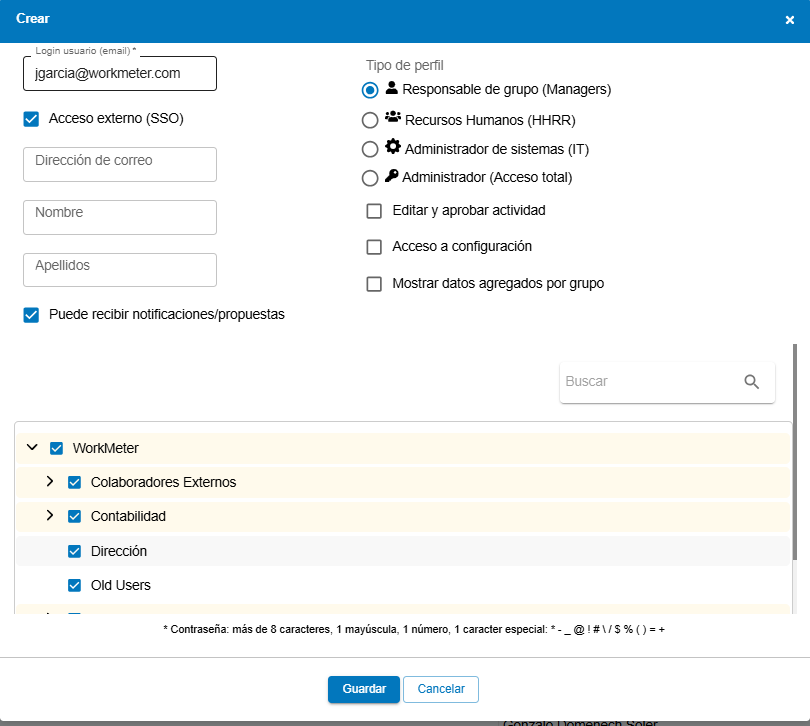
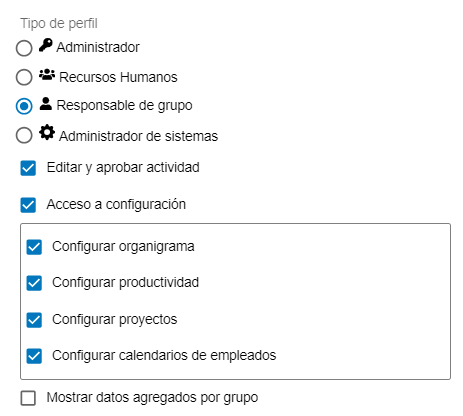
Next, select the profile type. There are 4 profile types in WorkMeter solutions:
- Human Resources Profile: It is designed to facilitate the operational management of people without needing access to all system settings. This profile has limited permissions compared to the administrator or group manager, and its access focuses on specific tasks related to team management and regulatory compliance.
The Human Resources profile can:
- Access calendar settings to manage vacations, absences, holidays, and day types.
- Access and modify the company’s organizational chart.
- View reports related to work hours, clock-ins, incidents, and absences.
- Consult and manage vacation requests, leaves, and telework days, according to enabled permissions.
Note: It does not have access to the General Options section or advanced settings associated with the Productivity or Projects modules.
- Group Manager: Can view data of the groups assigned to them. This profile also has several configuration options.
The group manager can:
- Edit and approve their team’s activity
- Have access to the configuration of certain dashboards depending on the WorkMeter solution acquired, they will be able to:
- Set up calendars for employees : If you want to centralize all calendar management in the HR department and have them be the only ones responsible for approving and modifying day types, you must deselect this option, and calendar editing will be limited to the group managers of other departments.
The " Group Manager profile can have all the exposed configuration options that come enabled by default or permissions can be limited by deselecting the options .
- The Systems Technician profile: Can access to download the installer but cannot see employee data.
Once the previous fields are completed, according to the selected preferences, we save the profile. And we would consider the process of creating a group manager profile within the WorkMeter solutions finished.