With our software, you can create different types of days according to your company's policies, as well as add them to employee or group agreements. Below, you will find a video that will guide you through its creation.
To configure your company's calendars, you must follow these steps:
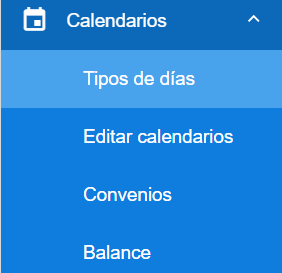
Settings > Calendars > Types of Days 🔗
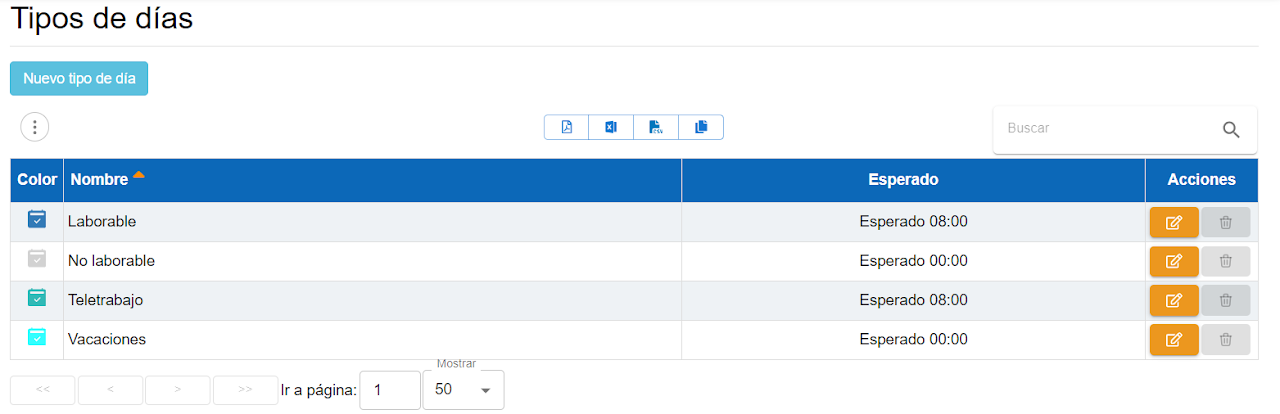
This screen manages the types of days in the calendars. Each type of day has a name and an expected activity.
By default, we provide 4 types:
- Working day: expected = 8 hours
- Holiday: expected = 0 hours
- Telework: expected = 8 hours
- Vacation: expected = 0 hours
They can be edited to change the color or the expected time but cannot be deleted.
You can create as many types of days as you need and assign them a color to locate them more easily on the calendar.
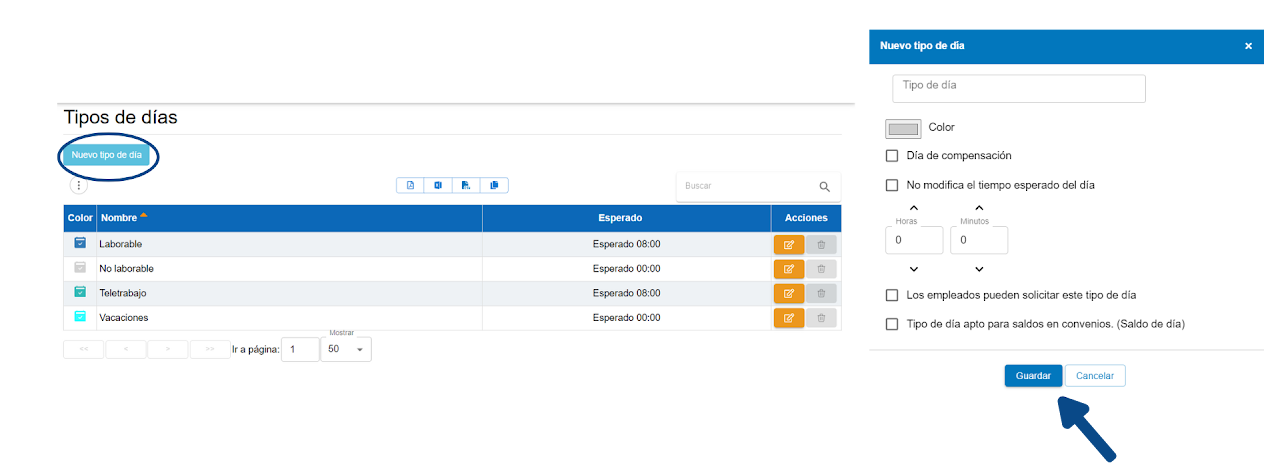
If we modify a day type, we are given the option to "apply changes to dates prior to today," which implies changing the history. If the checkbox is marked, the change is retroactive.

The employee can change day types without validation, as long as this option has been enabled in the general options. Find all the details in edit calendars.

You can also create day types that only affect half of the workday by selecting "Allow half-day selection". The administrator can select the day types to which the half-day selection applies.
Note: The expected daily activity is automatically adjusted.
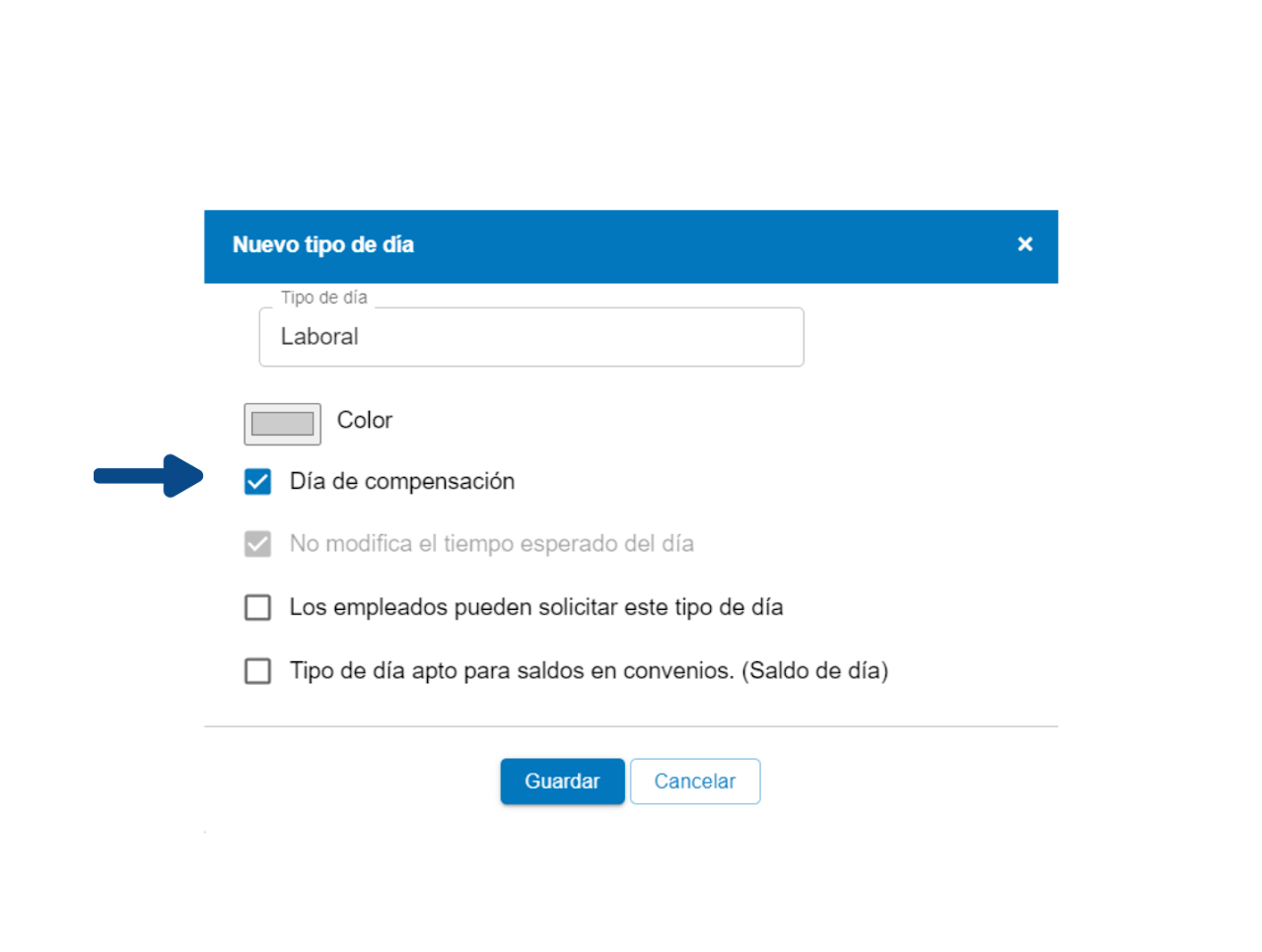
Compensated day types
If you mark a compensated day type, that day will not change the expected hours to compensate for that overtime.
Even if there is no activity on a day, it will not be marked as an incident, nor will it appear to the employee as disconnected on today's panel, since it is understood that no work is required that day.