The mentioned WorkMeter solutions are capable of recording offline activities or modifying those already created.
To mark activities without PC in Time@Work you must go to Settings > Tracking without PC.
In the EffiWork solution, this panel is located within "Productivity" and the path is Settings > Productivity > Tracking without PC.
Add activity without PC 🔗
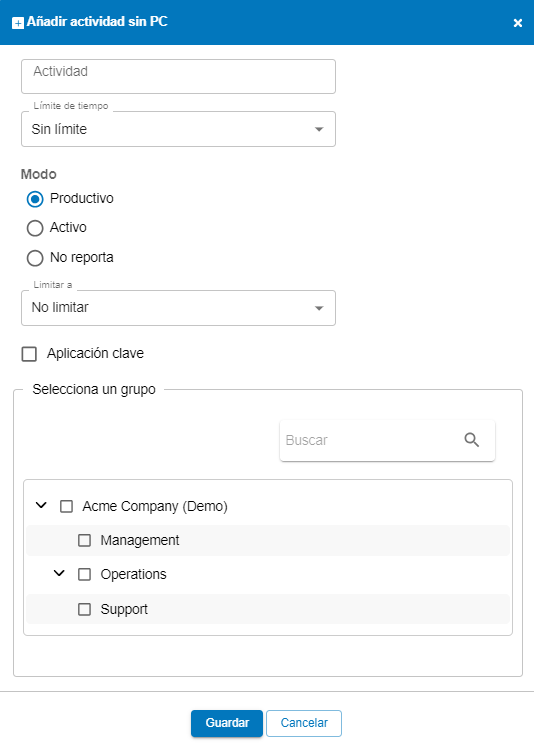
To add a new activity without PC, you must complete the following fields:
- Activity: title of the activity that will be shown to the employee
- Group: group to which this activity will be associated. Only employees in the assigned group will see this option. Just click on the link and select the desired groups and/or subgroups.
- Time limit: estimated time to be dedicated to each activity. Activities with a time limit will show the time spent and the estimated time to the employee
Mode: If you have the EffiWork solution, or the productivity module.
- Productive: the activity will be counted as active and productive.
- Do not report: in this case, the tool will discard the information, leaving a pause in the schedule graph.
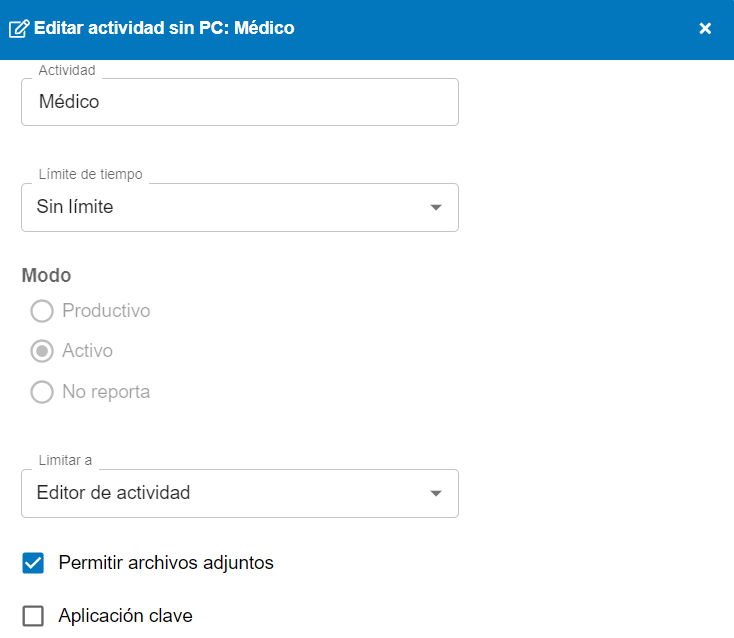
Attach files when Editing Activity 🔗
When editing the activity of a day, your employees will now be able to include attached files to facilitate the validation of the proposal.
To enable this option and allow employees to attach files, it must be marked in the configuration of the desired offline activity.
Note: Files can only be attached to offline activities that are limited to appearing in the activity editor.
- Individual edit requirement: If you want to edit the activity of several days and wish to attach a file to any of them, you must edit that day individually. First save the changes on the day with the attached file, then proceed to edit the other days. It is not possible to attach files when editing multiple days at the same time.
- Notifications for the manager: Each time an employee attaches a file in the activity editor, a notification will be sent to the manager. This will allow them to review the justification provided along with the edited activity.
- Available only for employees: Only employees will be able to attach files in the editing of activities that allow it. This option is not available for other roles.
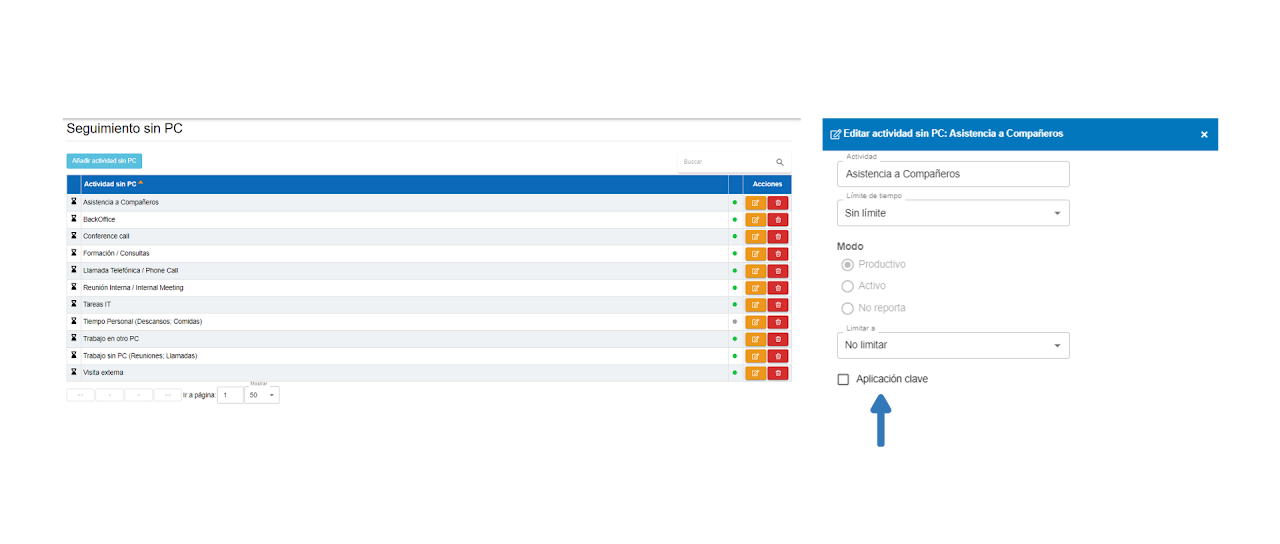
Edit activity without PC: Key application 🔗
To edit the application settings by clicking on the pencil-shaped icon.

A box will then appear where you can edit the application settings. We will check the box Key application.
If we want to undo this action, we simply have to uncheck the box.
To facilitate tracking and organizing activities without a PC, there is a PC-free activity report by groups. This report breaks down all offline activities that have been created and the groups to which they have been assigned