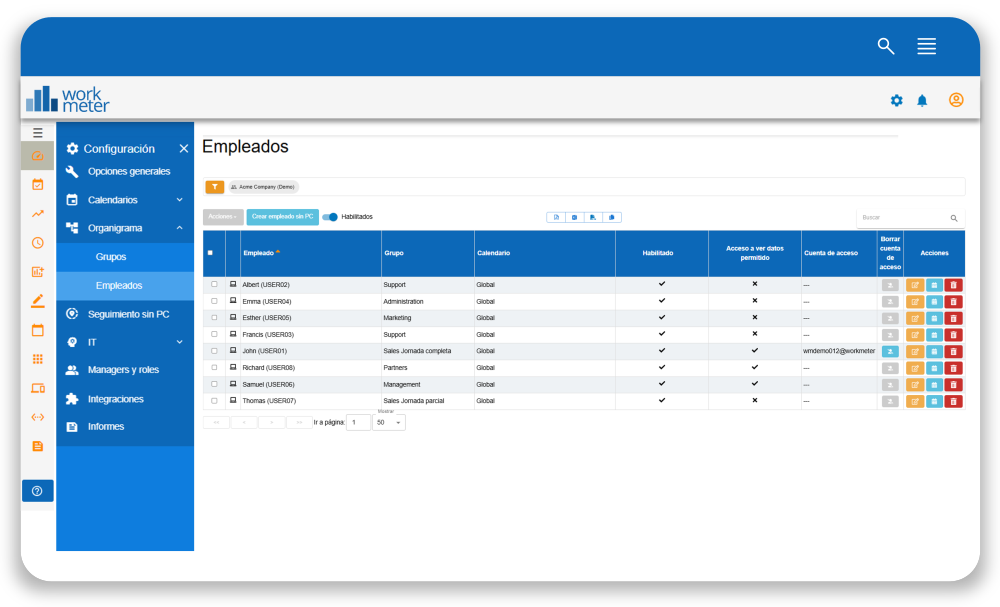
You can edit the employees to fill out the following form
- Username : username reported by the client. Corresponds to the operating system username used by the employee.
- Email Address : fill in the employee's Email
- Phone: allows you to enter the employee's phone number to create a link that enables calling the user
- Videoconference-Application: you can select the corporate videoconference application
- Videoconference-ID: to enter the employee's ID
- Position: you can select the position of the new employee
Note: these 3 options (Phone, Videoconference-Application, and Videoconference-ID) are not yet operational in this version but soon, through our tool, you will be able to call employees or open Videoconferences. However, you can fill in this data now to be able to use these new features as soon as they are operational. We will keep you informed.
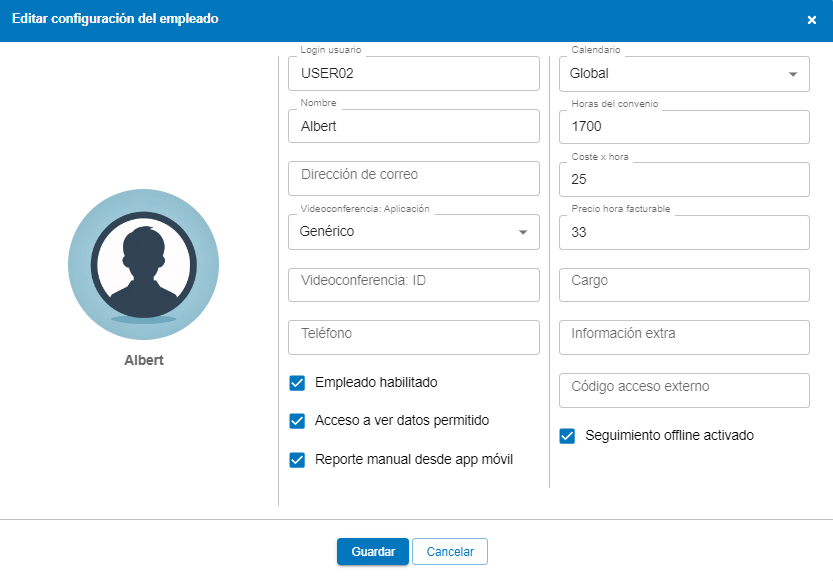
- Employee enabled: This option shows that the employee is reporting data.
- Access allowed : this option allows employees to access the software portal to consult their data.
- Offline tracking enabled : this option indicates that the employee can report offline activity through a pop-up window.
- Manual report from mobile app: This option allows the employee to report their activity through a mobile app.
- Contract hours : the annual hours specified in the organization's contract can be entered.
- Cost per Hour : this field only applies to clients who also have the WorkProject project measurement module.
- Billable hour rate: this field only applies to clients who also have the WorkProject project measurement module.
- Calendar: Our tool allows you to create different calendars and assign each employee the calendar that corresponds to them. Read more about the calendar
- Extra Information: this field is used to add relevant information to identify the employee (for example, an identifier).
Actions 🔗
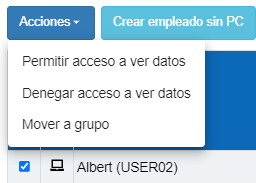
By selecting the checkbox of an employee from the list, the "Actions" submenu will be activated at the top of the table, which will allow you to:
- Allow access to view data
- Deny access to view data
- Move to group

Employees without PC 🔗
By clicking the "Create employee without PC" button, you can create profiles for those employees who only report manually.
Note: Employees are automatically created when WorkMeter is installed on the computer. The manual employee will only report manually. If WorkMeter is later installed on their PC, the data cannot be merged as they are different profiles.

Disable Employees 🔗
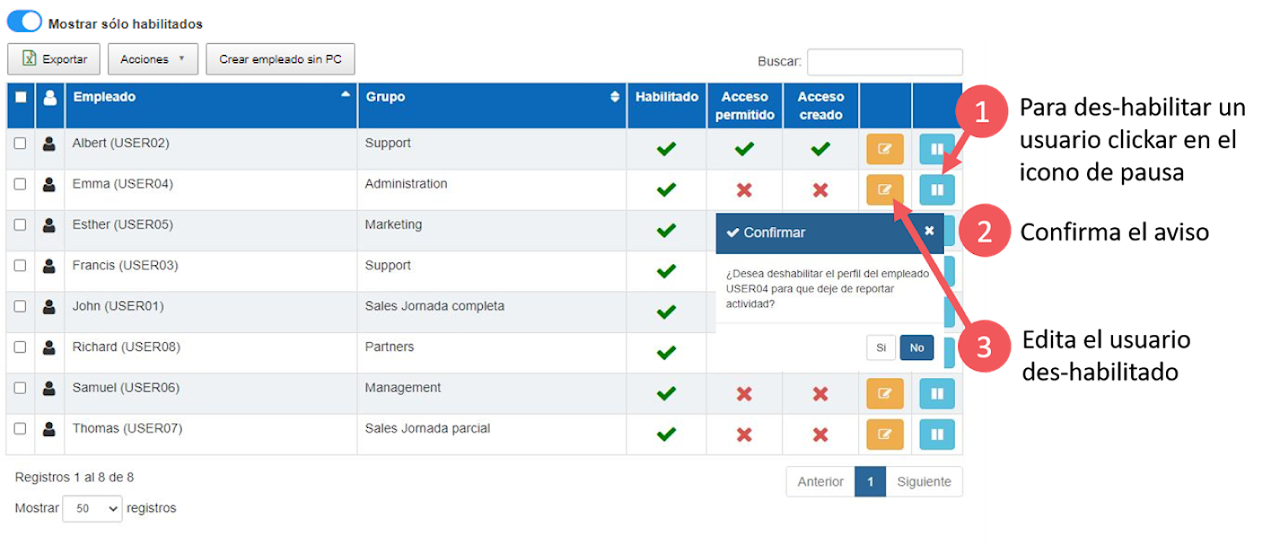
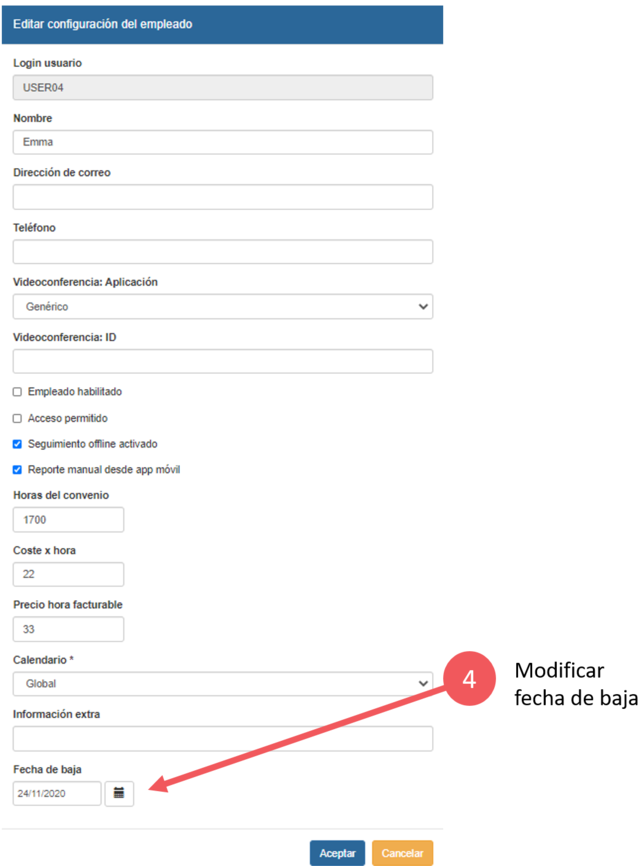
Within the employee settings, you can disable employees who no longer need to report. By default, the termination date is the current day but it can be modified by following these steps:
When you disable an employee in our tool, it will mark by default the last day the employee reported activity as the termination date.
Note: If you want to modify this date, you can edit the employee's profile and select the corresponding date.