To get our software up and running in your organization, we recommend that you follow these steps:
1. Communicate it to employees
We recommend acting transparently and sharing with your employees your concern for improvement. Our software help is primarily for employees, protects privacy, and offers benefits both for individuals and the company.
And remember, you can always contact one of our representatives to guide you and help resolve any questions about the product.
2. Create accounts for employees
For employees to view their data, they first need to activate an account. To do this:
2.1 - Double-click, or right-click, on the icon that appears in the taskbar (bottom right side on Windows or top side on Mac OS) (IMPORTANT: after installation, you may not find the icon in your taskbar. To fix this, please continue reading our recommended instructions .
2.2 - By double-clicking the icon, the platform will open directly. You can also access it by right-clicking and selecting "access your account" from the dropdown menu.
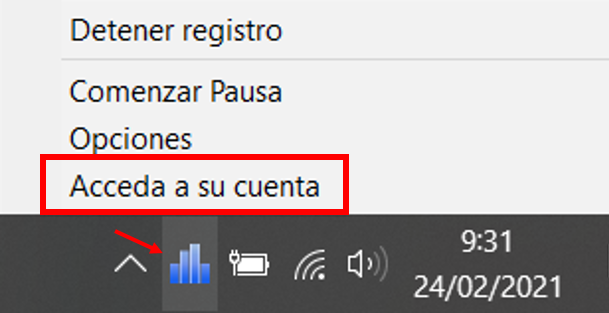
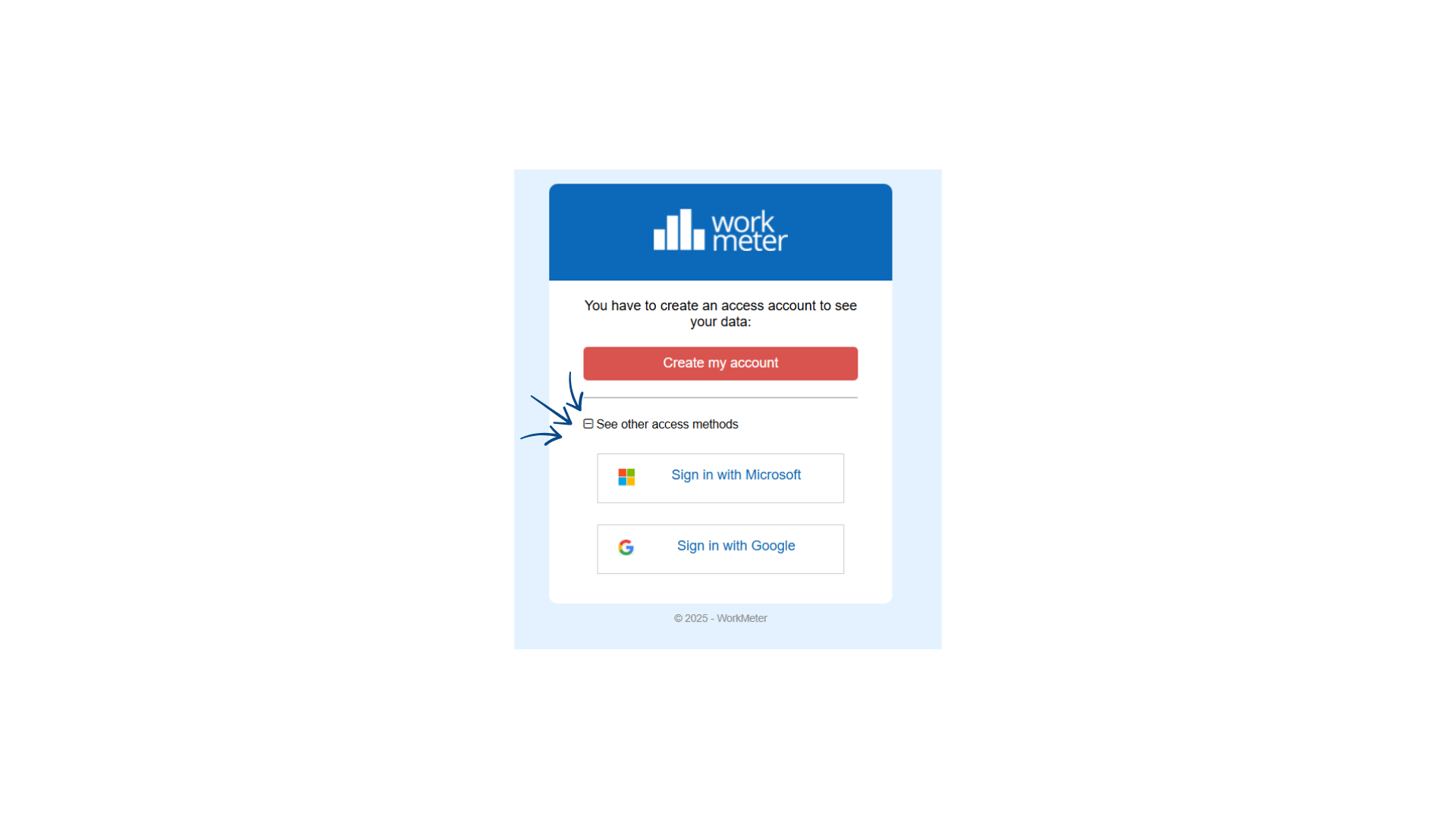
2.3 - There are two ways to create your access account in WorkMeter:
1. Account creation with username and password
In this method you must enter:
- Your email address (which will be your access username).
- A password that meets the security requirements (minimum 8 characters, with at least one uppercase letter, one number, and one special character).
- Your first and last name (optional).
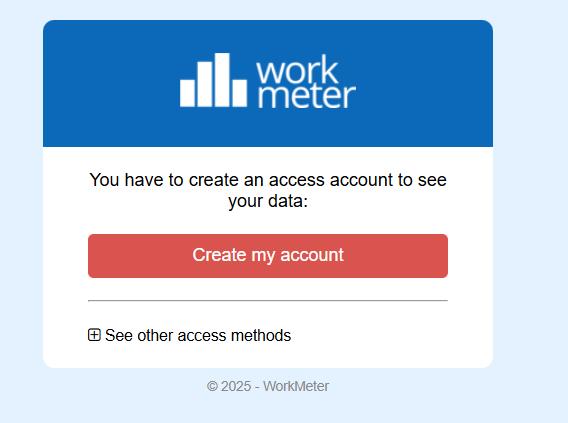
This is the standard method and requires you to remember and manage your own password.
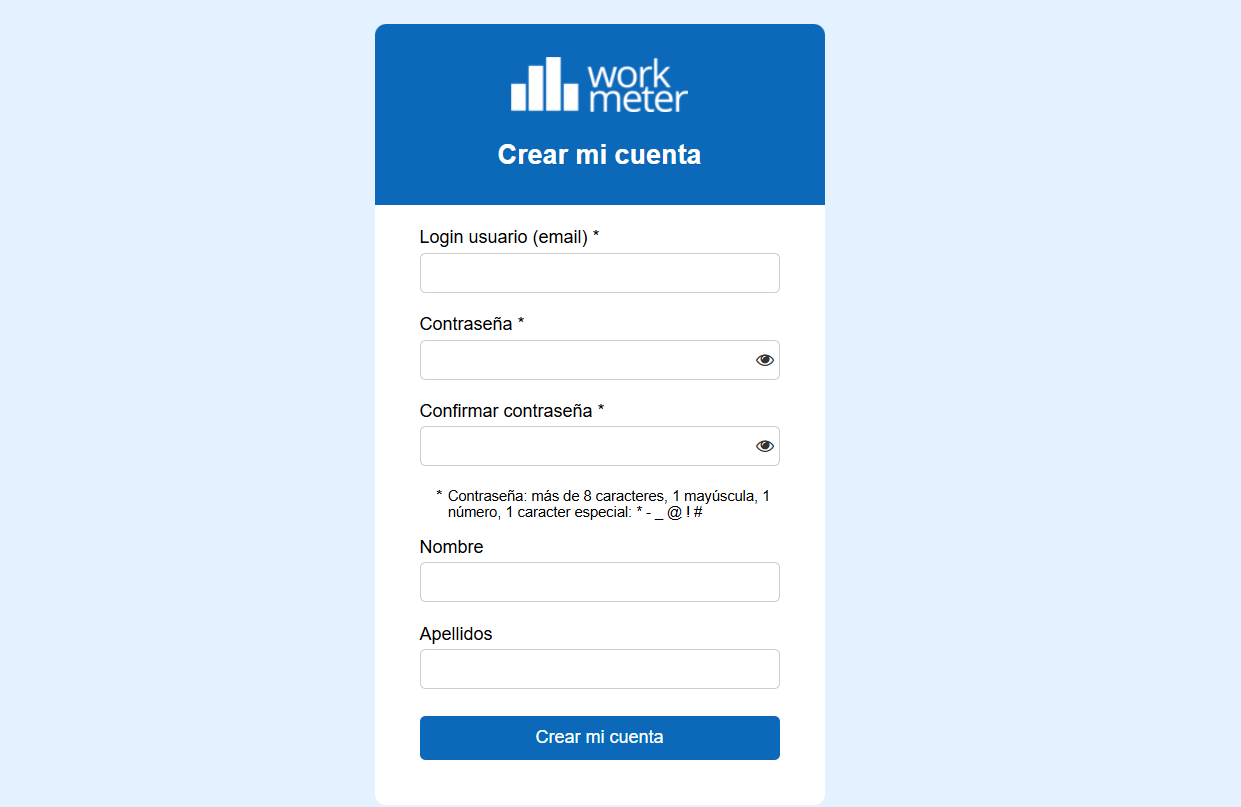
2. Other access methods (Google or Microsoft)
You can also create and access your account using your Google or Microsoft credentials.
In this case, you do not need to create or remember an additional password, as the system will securely use authentication from your provider (Google/Microsoft).
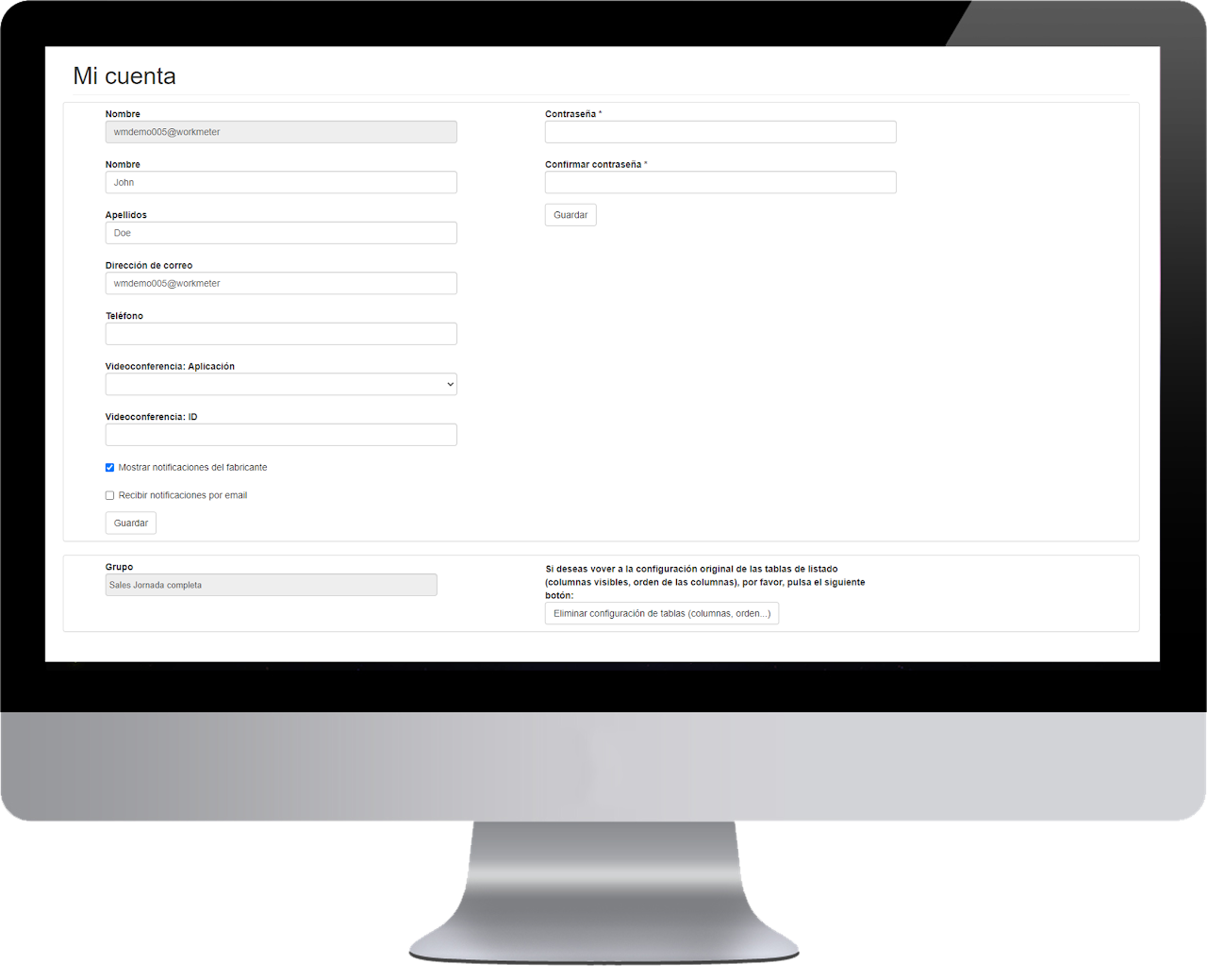
2.4 - Once the account is created, you will be able to access the tool to analyze, visualize, and modify your own data. When the employee selects their profile in the upper right corner and clicks on "My account", they can modify all their personal data and contact methods: From their email and contact phone number to setting their preferred videoconferencing application. They can also view the group they belong to, their expected activity, and their productivity map.
3. Password recovery in WorkMeter 🔗
If you have forgotten your password or need to reset it, follow these steps:
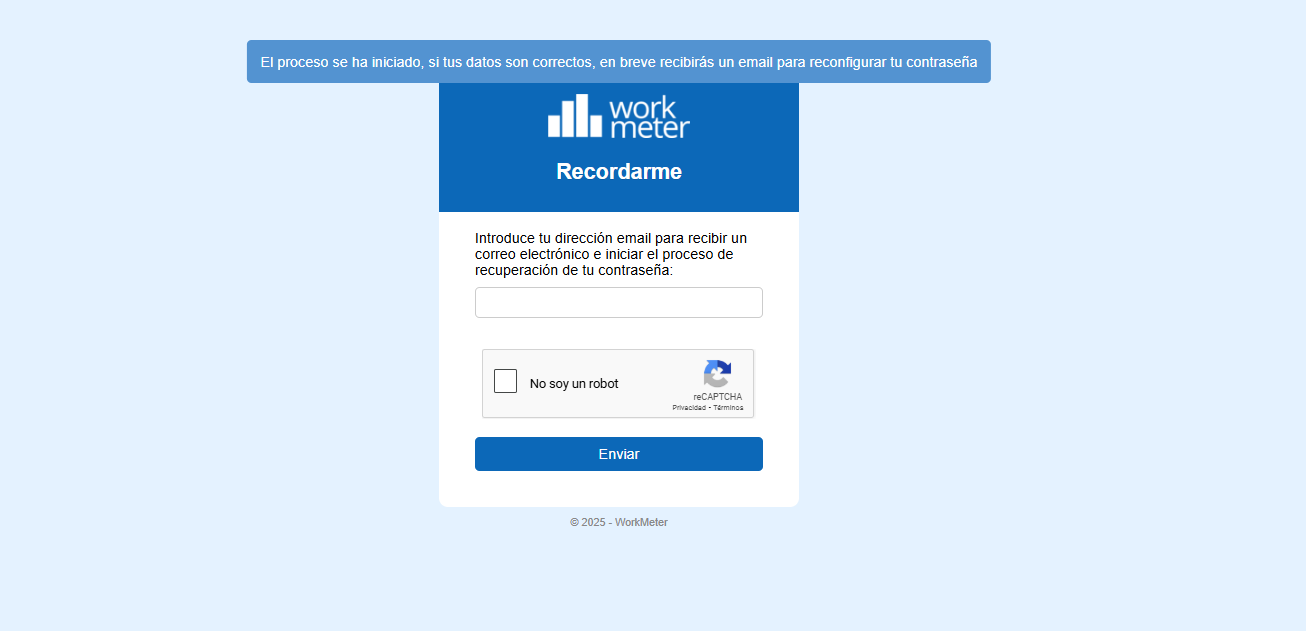
1. Recovery request
Go to the option “Forgot your password?”.
Enter your email address associated with your account and complete the security captcha.
By doing so, you will receive an email with a link to reset your password.
2. Check your email
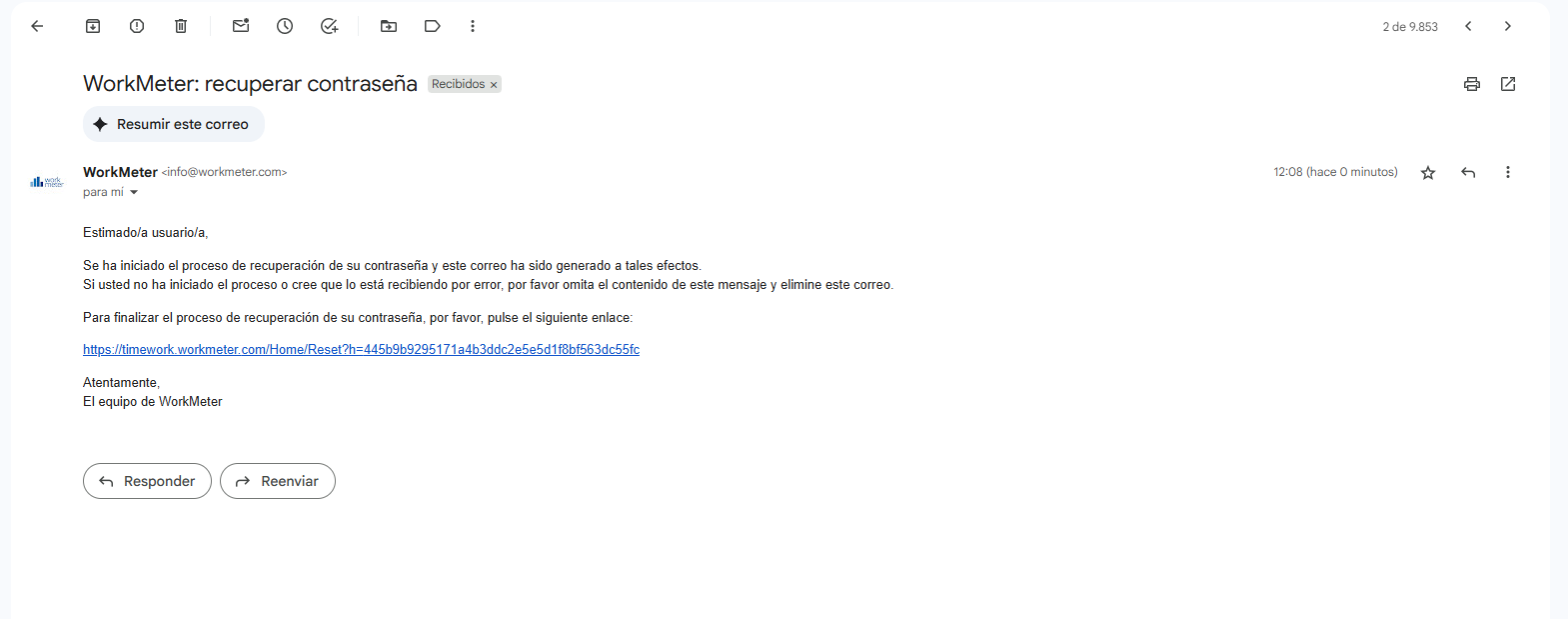
In your inbox, you will find an email from WorkMeter with the subject “Recover password”.
Click on the link in the message to continue with the process.
3. Creating a New Password
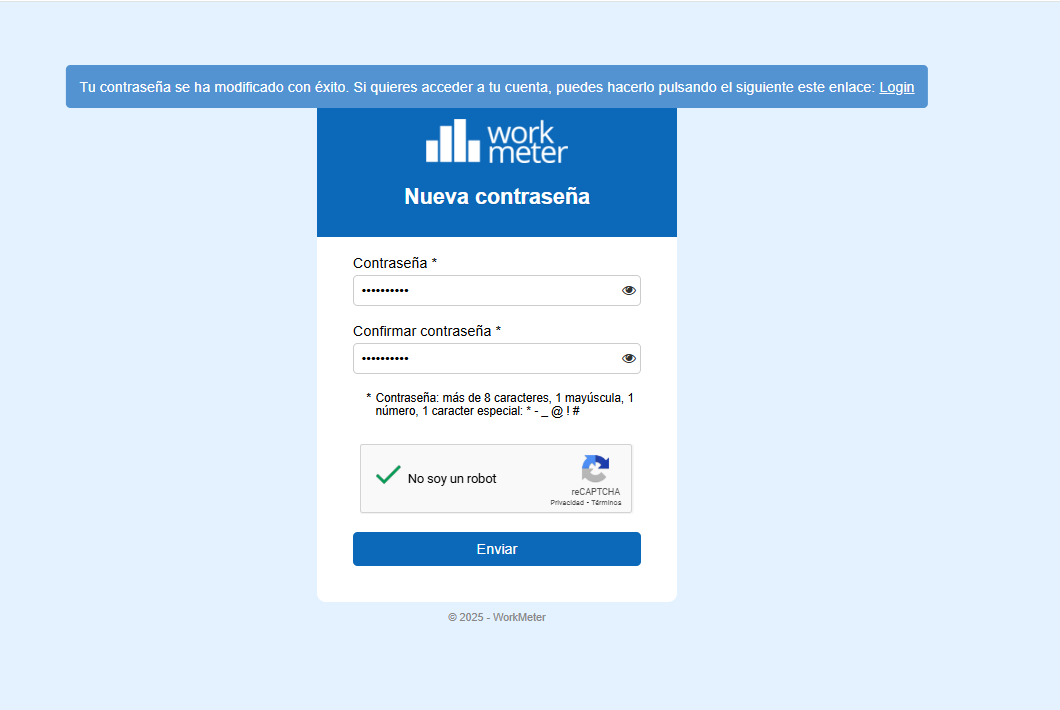
By clicking the link, a form will open where you must enter and confirm your new password.
Remember that the password must meet the security requirements:
- Minimum 8 characters.
- At least 1 uppercase letter.
- At least 1 number.
- At least 1 special character (* - _ . @ ! #).
Once the form is completed and the captcha is validated, click Submit.
4. Confirmation
If everything is correct, you will see a message confirming that your password has been successfully changed.
From that moment on, you will be able to access your account with the new password.
Note: If you access WorkMeter with Google or Microsoft SSO, you will not be able to reset the password from WorkMeter, as it is managed by your identity provider.
Basic Operation 🔗
To check the software data you just need to use a browser.
To access the control panel you have three options:
- 1. Use the following link: https://timework.workmeter.com/ (we recommend you bookmark it to remember and access it more easily)