Infrastructure 🔗
On which platforms can I install WorkMeter solutions?
- Windows: XP and later
- Mac OS: from 10.7 onwards
WorkMeter sends data securely via SSL (port 443), so this port must be open for the application to function correctly. We also recommend opening the http port (80) for connection to the corporate Website.
I’m worried about network slowdown. What bandwidth is required?
WorkMeter solutions send an average of 11kb every 15 minutes per device, so internet connection is not an issue.
Can I work without internet and, once online again, will the solution report on my activity?
If you don’t have an Internet connection, the WorkMeter solution will store activity data and when you reconnect, the accumulated data will be sent to the servers and processed. <br>
If you notice that WorkMeter does not reconnect or send information after regaining connection, you can easily check if access to our servers is working correctly: <br>
On Windows:
- Open Options from the WorkMeter icon in the taskbar.
- Click the WorkMeter logo in the window that opens.
- If the connection screen appears, everything is correct. In that case, we recommend restarting the computer so that WorkMeter synchronizes as soon as possible.
- If it does not appear, contact your IT team to check the Internet connection or possible proxy or DNS blocks. <br>
On Mac:
- Open Safari and go to https://gateways.workmeter.com/gw/test
- If the page loads correctly, the connection is working.
- If it does not load, check the Internet connection or contact your IT team to verify the network configuration.
Finally, if your IT team cannot resolve the issue, contact our support team at soporte@workmeter.com and we will help you solve it.
Are WorkMeter solutions compatible with all browsers?
Any modern browser with JavaScript enabled can run our solutions. Compatibility tests have shown that Chrome, Firefox, Opera, and Safari can run WorkMeter solutions correctly.
Installation 🔗
How can I download the installer?
To download the installer you must access, as an administrator, the Settings > IT > Download Installer area. A list of installers will appear, choose the one that corresponds to your operating system. You can download it or send the link to an email account.
How do I install the WorkMeter solution?
To install any of our solutions, you must download the client to your computer from the "Download Installer" panel in Settings > IT. Run the downloaded file to start the installation. If you have problems installing the tool or lack permissions, try running the installer as administrator. To do this, right-click on the executable (*.exe) and select the option "Run as administrator".
I get an error when installing: "Error opening file for writing"
You cannot install our solutions because you are not an administrator of your computer. To install, you must run with administrative privileges (right-click "run as" - enter administrator credentials) and it will install correctly.
How do I install the software silently?
To silently install the WorkMeter solution you must run the Client from the command line adding the parameter /S. Example: C:\WORKMETER_AGENT.EXE /S
How do I uninstall the WorkMeter solution?
To uninstall according to the operating system:
- Windows
- 32 bits: run C:\Program Files\svcwm\uninstall.exe
- 64 bits: run C:\Program Files (x86)\svcwm\uninstall.exe
- Mac OS
- Run /Applications/workmeter/uninstaller
Access 🔗
I try to log in but the tool tells me that the username or password is incorrect
Please make sure that the password keys are typed correctly, that you use uppercase and lowercase letters appropriately, that there are no blank spaces, etc. If the problem persists, you will need to reset your password using the "Forgot your password?" option. We will ask for the username (it is always an email) and to fill in the security box with the indicated text. Once this is done, you will receive an email in your inbox to start the password recovery process.
Reporting 🔗
How does the application determine if I am active?
The application installed on the PC asks the operating system (Windows or macOS) if the user is using the mouse or keyboard. If so (and if no faults are detected in these devices), it is considered that the user is present and activity can be recorded/reported. Additionally, the application has a mechanism to identify if you are in a videoconference.
What exactly does the software record?
It will depend on the WorkMeter solution acquired.
Performance management software: Collects active range times (presence), actual activity and productivity while interacting with the PC.
Time management software: Collects active range times (presence) and actual activity while interacting with the PC.
Project management software: Only collects actual activity times while you interact with the PC and is responsible for correctly reporting it to the corresponding project you are working on.
The privacy and confidentiality of individuals is a very important issue for us, so no keystrokes or contents of any window or application are recorded.
How does the performance management software group the data?
WorkMeter solutions always report times grouped by system user identifier (Operating System login), so we always recommend that each employee has a login that identifies them.
When does the software start reporting the workday?
It starts collecting data as soon as there is an active session on the device, that is, when there is an active user session. Practically, when the employee logs into their device.
Once installed, we see that not all employees appear
WorkMeter solutions record activity based on the name you use to access the device (Operating System login). If there are several devices using the same user login, we recommend two options:
- 1. Configure the affected devices to record activity based on "employee name\device name". To configure this, go to Settings > Devices, edit the desired device, and check the option "Configure the device to report as...". From that moment on, employees reporting from that device will do so by combining the system user name and the device name; example: USER\DEVICE_W7_01.
How to find out the username of my devices to see if they are reporting correctly?
Sometimes you may not see the WorkMeter icon because it is disabled for that device or you may have disabled some devices by mistake in the past and need to reactivate them to collect information.
To fix this, you first need to know the username of the device in question. If you don't know the username, please do the following according to your operating system:
On WINDOWS
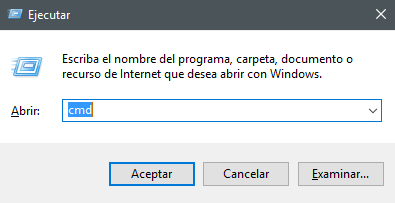
- On the taskbar, go to Start > Run or press the Windows key + R and a new window will open. If you are using Windows 10, you can also type "cmd" directly in the Cortana search bar.
- Type "cmd" in the command line and press Enter.
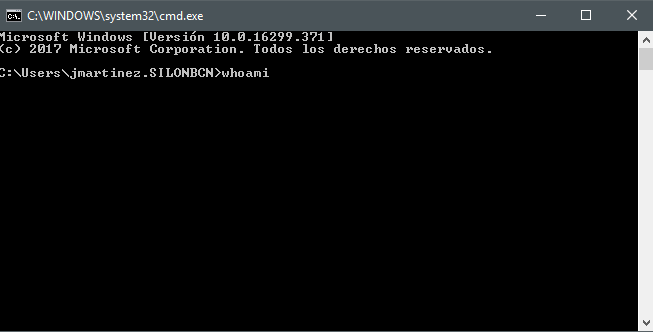
- On this new screen type " whoami " and press Enter again.
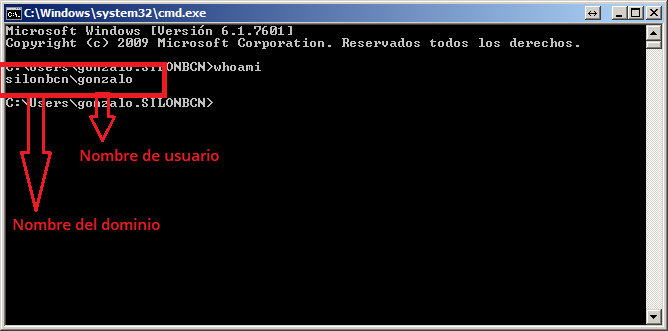
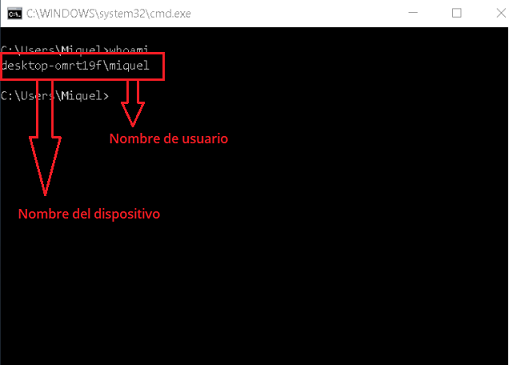
- Now the information displayed is different depending on whether you are connected to a network domain or not:
- If you are connected to a network domain, you will first see the domain name and then the username > Example: " network domain\nusername "
- If you are not connected to a network domain, you will first see the device name and then the username > Example: " device name\nusername "
ON MAC OS X
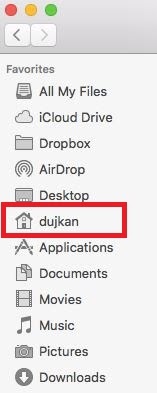
- Open a new Finder window
- Look at the home icon in the sidebar
- This icon represents your user folder, which has the same name as the computer's username
Profiles 🔗
How are the reported data organized?
The obtained data can be displayed individually or by groups. The default group is All (corresponding to all employees of a company). Groups can be created based on the company’s organizational chart, the tasks to be performed by the team, work schedules, etc. The solution always adapts to your company’s needs.
How do I disable an employee?
To disable an employee’s profile, you must be an administrator of the performance management software. By marking the X over an employee in the Settings – Employees panel, their profile will be disabled. Disabled employees will stop reporting data regardless of the team from which they report.
How do I know what my permissions are?
- If you are an Administrator, you will be able to see all panels and manage all groups.
- If you are a Group Manager, you will be able to view the data of the groups assigned to you and configure certain options.
- If you are an Employee, you will only be able to view your own data.
For more information, go to " Managers y roles ".
Offline time 🔗
When does the offline time reporting window appear?
'
The window to report offline time appears when the employee returns to their computer after exceeding the inactivity time set by the administrator. This time is configurable in Settings – General Options – Minimum pause before querying offline activity.
Sometimes the offline time window does not appear when I return to my computer.
Make sure your computer does not have the Sleep or Hibernate power-saving options enabled or that the inactivity time is not shorter than the defined pause time.
Schedules 🔗
How are breaks reported?
When you stop interacting with the computer, the software will count this time as break time. The same applies when the computer is turned off, suspended, or hibernated.
The WorkMeter solution does not show the correct time I started working
It is not enough to turn on the computer; you must log in for the software to start reporting activity.
The information shown by the different panels is older than the current time. Has there been a problem?
This is normal behavior since the data does not appear in real time. The software sends the information periodically for the servers to process it, so it is normal that the most immediate activity is not visible.