The WorkMeter icon located at the far right of the PC taskbar serves as a shortcut to various functionalities.
Time Coach 🔗
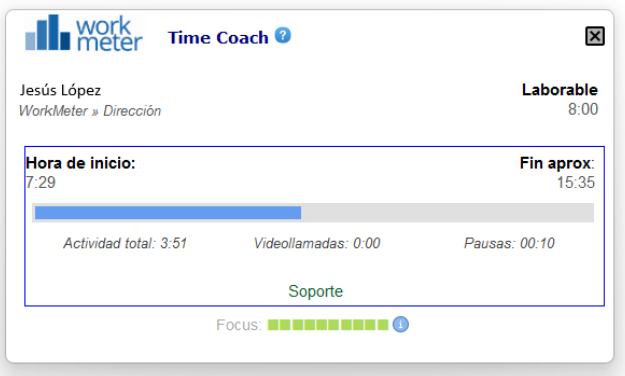
By left-clicking once on the WorkMeter icon, the Time Coach window appears.
This tab offers online information to help the employee understand how their workday is progressing, as well as their level of concentration or focus while performing activities on the PC.
User and/or Project Information 🔗
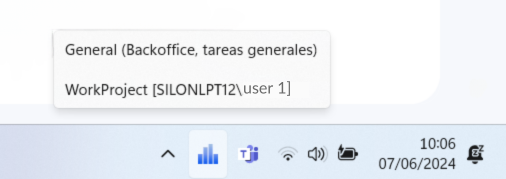
Hovering the cursor over the icon displays information about the project currently being worked on, the reference of the PC being used, and the user's name.
Project Selection Window 🔗
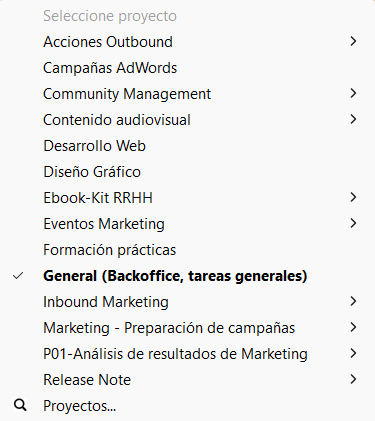
If the projects module is enabled, all configured projects available to users appear, with the project currently being worked on shown in bold.
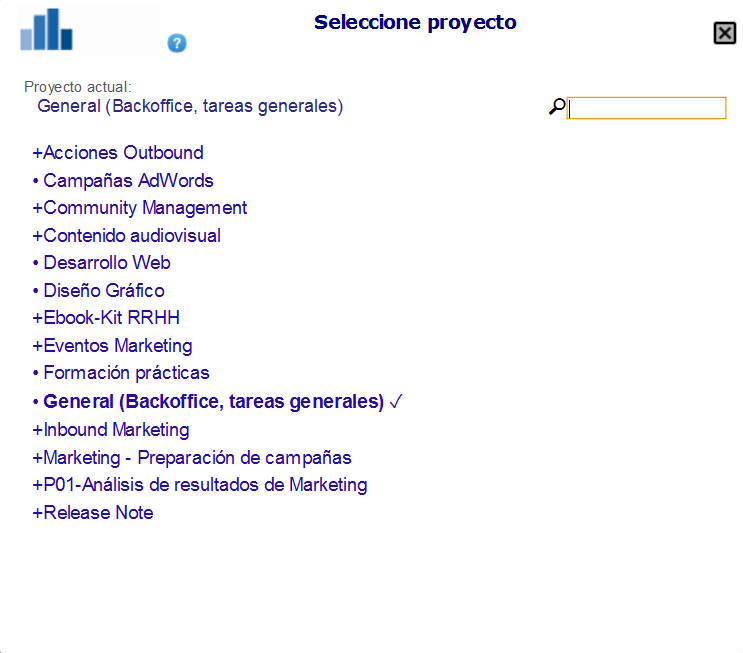
Additionally, by clicking on the project magnifying glass or double-clicking the WorkMeter icon, all projects created by administrators can be viewed and, if these permissions are granted, the project trigger can be edited.

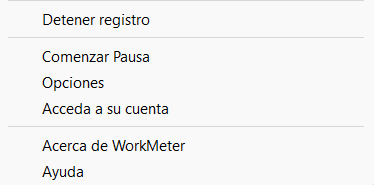
Stop recording 🔗
By clicking this option, time tracking stops and the time spent in front of the PC is no longer recorded.
Start break 🔗
This option allows you to start a break. Once this break is over and depending on the minimum time configured, a tab will appear where the reason for this break must be specified. This is done through various options created by the Administrators.

Options 🔗
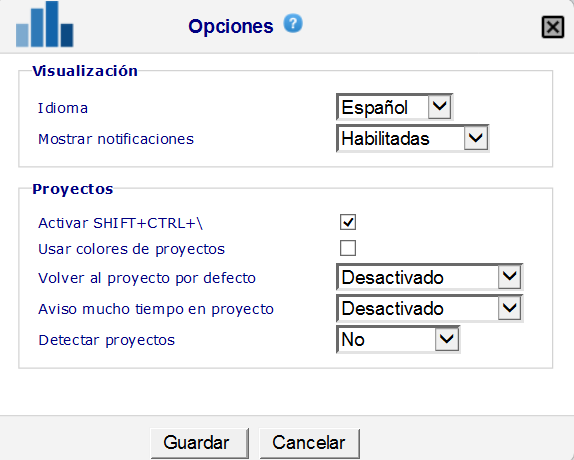
If you have the project software, the Options section is divided into: Use project colors, Return to default project, Long time in project warning, Detect projects. These last three allow you to set an activation timing or disable it. If you do not have the project tool, only Language and Show notifications appear in this window.
The WorkMeter icon changes according to the user's behavior with the PC at each moment, the visible changes of the icon are:

Anonymous browsing, URLs are not captured. (Only applicable to performance management software).

Recording stopped due to company policy or digital disconnection. No data is collected nor activity reported.
When a relevant pause period is detected.
Recording stopped. No data is being collected or activity reported.

There was a temporary connection error. Data will update when the connection is restored. Information may take time to update on the server.

There is an ongoing call.

Work is being done during a period marked as “overtime hours.”

Connected remotely (for example: Remote Desktop, Citrix...)

Application running normally and reporting activity.