The "General Options" section is divided into six tabs: Preferences, Permissions, PC/MYAPP Options, Data Editing, Calendar, Projects.
In this section, you can configure the most general software options, such as the organization name or more basic aspects like the tool's language.
Additionally, you will have tooltips available on the most relevant elements to facilitate understanding and improve the navigation experience on the platform.
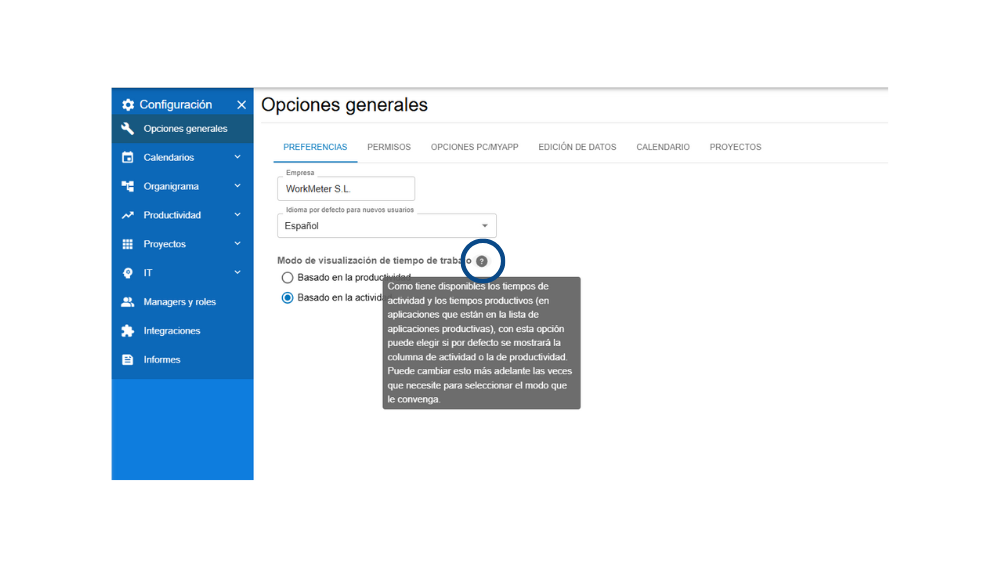
At the top right, you will find a help icon that links directly to the corresponding article in our Help Center.

Preferences 🔗
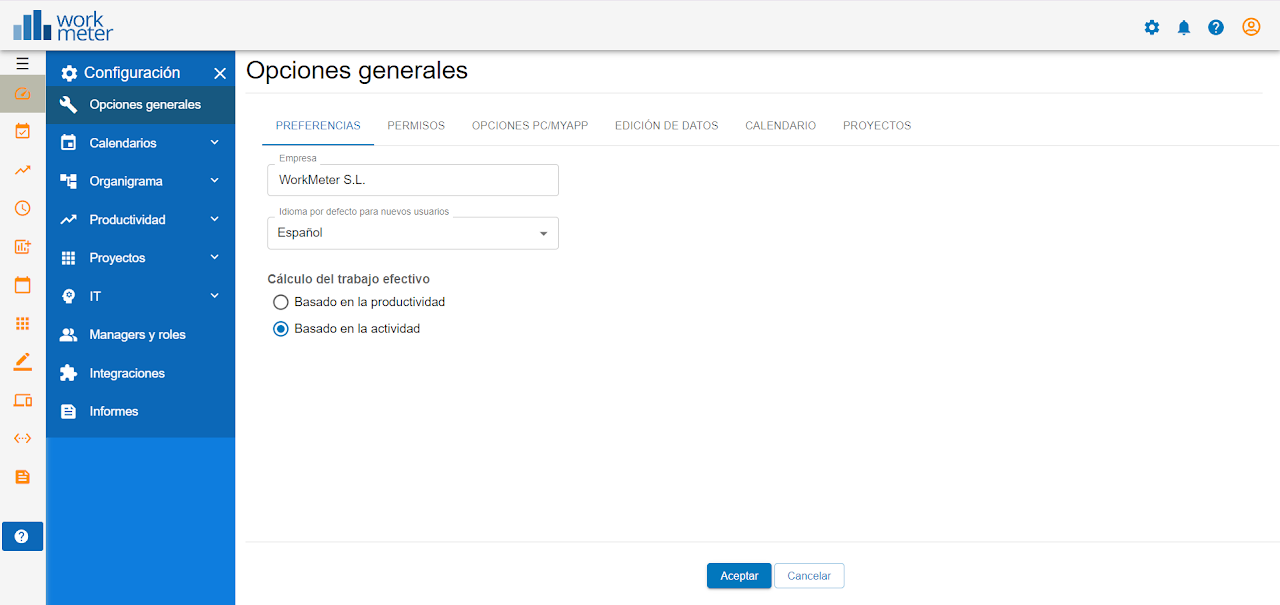
- Effective work calculation: Allows calculating the effective work of employees based on productivity or activity.
Example:
USER reported 6 hours of activity yesterday.
Expected for USER's group: 8 hours.
Today USER edits and fills offline time for 2.5 hours -> 6 + 2.5 = 8.5 > 8 -> validation will be requested for those 2.5 hours.
Permissions 🔗
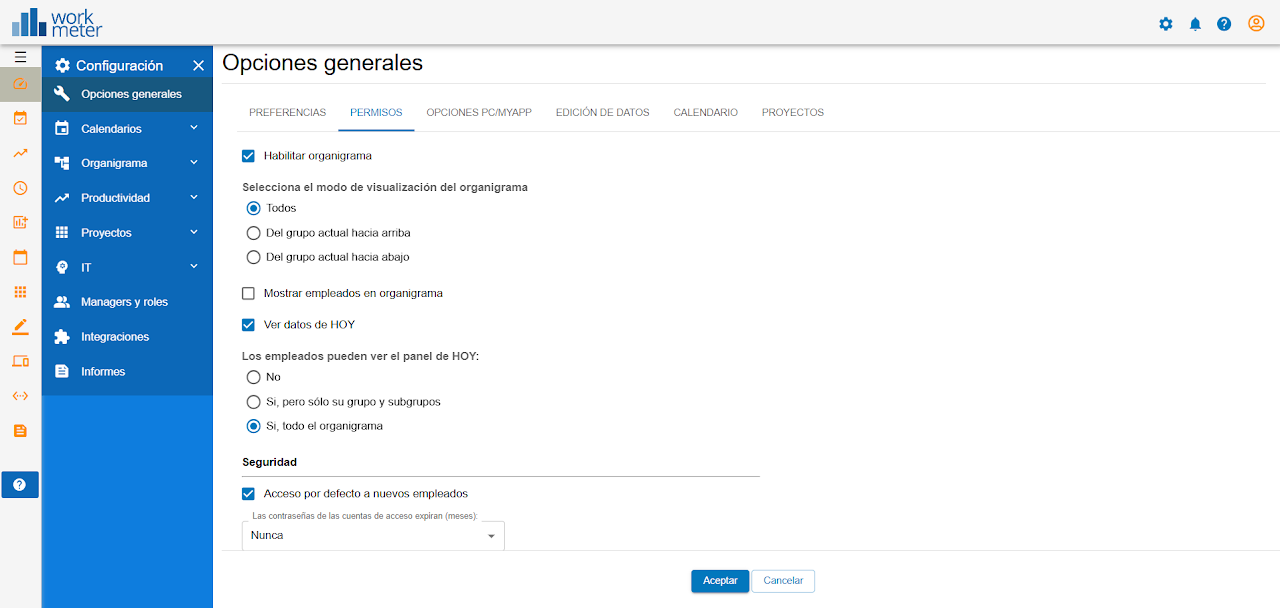
- Enable organizational chart: If checked, users will be able to view the company's organizational chart.
- View today's data: This option allows activating the "Today" panel.
- Can view the TODAY panel: Choose which employees can see the data on the "Today" panel if the previous option is activated; enable it only for their group or subgroup or for the entire organizational chart.
- Default access for new employees: When checked, if a new user appears, they will by default have the option to access their account.
- Expiration of access account passwords: Sets the maximum time for the expiration of access account passwords. They can expire in 3, 6, 12 months, or never.
PC/MYAPP Options 🔗
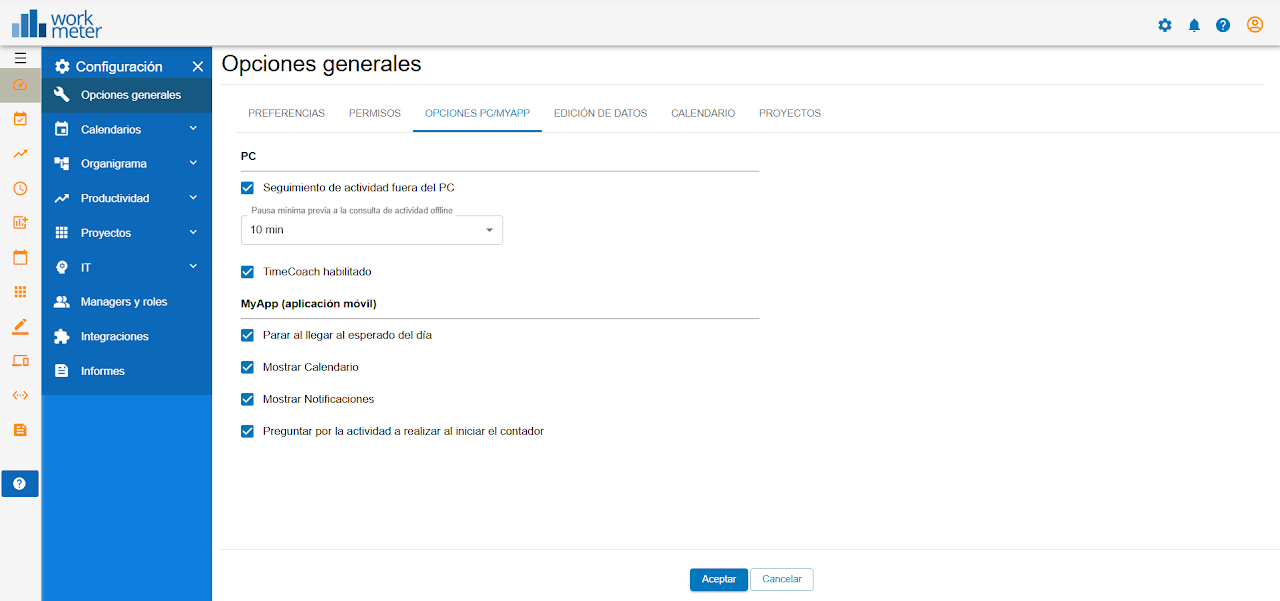
PC
In this section, you will find the configuration of the client installed on the PC.
- Enable or disable activity tracking outside the PC.
- Enable or disable the Time Coach.
MyApp
You can configure options for the WorkMeter My App Mobile Application:
- Stop when reaching the expected for the day: If the expected activity for that day has been completed, no more activity can be recorded from the MyApp for that day.
- Show calendar: Allow the calendar to be viewed in MyApp
- Show notifications: Allow notifications to be viewed in MyApp.
- Ask for the activity to be performed when starting the timer: When starting the timer for a new activity in MyApp, the offline activity performed can be selected.
Data editing 🔗
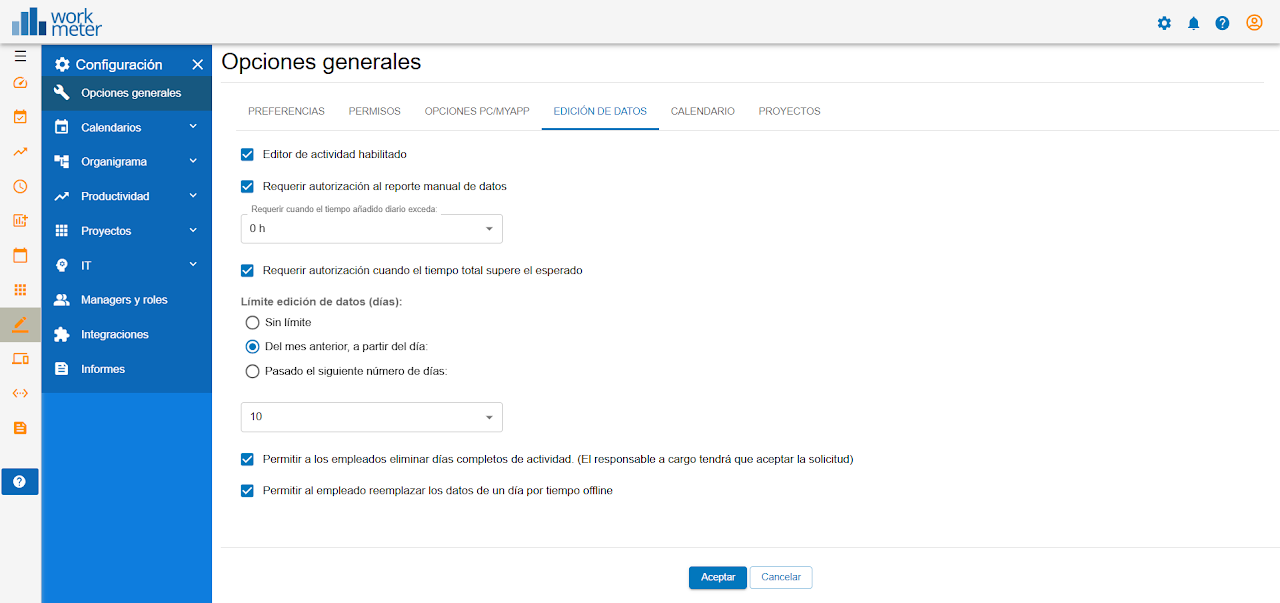
These options are used for:
- Activity editor enabled: If the activity editor is enabled, employees will be able to add offline activity that has not been recorded by the tool and assign it to the corresponding project. By default, this option is always enabled.
- Require authorization for manual data reporting: Allows configuring a maximum editing time after which, the manager of the employee who adds that time will have to approve or deny the addition. If the employee makes several activity additions on the same day, the time will be accumulated and, when it exceeds the limit, approval from the manager will be required. By default, this option is disabled.
- Require authorization when the total time exceeds the expected: The employee will have to request approval if the offline activity time to be added, combined with the activity recorded for that day, exceeds the total expected activity.
- You can choose not to do so by enabling the " Unlimited " checkbox, decide to do it with a one-month deadline by enabling the "From the previous month, starting on day" checkbox, or selecting specific days by enabling the "After the following number of days" checkbox. For the last two options mentioned, at the end of the checkboxes the administrator must expand and select the number of days, as appropriate.
- Allow employees to delete full days of activity: The person in charge will have to approve the request.
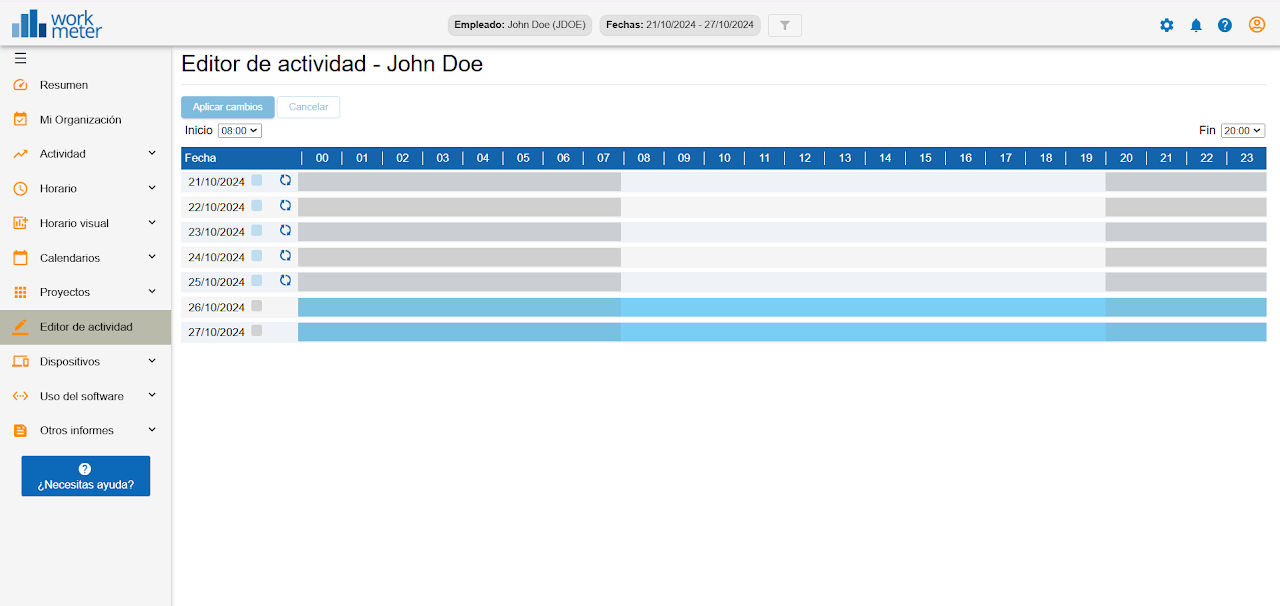
- Allow employees to replace a day's data with offline time: The permission can be configured so that employees can replace the activity of an entire day from the activity editor.
For example: If an employee is traveling all day and uses the computer at some point, but wants to count the entire day as “Travel,” they can edit the full day's activity and overwrite the automatically recorded activity logs.
Calendar 🔗
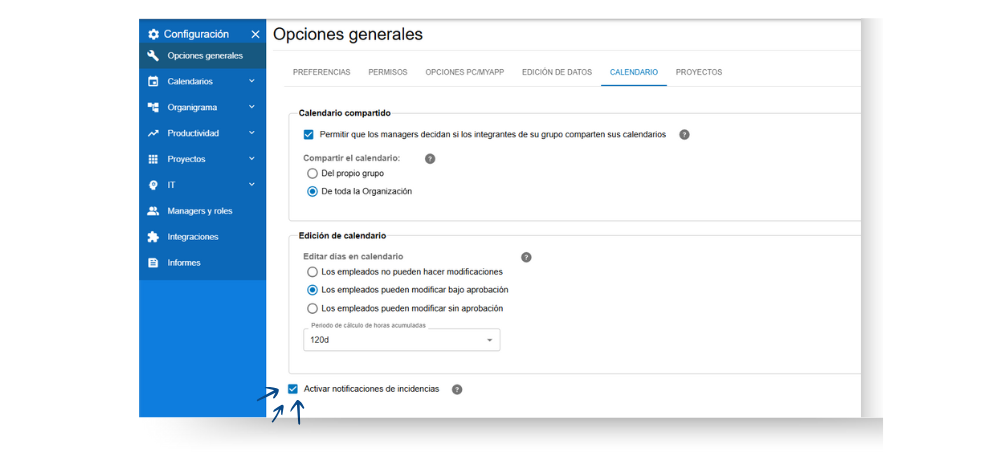
These options are used to:
- Allow managers to decide if members of their group share their calendars.
- Edit days in the calendar:
- Employees cannot make modifications.
- Employees can modify with approval.
- Employees can modify without approval.
- Accumulated hours calculation period: If digital disconnection with flexibility is activated, this will be the number of days used to configure the flexibility hours bank.
- Check "Enable incident notifications."
Note: This option is configured for the entire organization, NOT by groups.
Projects 🔗
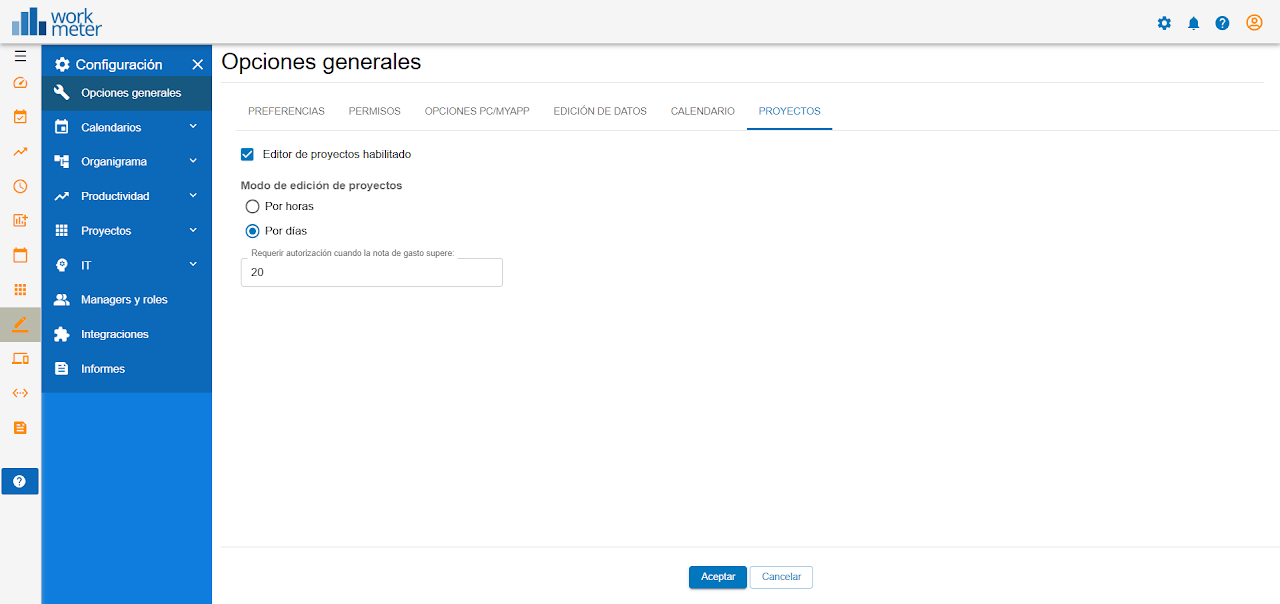
If we go to Settings > General Options, we can edit projects and activities separately. At the corporate level, you can enable editing of only projects, only activities, or both.
- Project editor enabled: If you enable the project editor, you can add projects you have worked on that have not been captured by the tool.
Note: This option can only be viewed and modified if you have the product WorkMeter project management software.
- Project editing mode: Configure whether projects are edited by days or by hours.