
Through this portal you can:
- Create a new rules package.
- Assign the rules package to one or more groups.

- Edit the name and add a description to the rules package.

- Edit the rules package.

- Delete rules package.

Note: Remember that to access this panel, it is necessary to have contracted the WorkMeter project management product and be an account administrator, or that the administrator has granted you permissions.
Creating or editing a rule 🔗
In the project rules configuration panel, you can create a new rules package or edit one of them.
When creating a new package, you will only set its name and description. Once created, you can edit the rules and configure them.
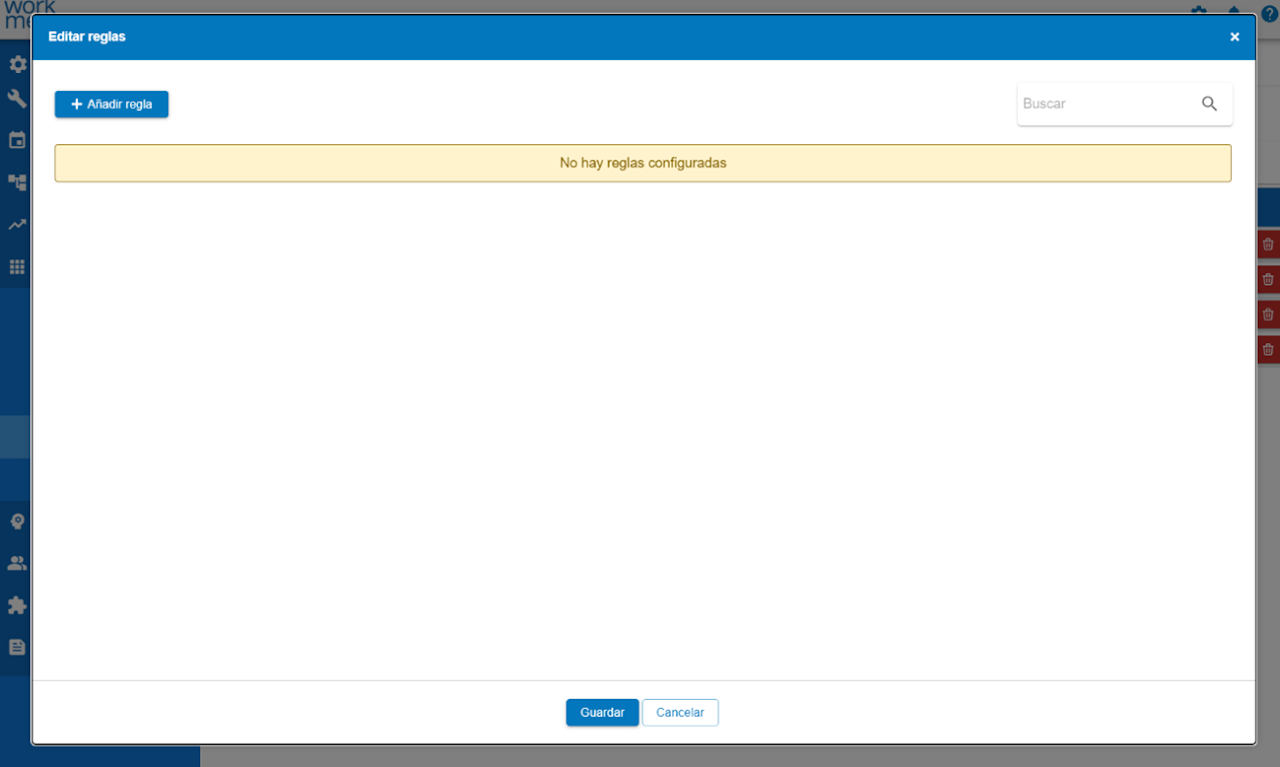
In this window, by clicking add rule, or changing the settings of the current ones, you can set which condition will be evaluated, how and with what the obtained value will be compared, and the action to be taken.

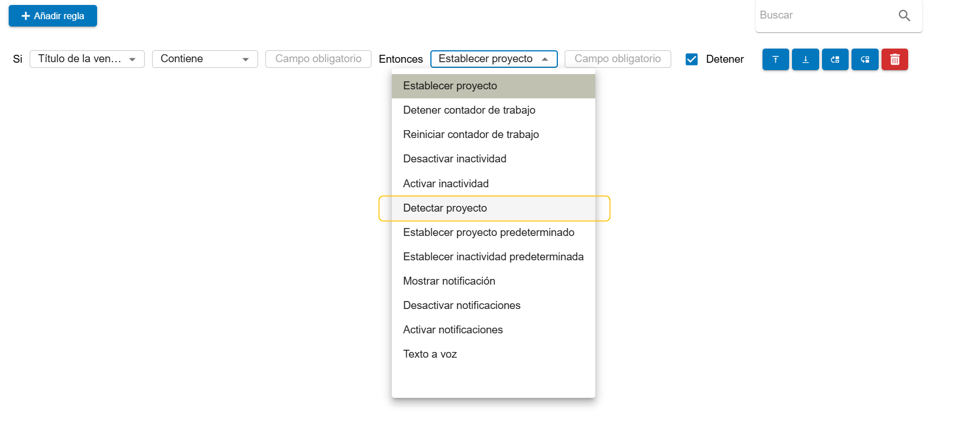
After the "IF…" label, you can choose which type of rule you want to configure.
Rules can be of two groups:
• Content detection: They can check the name of an application, window title, URL... etc.
• Context detection: They can check the physical place or moment in which the action is taking place.
The rules of the first group (content detection) that can react based on the content are the following:
• Window title: evaluates the title of the application or window.
• Application name: Checks the name of the application.
• File name or URL: Compares with the file name or browser URL(2).
• Folder or file path: Relative to the location (container) of the file.
• URL: Web address.
• Any field: Any of the previous concepts.
(2) Folder or file detection is only possible in applications that block it, such as the Office package (Excel or Word)
Generic rule: There is a special setting to define a generic rule that detects the project that most closely matches the detected content.
To activate it, you must enter the asterisk * symbol in the content field you want to detect.

Next, select “Detect Project” and automatically when opening content with a name similar to the selected project, time tracking for this project will begin.
The rules in the second group (context detection) that can react based on context are the following:
• Time: Evaluates the time of day (in hh:mm format).
• Day of the week number: Checks the day of the week (from 1 to 7).
• Network name: Detects the name of the wifi network being used.
The “Then…” rules can trigger different actions in the log:
•Set project: Indicate that work is being done on the project name specified in the field
•Stop/Restart work timer.
•Activate/Deactivate inactivity.
•Detect project.
•Set default project.
•Set default inactivity.
•Show/Enable/Disable notifications.
•Text to speech: A voice will be activated to announce the project change.
Rules can be ordered by priority and will be processed in the order they appear. A rule can be configured so that, if met, it stops evaluating the following ones. These actions can be performed with the buttons:

- Move to start
- Move to end
- Move up
- Move down
- Delete the rule
Note: if you define a rule that stops the activity logging of the WorkMeter engine (action “Stop WorkMeter”), none of the content-based detection rules (group 1) will work until another context detection rule (group 2) reactivates the WorkMeter engine logging (action “Restart WorkMeter”).