Settings > Calendars > Edit Calendars 🔗
Visible to the administrator only.
By default, we provide the GLOBAL calendar with:
- Monday - Friday --> Working day: expected = 8 hours
- Saturday and Sunday --> Holiday: expected = 0 hours

Each calendar has a day type for each day of the week. The GLOBAL calendar would be the one that applies to most employees, but we can create as many calendars as needed.
Let's take an example. At ACME company, people work:
- From Monday to Thursday: 8H45
- On Friday: 05H 00'
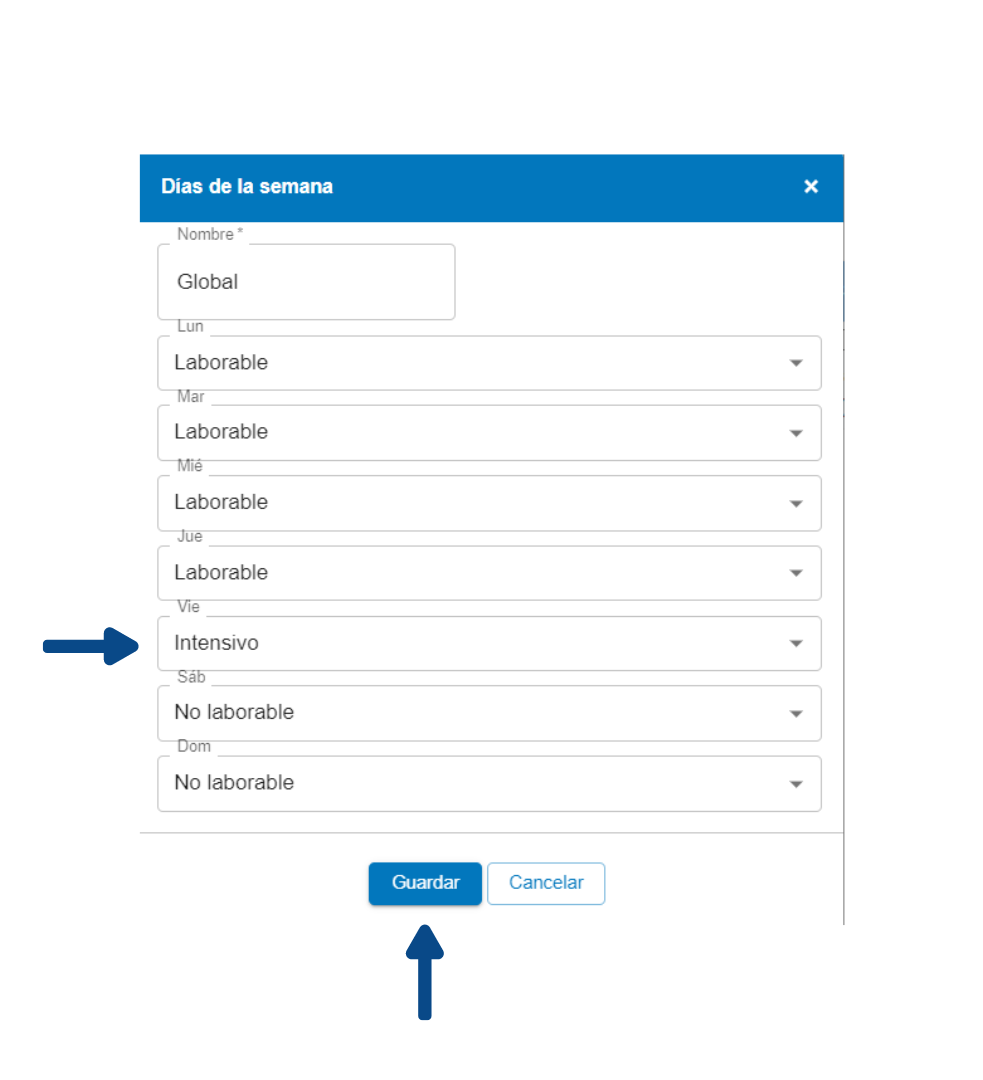
In this case, we should: first edit the day type “Workday” (in _Calendar_day type settings) and change the expected to 08h45. Then create a day type “Intensive” with an expected of 05H00. Finally, edit the GLOBAL calendar, click on the days of the week button, select the day type “Intensive” on Fridays and save the changes.

The changes we make in “days of the week” affect the entire calendar, that is, if we set Friday as the day type “Intensive” it will affect all Fridays in the calendar.
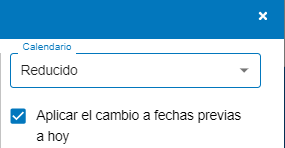
If you want to change an employee’s calendar, you can choose to apply the change retroactively or not.
The box "Apply change to dates prior to today" is checked by default to make the change retroactive.
If you uncheck this box, the change will only apply from the current date onward, without affecting previous periods.
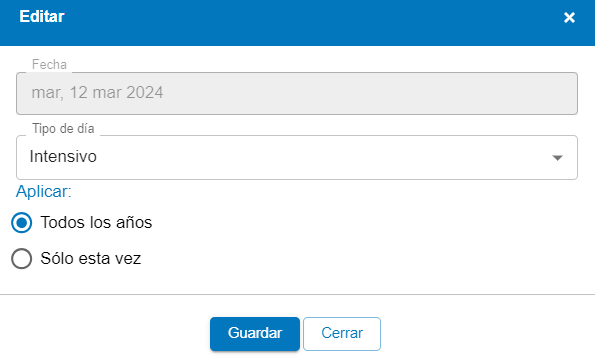
Once we have made the relevant changes to the days of the week, we can edit day by day by clicking on the day we want to edit.
Clicking opens a form where we can indicate the type of day and whether the change is only for the current year or if it is permanent.
We edit the GLOBAL Calendar again, select the date (for example, December 25), change the day type to “Holiday (National)” (which we will have created previously) and apply the change for all years. In the case of Easter, whose date varies from one year to another, we would apply the change “Only this time.”
Note: The calendar shows the current year and you can navigate to the previous and next year.
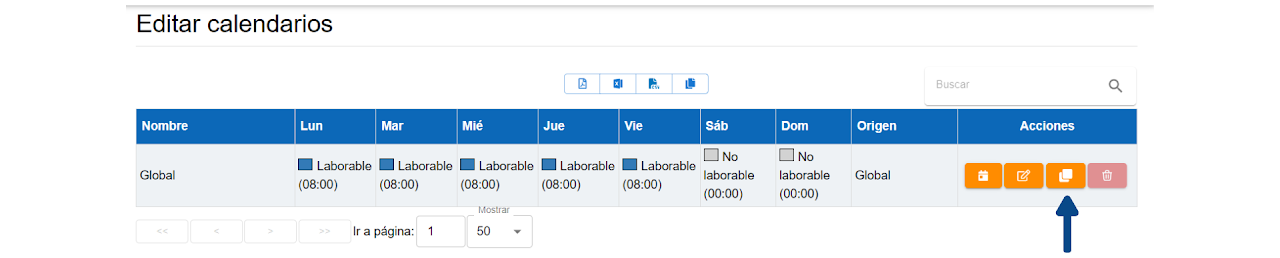
If the GLOBAL calendar is not applicable to 100% of the template, you can copy it and create another different calendar that you can then edit to introduce the necessary changes.

You can edit the working part of a day that already had a half day unexpectedly.
The selector allows you to select the full day or both parts of the day and any option can be changed.

Note: If the assigned half day corresponds to a previous year, only the full day can be changed. Two half days cannot be assigned on the same day from different years.
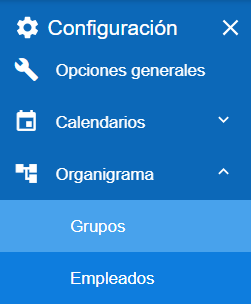
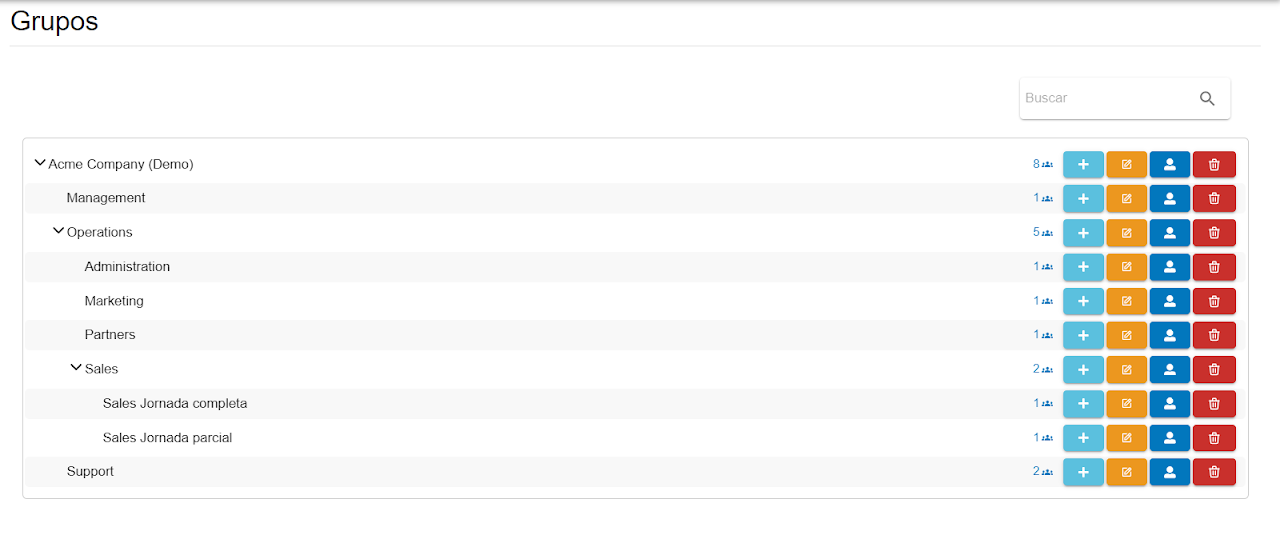
By default, all groups are assigned the GLOBAL calendar. This can be modified by editing the group or if you create a new group, select the calendar that corresponds to it.
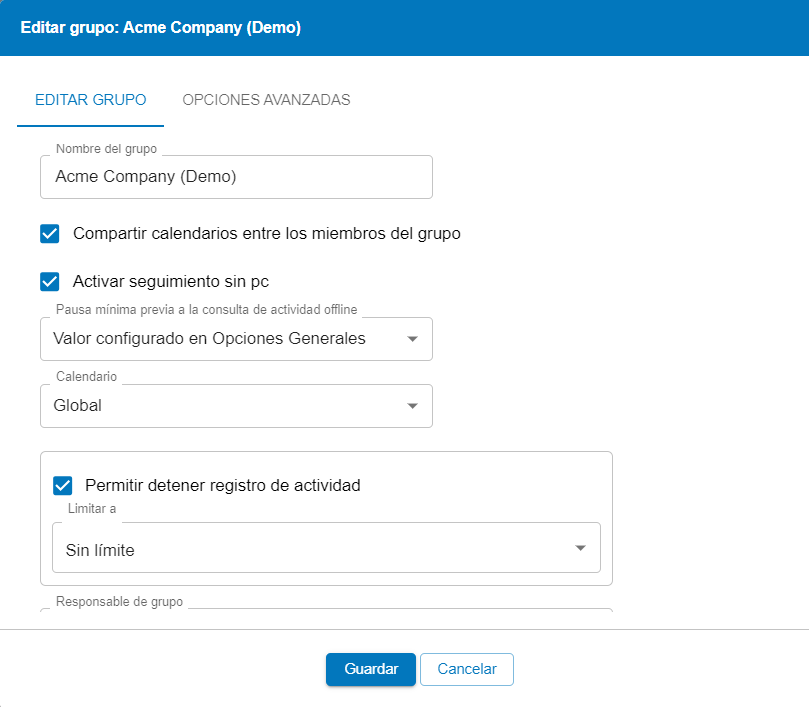
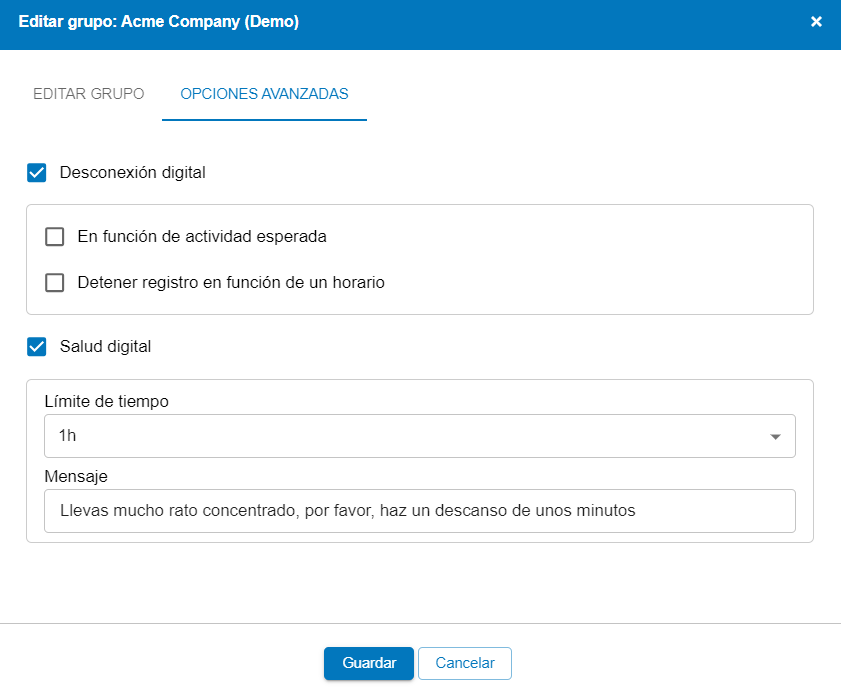
In the "Edit group" section, various options appear such as:
- Share calendar among group members.
- Enable tracking without PC.
- Minimum breaks.
- Calendar.
- Allow stopping activity recording.
The “Advanced Options” found within this section refer to disconnection and digital wellbeing. Setting time limits and generating messages that act as reminders to take necessary breaks.
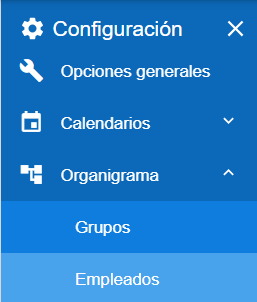
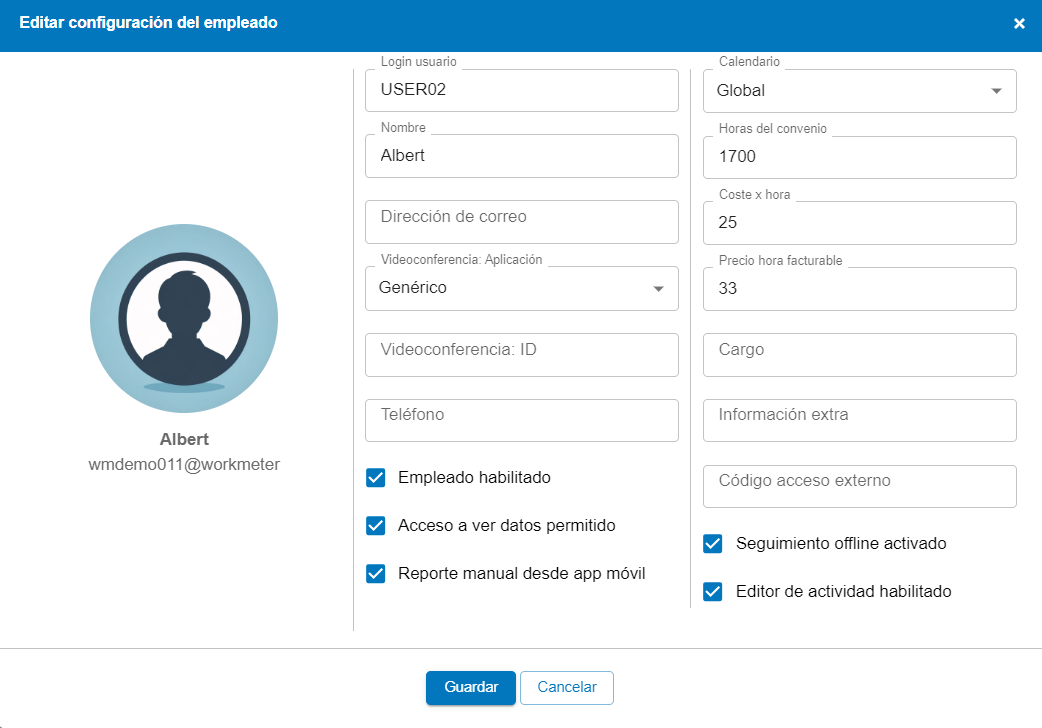
By default, the employee is assigned the calendar of their group but it can be modified by editing the employee's profile. As we just mentioned, if an employee has a different calendar than their group and we change the group's calendar, the change will not affect the employee who will keep the calendar assigned to them.
The expected calendar will not be added on dates prior to the creation of the employee's profile, thus, hours are not added to the annual expected total.
In the "Edit days in calendar" block, there are 3 options:
- Employees cannot make modifications.
- Employees can modify with approval.
- Employees can modify without approval.
If we select the option "employees can modify with approval," this means that when an employee edits their calendar and changes a type of day, the Group Manager or Administrator will receive a notification in the notification panel, which they can approve or deny.
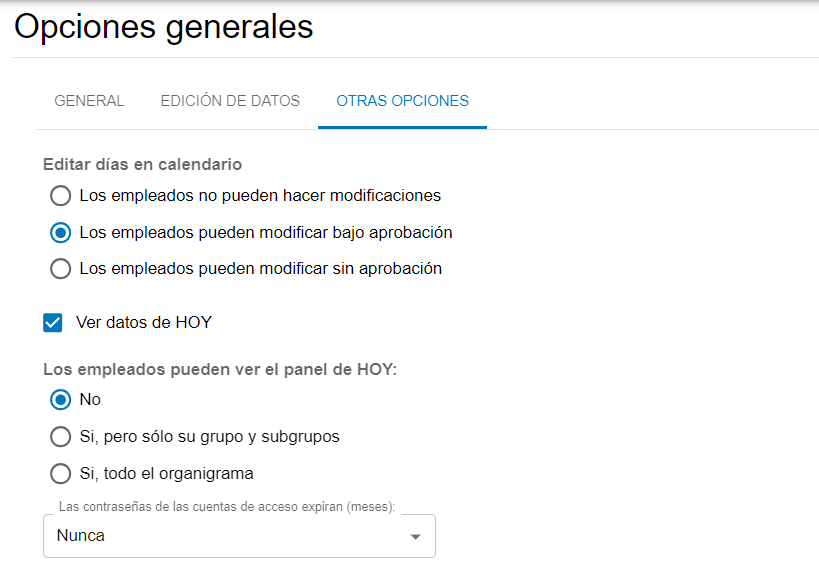
The employee can see the calendars of the group they belong to, as long as this option is enabled in general options.