WorkMeter · Odoo Integration Guide (API key) 🔗


Who this guide is for: administrators who want to connect their Odoo with WorkMeter to automatically receive absences and holidays of the staff and, if desired, send the clock-ins recorded by WorkMeter to Odoo.

1. What the integration does 🔗


Odoo manages HR (employees, absences, holidays, attendances) and WorkMeter measures activity and working time. Connecting them avoids double data entry and improves the calculation of expected time.


DirectionDataDetail
Odoo → WorkMeter🌴 AbsencesVacations, sick leaves, permissions… approved in the Absences app of Odoo, including half days. It is key for WorkMeter to correctly calculate the expected time.
Odoo → WorkMeter📅 HolidaysThe Holidays configured in Odoo, applied to each employee according to their company and work schedule.
WorkMeter → Odoo⏱️ Clock-ins (optional)The presence periods of each day recorded by WorkMeter are written in the Attendances app of Odoo. It is activated with a checkbox on the card.

The integration does not create or delete employees: it links each WorkMeter employee with their Odoo record (WorkMeter proposes the links automatically by email).


Synchronization is overnight: every night WorkMeter reads Odoo and applies changes to the calendars; you can also run it manually with Synchronize now.


🔒 Security. WorkMeter connects with an API key of an Odoo user created for the integration, with the minimum necessary permissions. The key is stored encrypted, never shown again, and you can revoke it at any time from Odoo or disconnect the integration from WorkMeter. Only https addresses are allowed.

2. Before starting (requirements) 🔗


In WorkMeter:


  • Your account has the time@work feature (time control). The Odoo card only appears in accounts with this feature.
  • You are an administrator in WorkMeter.
  • You do not have another connected HR integration (for example, Factorial). Only one can be active at a time.

In Odoo:


  • Your Odoo version is compatible (see the table below) and the instance is accessible via https (Odoo Online, Odoo.sh, or self-hosted installation).
  • If you use Odoo Online, your plan is Custom (see the table below).
  • You have installed the Employees and Time Off apps. To send check-ins, also Attendances.
  • You can create users and assign permissions (you are an Odoo administrator).

Compatible Odoo modalities and versions


By Odoo modality:


ModalityCompatibility
Odoo Online (Odoo S.A.’s cloud Odoo, `*.odoo.com`)✅ Compatible. This is the modality with which WorkMeter has validated the integration. Requires the Custom plan: the One App Free and Standard plans do not include API access.
Odoo.sh✅ Compatible. Same API as Odoo Online, no plan restrictions.
Self-hosted installation (on-premise or on your own cloud provider)✅ Compatible if the instance is accessible from the Internet via https with a public domain. `http` and internal network addresses are not supported.

By Odoo version:


Odoo VersionCompatibility
18✅ Compatible. This is the version with which WorkMeter has validated the end-to-end integration (Odoo 18 Enterprise, on Odoo Online).
16 and 17✅ Compatible. The connector uses the same API and takes into account the differences in the absences module between versions.
19 or higher⚠️ Compatible, with warning. It works normally, but Odoo has announced the retirement of the API that WorkMeter uses today (in Odoo Online, scheduled for winter 2027). The card reminds you to plan the migration with support.
15 or lower❌ Not supported.

Both Enterprise and Community editions are valid: the integration only uses the standard Employees, Absences, and Attendances modules. WorkMeter detects the version when connecting and at each nightly synchronization, so you don’t have to specify it or reconfigure anything when Odoo updates your instance.


During the process you will handle four pieces of data. Write them down in a safe place:


DataSourceExample
Odoo URLThe address you use to access Odoo`https://miempresa.odoo.com`
DatabaseIn Odoo Online it usually matches the subdomain. In Odoo.sh or self-hosted installation, your administrator provides it`miempresa`
User (login)The integration user login (Step 1)`workmeter@miempresa.com`
API keyYou generate it in Odoo (Step 2). Shown only once

3. Process summary 🔗

  1. Prepare the integration user in Odoo (in Odoo), with the necessary permissions:
  • to synchronize the calendar (absences and holidays): Employees and Absences
  • to also send clock-ins: Employees, Absences, and Attendances
  1. Generate their API key (in Odoo)
  2. Connect from WorkMeter → Settings → Integrations (in WorkMeter)
  3. Link the employees (in WorkMeter)
  4. Link the day types (in WorkMeter, if you synchronize absences)
  5. Enable sending clock-ins to Odoo (in WorkMeter, if you synchronize clock-ins)

The steps 1 and 2 are done in Odoo; the rest, in WorkMeter. We recommend having both tabs open at the same time.

4. Step 1 · Prepare the integration user in Odoo 🔗


The API key is linked to an Odoo user: what that user can see is what WorkMeter will be able to read. We recommend a dedicated user (for example, `WorkMeter`) instead of an administrator's personal account.

  1. In Odoo, go to Settings → Users & Companies → Users and create (or choose) the integration user, of type Internal User.
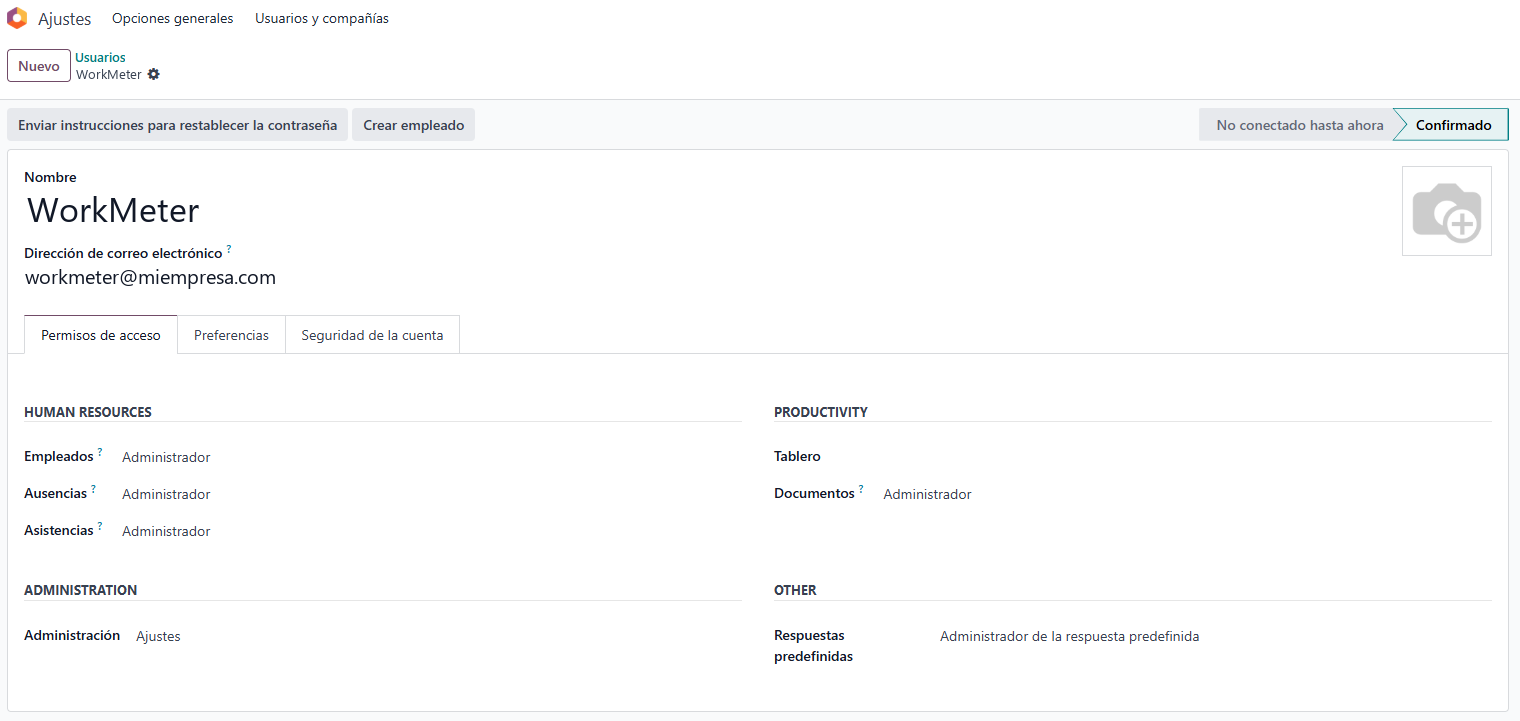
  2. In the Access Rights tab, assign:


AppMinimum PermissionPurpose
EmployeesOfficer: manage all employeesRead the list of employees (name, email, schedule, and time zone)
LeavesOfficer: manage all requestsRead approved leaves of the entire staff and holidays
AttendancesAdministratorOnly if you are going to send check-ins: create and replace attendances of any employee
  1. Save.

⚠️ With insufficient permissions, Odoo does not return an error: it returns incomplete data (for example, only the leaves of the user itself). If later employees or leaves are missing in WorkMeter, first check these permissions.

ℹ️ Multi-company. The user must have access to all companies whose employees you want to synchronize.

Odoo: integration user access permissions

ℹ️ In the screenshot the user has Administrator in all three apps; to read employees and leaves the Officer level indicated in the table is enough.

5. Step 2 · Generate the API key in Odoo 🔗


API keys are created from the user's own preferences, so log in to Odoo with the integration user.

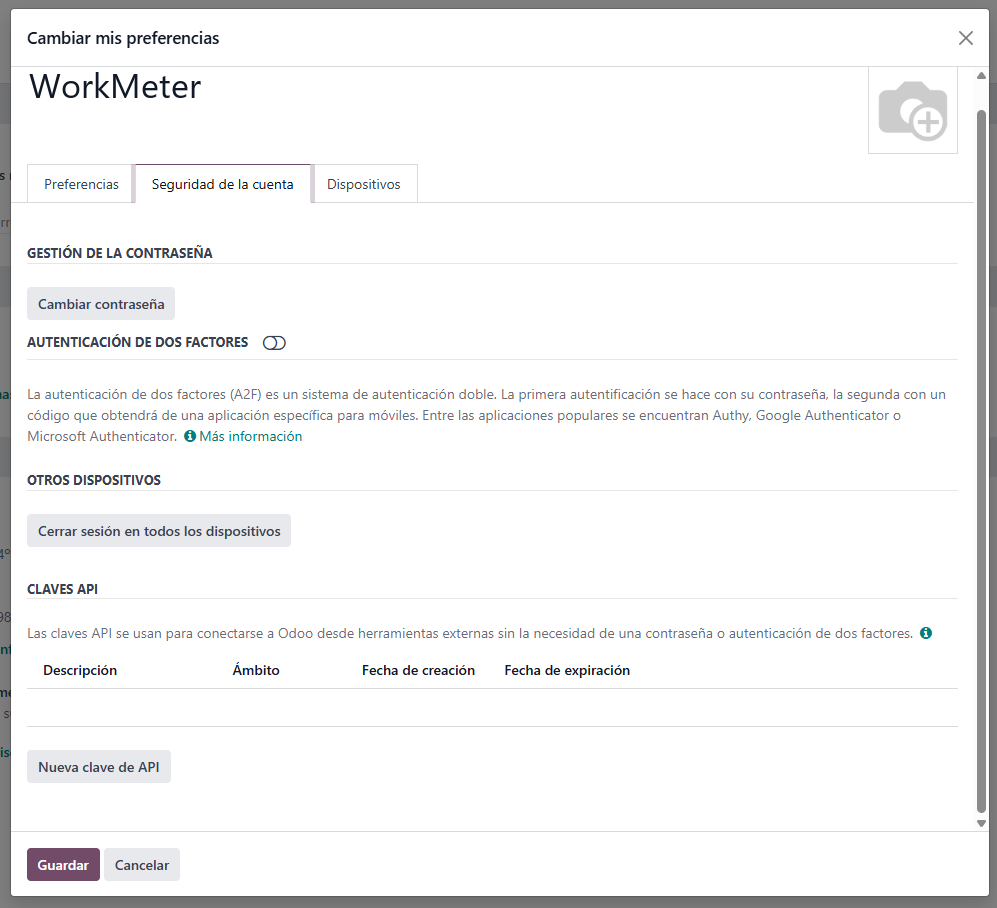
  1. Click your avatar (top right) → Preferences (in some versions, My Profile).
  2. Open the Account Security tab and, in the API Keys section, click New API Key.
  3. Odoo will ask you to confirm your password.
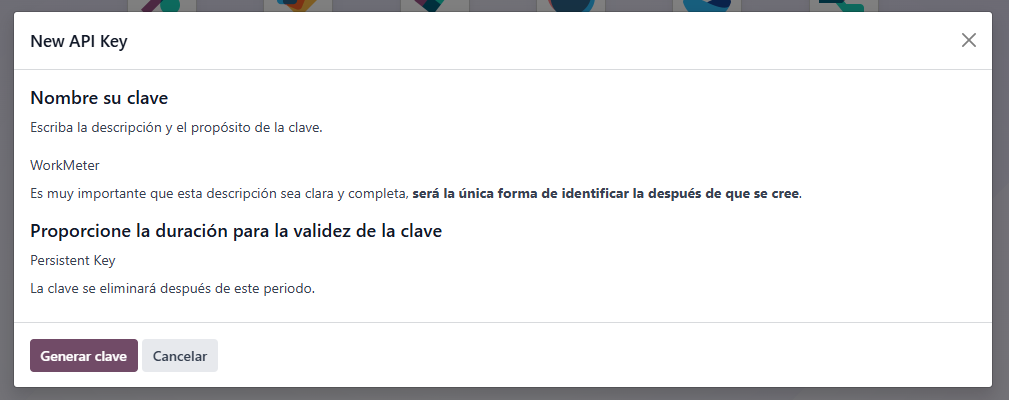
  4. In the New API Key dialog, enter a description (for example, `WorkMeter`) and choose the validity duration. Choose the longest allowed by your security policy (Persistent Key if available): when the key expires, synchronization stops until you enter a new one in WorkMeter (see section 12).
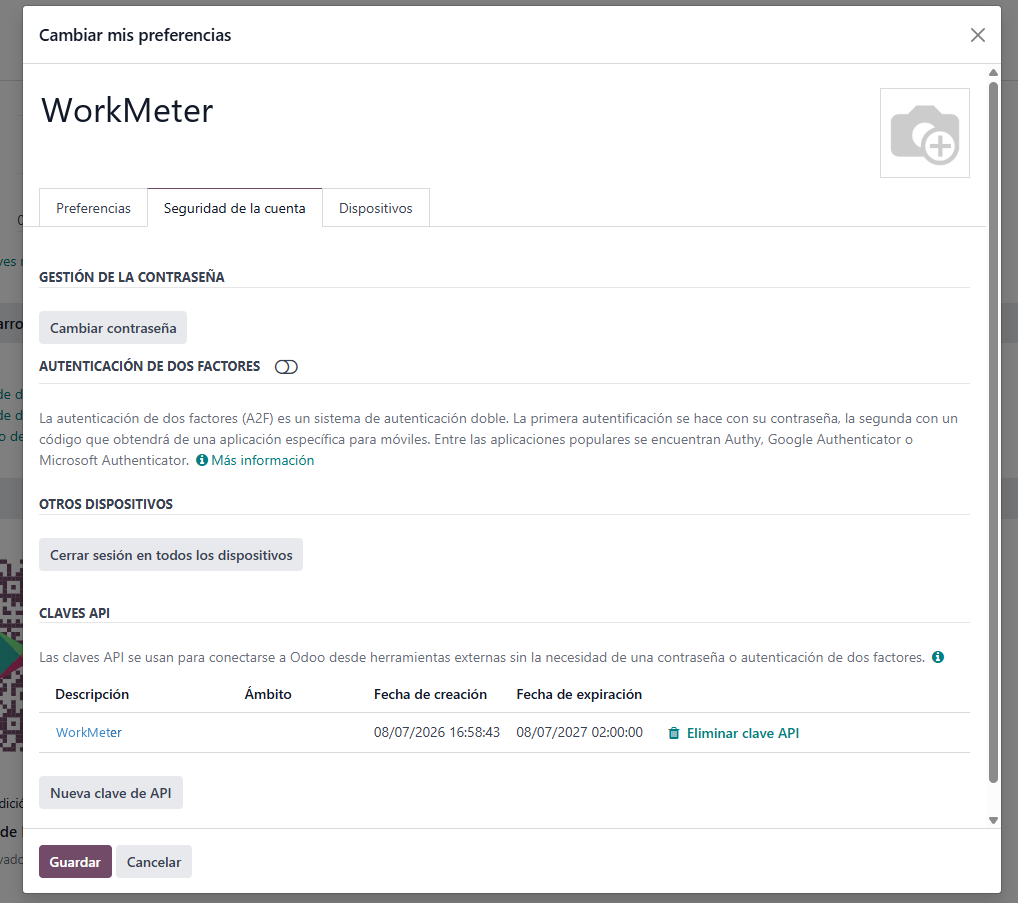
  5. Click Generate Key and copy it immediately: Odoo will not show it again. From then on, the key appears in the API Keys list with its expiration date, from where you can also delete it.

⚠️ The key is equivalent to that user's password. Do not share it or paste it anywhere other than the WorkMeter assistant.

Odoo: Preferences, Account Security tab, API Keys section

Odoo: new API key dialog with description and duration

Odoo: the created key appears in the API Keys list with its expiration date

6. Step 3 · Connect Odoo from WorkMeter 🔗

  1. Log in to your WorkMeter console: https://timework.workmeter.com
  2. Click the gear icon ⚙️ (Settings) at the top right and, in the side menu, select Integrations.
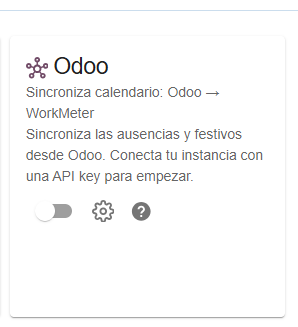
  3. Locate the Odoo card. When not configured, it shows the text “Sync absences and holidays from Odoo. Connect your instance with an API key to get started”.

Odoo card not configured in the Integrations panel
  1. Press the switch on the card (or its gear ⚙️). The Odoo Integration wizard opens, which has two steps: Credentials → Connected.

6.1 · Credentials


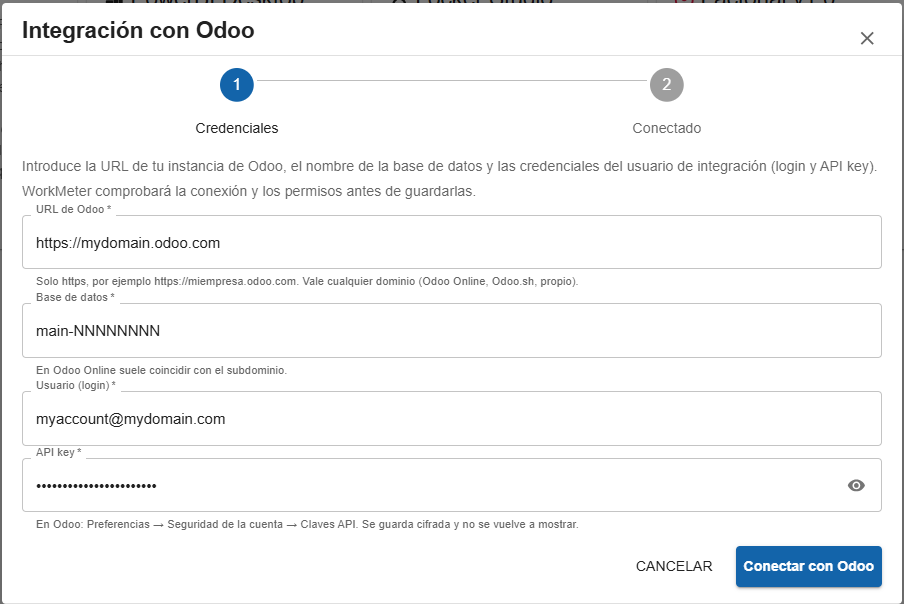
Fill in the four fields with the data you noted:


FieldWhat to enter
Odoo URLThe address of your instance, always with `https://` (for example, `https://mycompany.odoo.com`). Any domain is valid: Odoo Online, Odoo.sh, or self-hosted.
DatabaseThe name of the database. On Odoo Online it usually matches the subdomain (`mycompany`).
User (login)The integration user login (Step 1).
API keyThe key you generated in Odoo (Step 2). It is stored encrypted and will not be shown again.

Press Connect with Odoo. WorkMeter checks, in this order, that the URL responds, that the credentials are valid, and that the user can read Employees and Absences. If something fails, you will see the specific reason (section 13) and nothing is saved.


Odoo wizard — Credentials step

6.2 · Connected


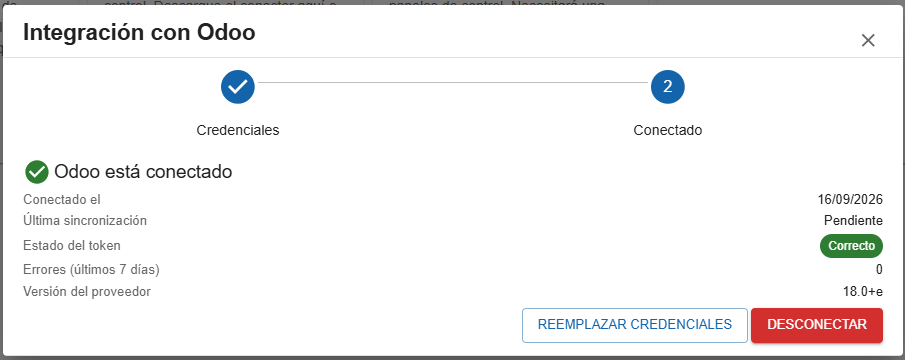
If everything is correct, the wizard shows “Odoo is connected”, with the connection date, the last synchronization (Pending at first), the credential status (Correct), errors from the last 7 days, and the detected Odoo version.


Odoo wizard — Connected step

At that moment WorkMeter launches an initial load in the background: it reads the employees and absence types from Odoo and prepares the link proposals for the next steps.


⚠️ If your Odoo is version 19 or higher, you will see a permanent notice on the card: that version will retire the API that WorkMeter currently uses. The integration works normally; notify support to plan the migration.


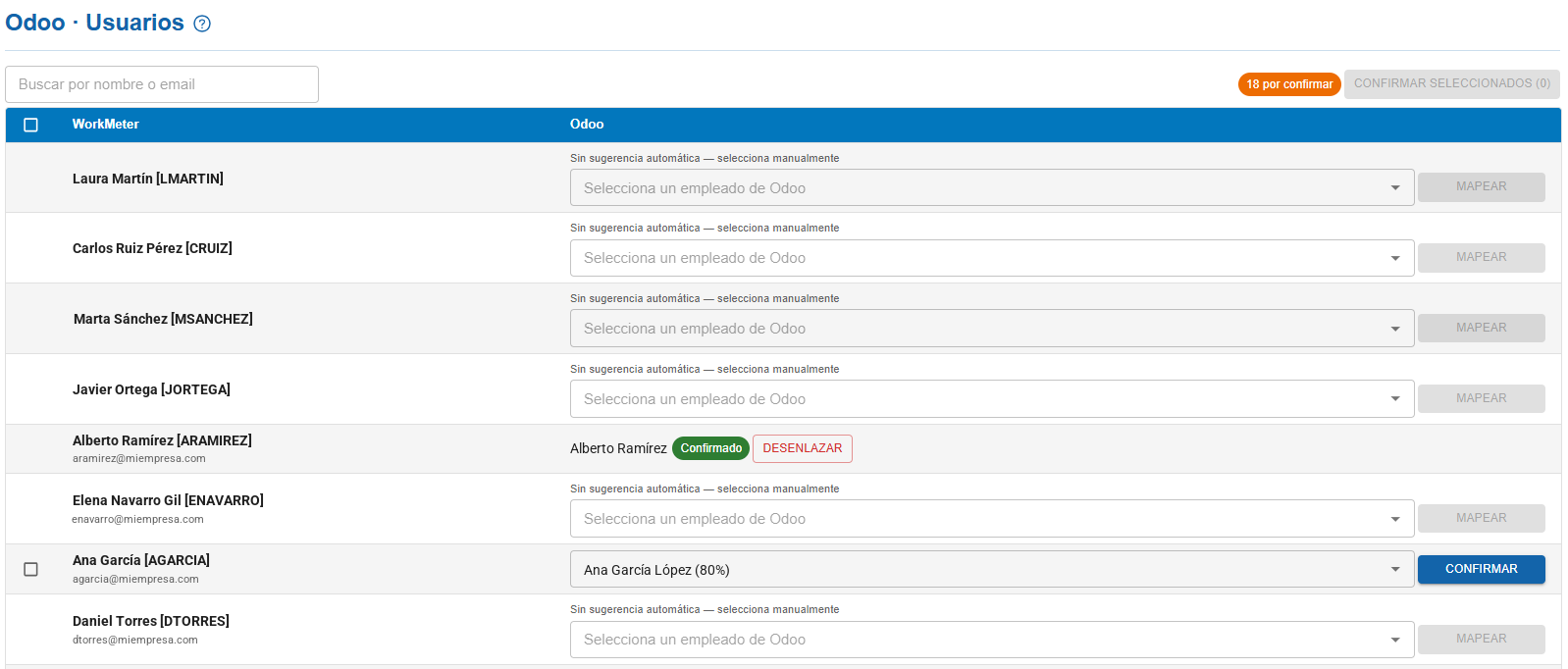
From Settings → Integrations, click the gear ⚙️ on the Odoo card to open Odoo Settings. In the Employees tab:


WorkMeter ↔ Odoo employee mapping
  • WorkMeter suggests for each employee their Odoo record when the email (or login) matches. The suggestion appears in the dropdown with its confidence percentage; click Confirm to accept it.
  • To accept several at once, select the rows and click Confirm selected (N).
  • If there is no suggestion (“No automatic suggestion — select manually”), choose the Odoo employee in the dropdown and click Map.
  • The counter “N to confirm” indicates how many remain. A confirmed link can be undone with Unlink.
ℹ️ An Odoo employee already linked to another user appears disabled with the note “Already linked to …”. Only linked employees are synchronized.

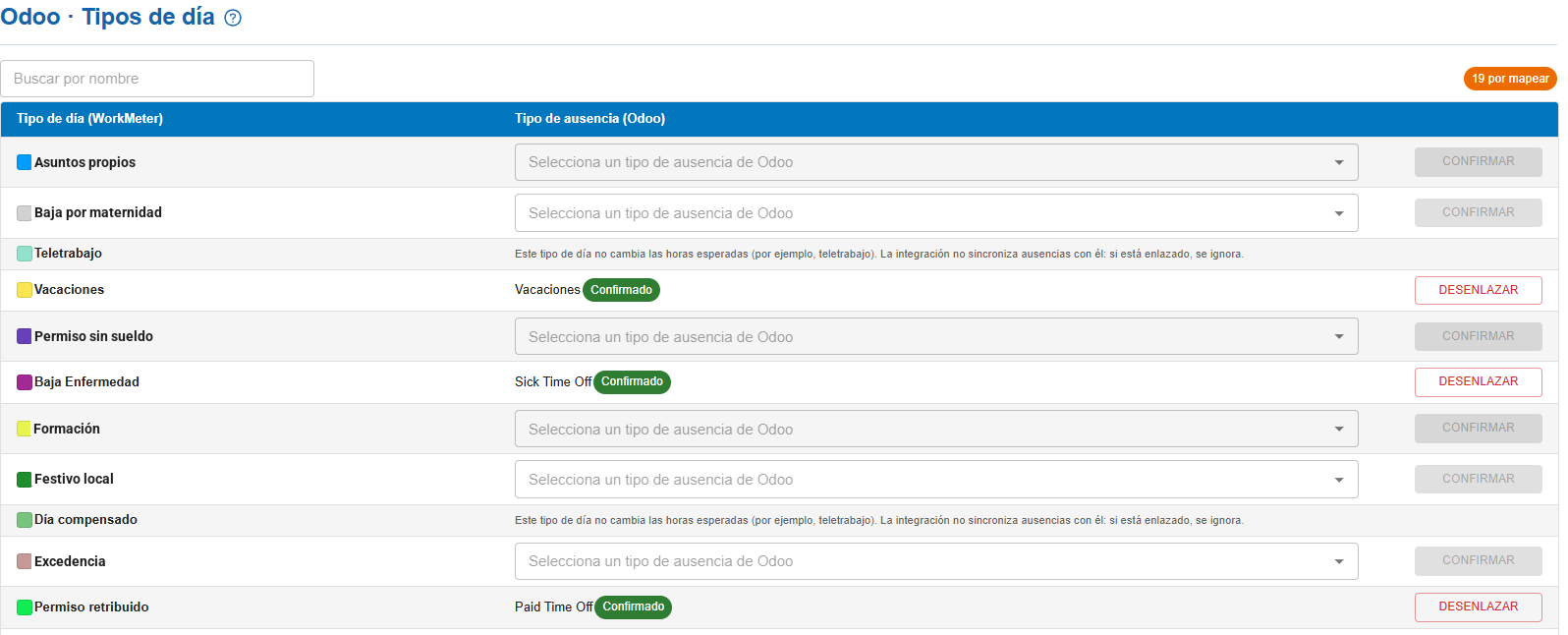
This step is only necessary if you want to receive absences from Odoo; holidays are synchronized without it. In the Day Types tab, the Odoo absence types (vacation, sick leave, permission…) are paired with the WorkMeter day types:


WorkMeter day types ↔ Odoo absences mapping
  • For each WorkMeter day type, choose the Odoo absence type in the dropdown and click Confirm. If the names match, WorkMeter indicates it (“Name match: …”).
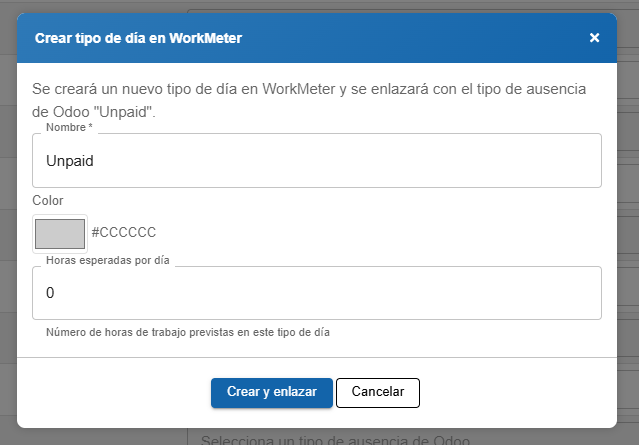
  • If an Odoo absence type has no equivalent in WorkMeter, use Add external day type: selecting it opens Create day type in WorkMeter, where you specify the name, a color, and the expected hours per day (for example, `0` for vacation). Click Create and link.
  • The counter “N to map” indicates Odoo types still unlinked. A link can be undone with Unlink.
Modal to create a day type in WorkMeter

⚠️ Absences of an unlinked type do not synchronize. Check that all the types you use are confirmed.

ℹ️ WorkMeter day types that do not change the expected hours (for example, telework) cannot receive absences and appear as Ignored. Odoo types configured as Worked time (instead of Absence) are also not offered.

9. Step 6 (if you synchronize clock-ins) · Send WorkMeter clock-ins to Odoo 🔗


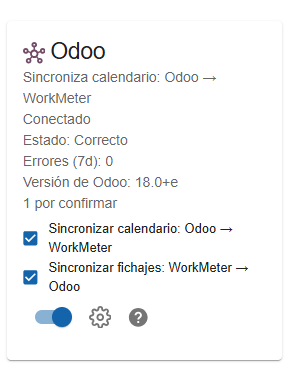
With the integration connected, the Odoo card shows two checkboxes:

  • Synchronize calendar: Odoo → WorkMeter — checked on connection. Uncheck it if you do not want to receive absences or holidays from Odoo.
  • Synchronize clock-ins: WorkMeter → Odoo — unchecked on connection. Check it to activate sending.

Changes to the checkboxes are saved instantly and applied in the next nightly synchronization.


Odoo card connected with the two synchronization checkboxes

Before activating it, verify in Odoo that:

  • The Attendances app is installed.
  • The integration user is Administrator of Attendances (Step 1).
  • Each linked employee has their time zone set in their Odoo record: WorkMeter uses it to write the correct hours.
  • Every night, WorkMeter sends the already closed days (up to yesterday) of the linked employees: an attendance record for each presence segment, with its check-in and check-out. Today is never sent.
  • If a day changes in WorkMeter (for example, an activity correction), it is completely rewritten in Odoo the following night. If a day has no presence in WorkMeter, its attendances are deleted from Odoo.
  • If someone deletes all the attendances of a day in Odoo that WorkMeter does have (within the last week), they are restored. An attendance manually edited in Odoo is respected as long as that day does not change in WorkMeter.
  • When unchecking the box, the attendances already written remain in Odoo.
ℹ️ WorkMeter does not record clock punches: the segments it sends are the presence derived from the measured activity (and manual reports). Keep this in mind if you use Odoo attendances for time compliance purposes.

ℹ️ Need to load a history earlier than the last week into Odoo? Contact support: it can be done upon request.

10. Synchronization: what, when, and how to force it 🔗

  • Every night, WorkMeter reads from Odoo the approved absences and holidays of the linked employees and updates their calendars; if you activated clock-ins, it also sends them. There is no real-time synchronization: a change made today in Odoo is seen in WorkMeter tomorrow.
  • Manual synchronization: in Odoo Settings, press Synchronize now to avoid waiting until night (for example, after linking employees or day types). It only affects the calendar of already linked employees and may take a few minutes. Clock-ins are sent only in the nightly process.

What exactly comes from Odoo:

  • Only absences in Approved status. Pending, rejected, or canceled ones are not synchronized; if an approved one is canceled, it disappears from the calendar in the next synchronization.
  • An absence allocation (the balance you grant: “20 vacation days”) is not an absence: only approved requests with dates arrive.
  • Half days (morning / afternoon) are respected.
  • Holidays are the Holidays from the Absences app, applied to each employee according to their company and work schedule.
  • Days that are non-working for that employee in WorkMeter (weekends, etc.) are not touched.
🛡️ Your manual edits are respected. If an administrator has manually marked an absence in an employee’s calendar in WorkMeter, synchronization does not overwrite it: it only manages days coming from Odoo.

11. Verify that everything works 🔗


In Settings → Integrations, the Odoo card should show Connected, Status: OK, Errors (7d): 0, and the Odoo version. After the first night (or a Sync now), approved absences in Odoo appear on the linked employees' calendar.


If the status shows something else, see section 13.

12. Manage or disconnect the integration 🔗


From Odoo Settings you have:

  • Replace credentials — to enter a new API key (because it expired, you revoked it, or you changed the integration user). WorkMeter disconnects and reopens the Credentials step; employee and day type links are preserved.
  • Disconnect — cuts the integration: WorkMeter stops reading Odoo and sending time stamps, and deletes the saved API key.
ℹ️ When disconnecting, the data already synchronized and the links of employees and day types are preserved in WorkMeter; they simply stop exchanging new data. If you reconnect later, you will need to enter the URL, database, user, and an API key again.

API key expiration. If you set a duration in Odoo, note the date. When it expires (or if you revoke it), the card changes to Status: Invalid or expired, synchronization stops, and in Odoo Settings you will see the warning “The connection to Odoo has expired”. Generate a new key in Odoo (Step 2) and use Replace credentials.

To revoke access from Odoo: Preferences → Account Security → API Keys, click Delete API Key (or deactivate the integration user).

13. Troubleshooting 🔗


Message / symptomCauseSolution
“The URL is not valid: it must start with https and point to a public server.”The URL does not use `https://` or points to an internal address.Use your public Odoo address with `https://` (for example, `https://mycompany.odoo.com`).
“Could not contact Odoo at that URL. Check the address and that the instance is accessible.”Typo in the URL, or the instance is not accessible from the Internet.Check that the URL opens in the browser and that there is no firewall blocking it.
“Database, user, or API key incorrect.”One of the three data is incorrect, or the key has already expired.Check the database name (in Odoo Online, the subdomain) and the login. If you doubt the key, generate a new one (Step 2).
"The user does not have sufficient permissions: needs to read Employees and Time Off."The integration user lacks permissions.Assign the permissions from Step 1 and reconnect.
"The Time Off app is not installed in your Odoo."The Time Off app is not installed.Install it from the Applications menu in Odoo.
"This instance does not expose the JSON-RPC API (/jsonrpc) used by WorkMeter. Contact support."Your Odoo does not respond through the channel used by WorkMeter (for example, in Odoo 19 without the rpc module, or a proxy blocking it).Contact WorkMeter support.
"Odoo is already connected. Disconnect first to reconnect."There is already an active connection for your account.Disconnect the current integration before starting a new one.
"Disconnect Factorial to activate Odoo."Another HR integration is connected.Disconnect it from its card; the Odoo one unlocks instantly.
"There is an ongoing Factorial connection…"A Factorial assistant was left halfway.Wait 10 minutes: it expires on its own.
Status: "Invalid or expired" / warning "The connection with Odoo has expired"The API key expired or was revoked, the user was deactivated, lost permissions, or an app was uninstalled.Fix the cause in Odoo, generate a new key if needed, and use Replace credentials.
Employees or time offs are missingInsufficient permissions in Odoo (partial data, no error); unlinked absence type; absence not approved; or it is a balance assignment, not a request.Check Step 1, the Day Types tab, and the absence status in Odoo.
Time punches do not reach OdooCheckbox unchecked; Attendances app not installed; user is not Attendance Administrator; employee not linked; it is today.Check section 9. Days are sent the following night.
Hours in Odoo appear shiftedThe employee’s timezone in their Odoo record is incorrect.Correct it in Odoo. The day will be rewritten the next time it changes in WorkMeter.
The Odoo card does not appearThe account does not have the time@work feature.Contact your WorkMeter account manager.

If the problem persists, contact WorkMeter support at https://help.workmeter.com.

14. Frequently Asked Questions 🔗


Can WorkMeter modify data in Odoo?
Only if you activate time punch sending: then it creates and replaces attendances of linked employees. It never modifies employees, absences, or holidays.


Can I have Odoo and Factorial connected at the same time?
No. Only one active HR integration per account is allowed.


What happens with my users’ passwords?
WorkMeter does not know them. It only stores, encrypted, the integration user’s API key, which you can revoke at any time from Odoo.


Which Odoo editions and versions are supported?
With Odoo Online (Custom plan), Odoo.sh, and self-hosted installations accessible via https. Versions 16, 17, and 18 (validated on 18); it works with Odoo 19 or higher but with a warning: Odoo will retire the current API and migration will be required. Versions earlier than 16 are not supported. See the tables in section 2.


Do I need to reconfigure anything when Odoo is updated to a new version?
No. WorkMeter detects the version on each connection and every night. If your Odoo upgrades to version 19 or higher, the card will notify you to plan the migration with support.


How often does it synchronize?
Once every night, in both directions. If you don’t want to wait, use Synchronize now (calendar only).


Does it affect the activity data that WorkMeter already measures?
No. The integration only adds absences and holidays so that the expected time calculation is more accurate; activity measurement continues to work the same.