For the time tracking version in corporate applications (EffiWork) and the project management one (WorkProject), although the application can report times without any additional configuration, to obtain the full functionality of the product, it is necessary to grant permissions to be able to read window titles, and thus apply productivity rules.
These are Accessibility permissions within the Privacy & Security section, where the user must grant them on the first use of the application, or if a major update is performed. A few seconds after starting the application, or upon receiving an update, if the application detects it does not have sufficient permissions, it will show a window like the following:
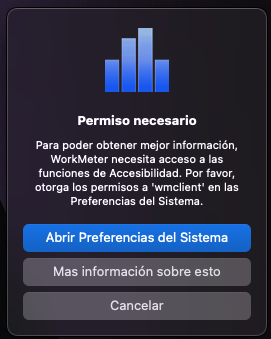
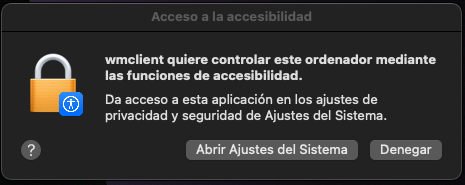
This window belongs to the WorkMeter application, and if the necessary permissions are not granted to the application, it will appear from time to time to remind the user that the application will not be able to obtain details of window titles, and therefore will not be able to apply the rules correctly. By clicking on the "Open System Preferences" option, the following system window will appear. The user must then enter "Open System Settings," and in the "Privacy & Security" -> "Accessibility" section, authorize the wmclient application to have access to that data.
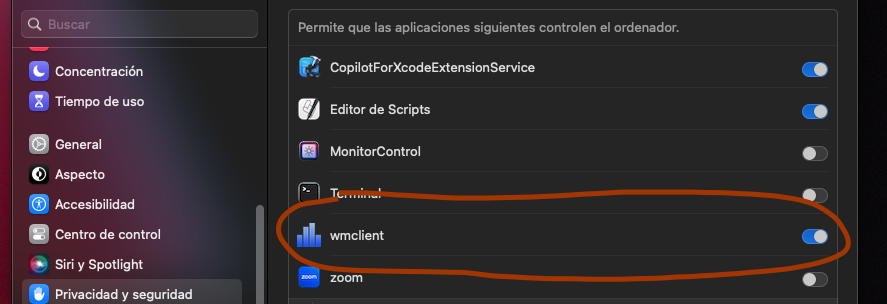
From that moment on, the application will be able to function fully and apply productivity and project rules.
Troubleshooting (may occur when receiving an update)
Despite having previously granted permissions, sometimes the application continues showing the permission request window, and the application icon may be displayed with an orange square as shown in the image on the right:

This usually happens when the application has been updated, and the permissions granted to the previous version are no longer valid for the updated version. To fix this, you must remove the previous permissions and wait for the application to request them again.
To remove previous permissions, follow exactly the steps below:
- After a few seconds, the option "Restart Application" will appear in the product menu. Select it, and the application will restart. When it asks for permissions again, grant the permissions as indicated at the beginning of this document.
[Note: it is not enough to grant permissions again. You must remove the application from the list as instructed in these instructions, and then restart the application through the "Restart Application" option in the menu or terminate the wmclient.app process]
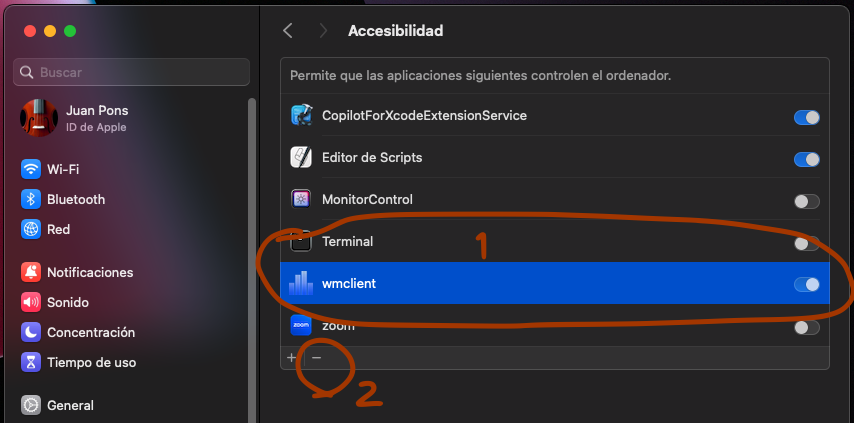
Accessibility options within Privacy and Security in System Settings. Select wmclient (1), and press the "-" button (2) to remove it from the list. Then press "Restart Application" in the application menu.
This way, the next time the application requests permissions, follow the normal procedure described in the first part of this document, and the application will obtain the necessary permissions (you can restart the computer to force the permissions request again). Note: if the icon with the orange square appeared, even if the permissions are already fixed, this icon may take time to disappear. Try stopping the logging and activating it again to verify that the icon no longer appears. If the "Privacy and Security > Accessibility" window does not show the "wmclient" application, then you must restart the application or terminate the process.