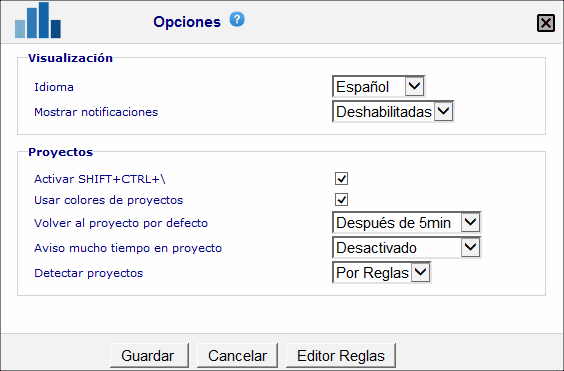
Through the context menu of the client installed on your PC, you can access the configuration options.
Depending on the modules you have activated and the company settings, you may see some options and not others. In the image on the left, you can see how it would look if you had all available options activated.
Below you will find an explanation of each option.
Display Options
- Language: configure the language in which you want the client to display the menus.
- Show notifications: Select whether you want notifications to be shown or not. Remember that notifications will not be shown if Windows has Do Not Disturb mode activated.
Project Options
- Activate SHIFT+CTRL+\\ : Activates the SHIFT+CTRL+\\ key combination so that the project list is accessible from anywhere.
- Use project colors : Activates color indications in the project selection window and on the icon. You can configure project colors in the console, in the project configuration section.
- Return to default project: After manual or automatic selection of a project, if there is no reason to stay in a project (for example, if no rule is met), the system will automatically select the "default project." You can select the "default project" in the console, in the groups section.
- Long time in project warning: This option will allow you to receive a notification if you have been in the same project for a long time without changing.
- Detect Projects: the application can automatically switch projects. This change can be completely automatic (by name similarity) or by rules. Through this selector, you can choose which mode you prefer. Remember that if you have created rules, you will not be able to reactivate automatic mode until you delete the rules.
If in the "Detect Projects" selector you have "By Rules" selected, through the "Rules Editor" button you can modify the rules. You can see here the details of how the rules work.