WorkMeter · Factorial Integration Guide (OAuth) 🔗
Who this guide is for: company administrators who want to connect their Factorial account with WorkMeter to automatically synchronize employees, calendars, holidays, and absences.
Who this guide is for: company administrators who want to connect their Factorial account with WorkMeter to automatically synchronize employees, calendars, holidays, and absences.
WorkMeter and Factorial cover complementary areas of the employee lifecycle. Factorial manages HR (onboarding/offboarding, calendars, vacations, and absences) and WorkMeter measures activity and working time. Connecting them avoids double data entry and improves the quality of operational information.
At this stage, the data flow is one-way: Factorial → WorkMeter. Once the integration is connected, WorkMeter automatically receives:
| Data | Detail |
|---|---|
| 👤 Employee onboarding and offboarding | The WorkMeter staff list stays aligned with Factorial. |
| 📅 Calendars and holidays | Working days and holidays per employee. |
| 🌴 Absences | Vacations, medical leaves, and permissions. This is key for WorkMeter to correctly calculate expected time. |
Synchronization is done in real time (via Factorial webhooks on each change) and is complemented by a nightly reconciliation that ensures consistency.
🔒 Security. The connection uses the OAuth 2.0 standard: WorkMeter never knows your Factorial users’ passwords, it only receives a revocable token with limited permissions (least privilege). All communication is encrypted via HTTPS and you can revoke access at any time from Factorial or WorkMeter.
Make sure you meet these requirements:
During the process, you will handle three pieces of data. Write them down in a safe place:
| Data | Source | Purpose |
|---|---|---|
| Redirect URI | Provided by WorkMeter (it is always the same, see below) | Registered in Factorial when creating the app |
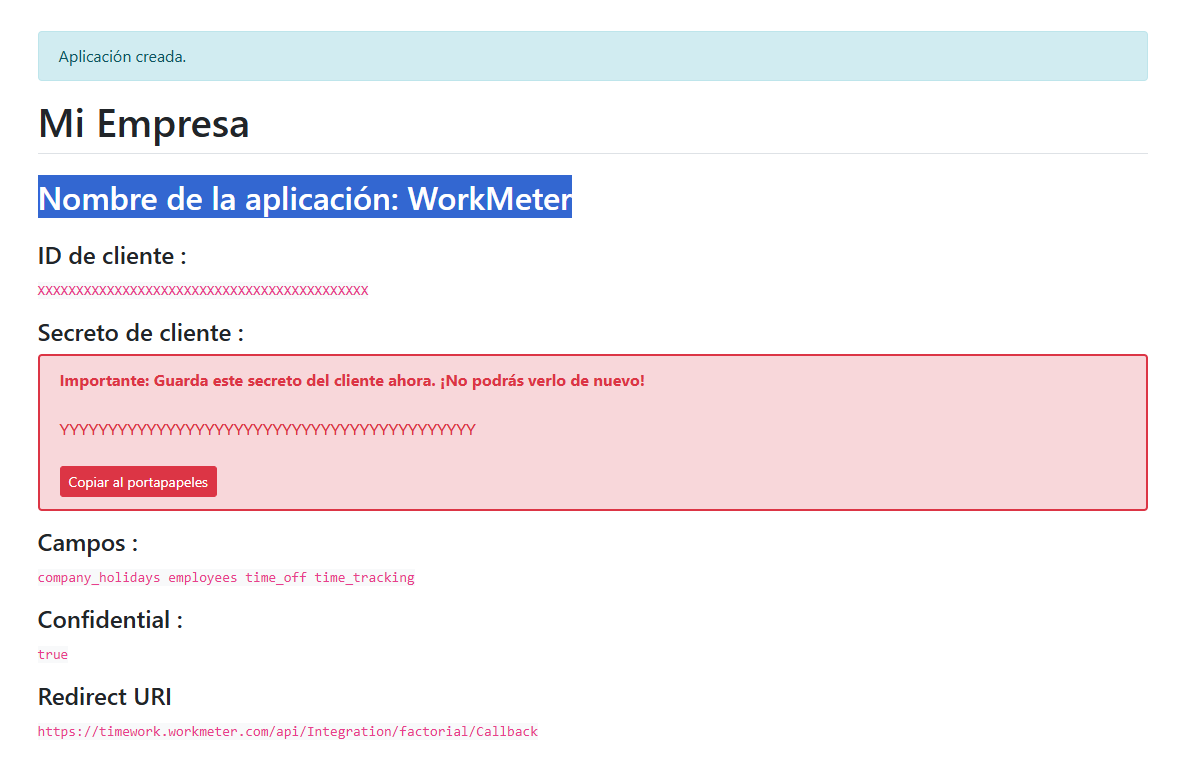
| Client ID | Generated by Factorial when creating the app | Entered in WorkMeter |
| Client secret | Generated by Factorial when creating the app | Entered in WorkMeter |
📌 The WorkMeter redirect URI (production) is:> https://timework.workmeter.com/api/Integration/factorial/Callback
It is identical for all clients. You can also copy it directly from the WorkMeter wizard (Step 4, Credentials screen, with the copy button 📋).
The steps 1 and 2 are done in Factorial; the steps 3 and 4 (and the subsequent mapping) in WorkMeter. We recommend having both tabs open at the same time.
📸
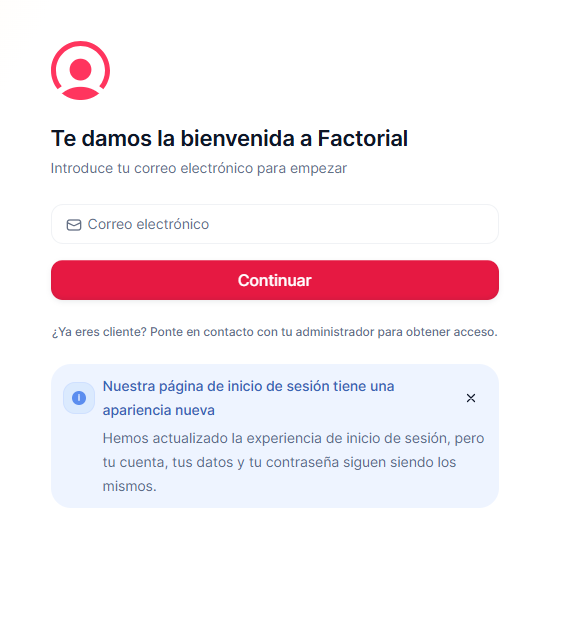
The OAuth application is what authorizes WorkMeter to read data from Factorial.
https://api.factorialhr.com/oauth/applications
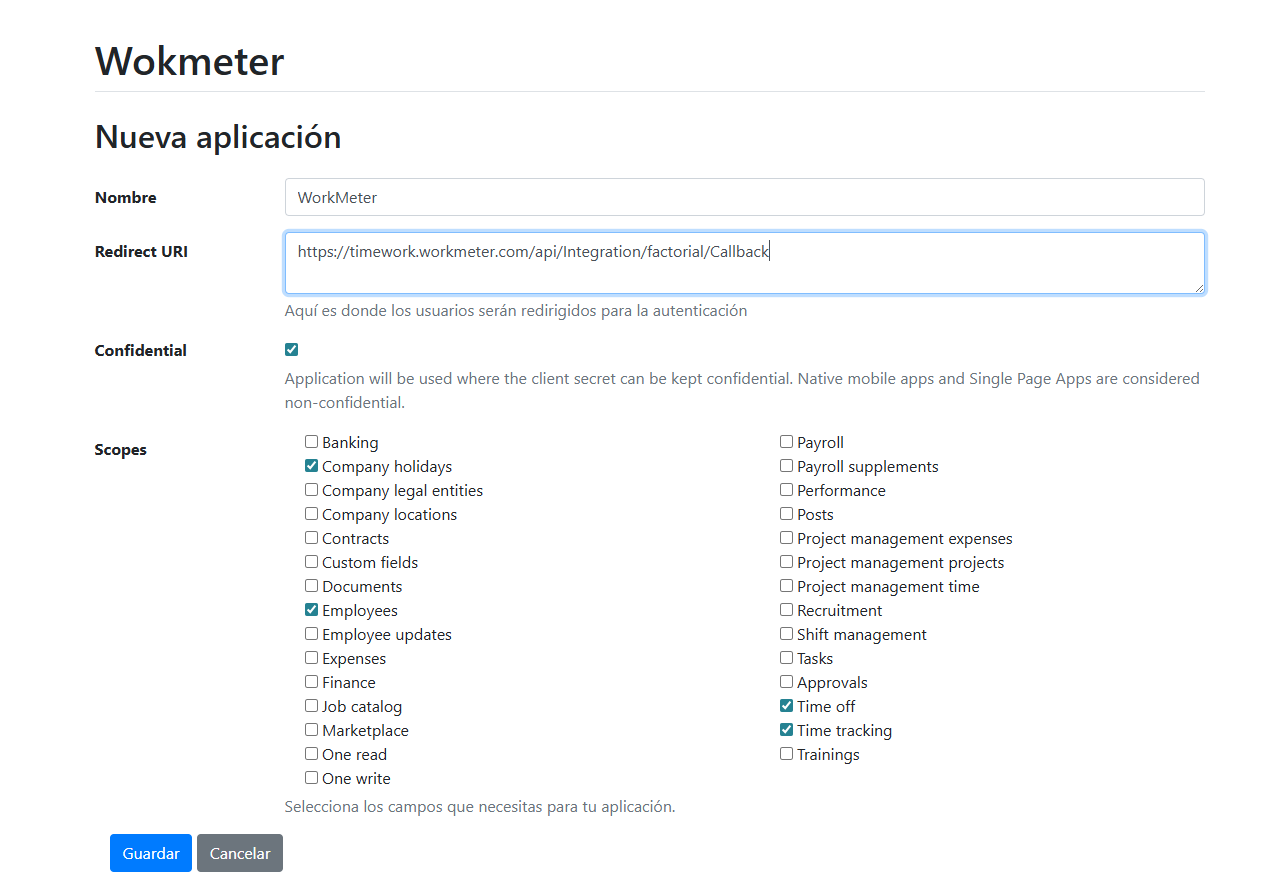
| Field | What to enter |
|---|---|
| Name (Nombre) | `WorkMeter` (or the name you prefer to identify it) |
| Redirect URI | `https://timework.workmeter.com/api/Integration/factorial/Callback` |
| Confidentiality (Confidencialidad) | Secure / confidential application (WorkMeter is a server application that protects the secret). |
| Scopes (Permisos) | Check: `Employees`, `Time off`, `Time tracking` and `Company holidays` |
What each permission grants:
⚠️ The redirect URI must EXACTLY match WorkMeter’s (including uppercase/lowercase and no trailing slash). If it does not match, authorization will fail.
📸
📸
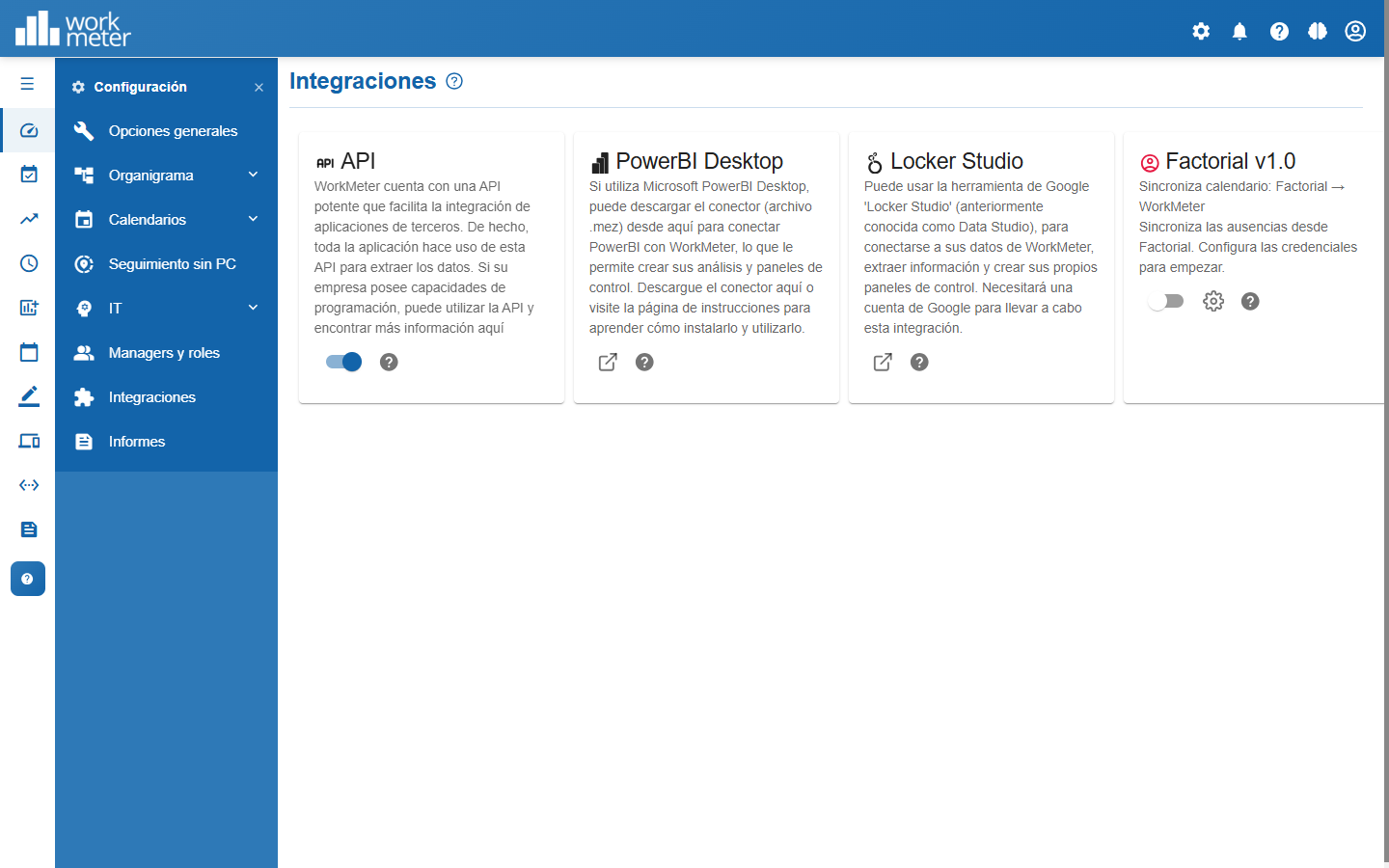
The wizard has three steps: Credentials → Connect → Connected.
Enter the Client ID and Client secret you copied from Factorial in Step 2.
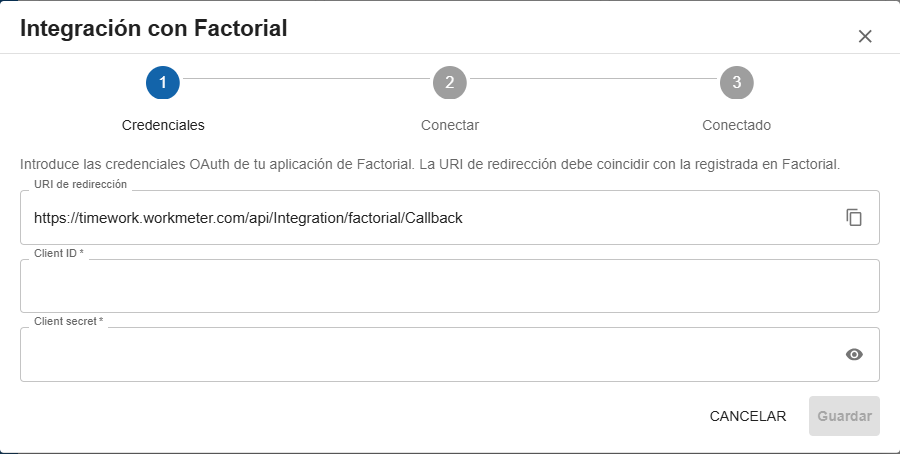
ℹ️ The Redirect URI field is read-only and has a copy button 📋. It must match exactly the one you registered in Factorial in Step 2: `https://timework.workmeter.com/api/Integration/factorial/Callback`.
Press Save. The card will change to Pending status and the wizard will advance to the Connect step.
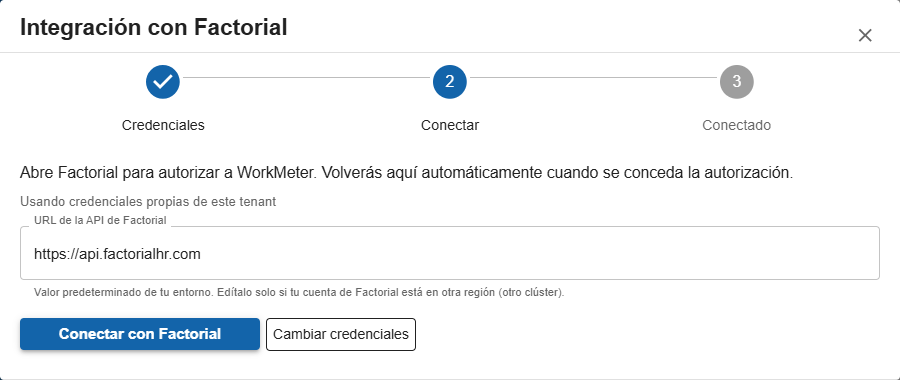
🌍 Regional clusters. Only change this value if your Factorial account is in another region/cluster (for example `https://api.es.factorialhr.com`). It must be a Factorial `https` address; otherwise, you will see the error “The Factorial URL is not valid”.
📸 [Pending screenshot — Factorial OAuth consent screen (“Authorize WorkMeter”)]
💡 If your browser blocks the pop-up window, the wizard shows the “Open authorization page” link to open it manually.
When the authorization is complete, the wizard shows the connected status:
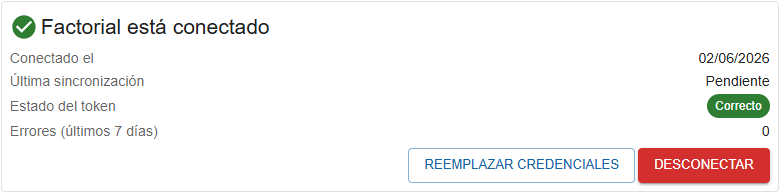
You will see the connection date, the token status (Correct) and the number of recent errors.
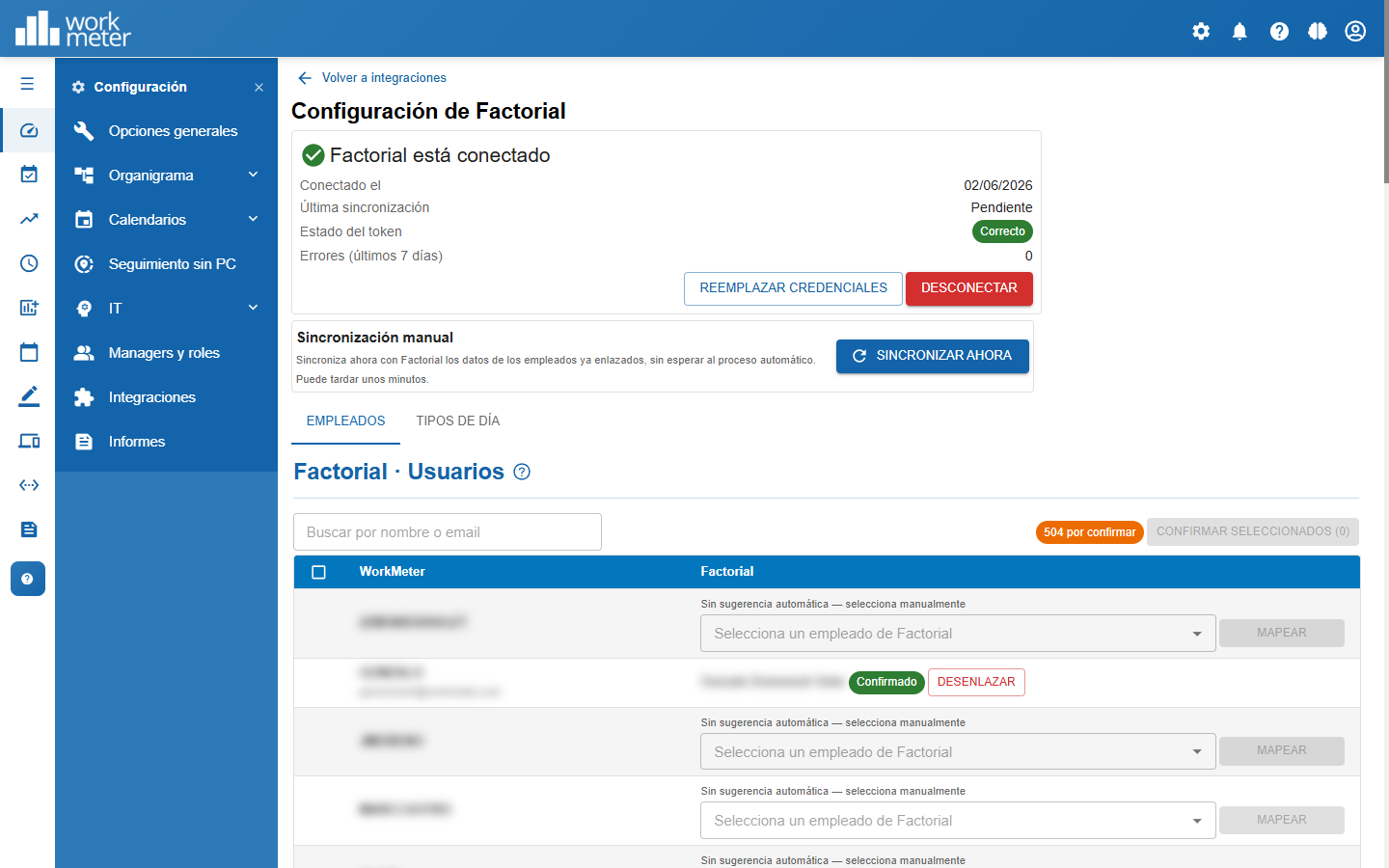
After connecting, you need to match each WorkMeter employee with their profile in Factorial so the synchronization knows which data belongs to whom.
From Settings → Integrations → Factorial (gear icon on the card), open the Employees tab:
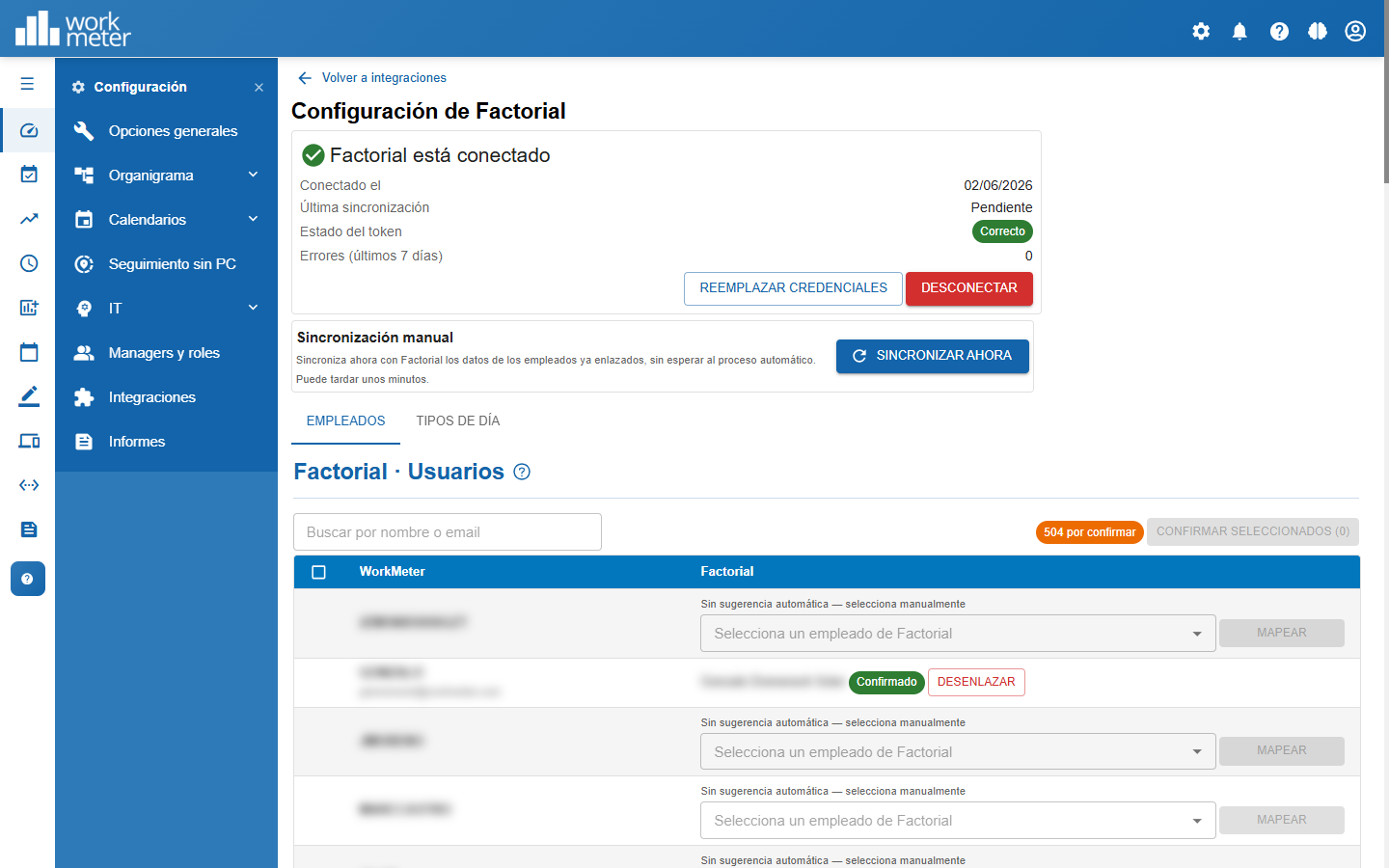
ℹ️ A Factorial employee already linked to another WorkMeter user appears disabled with the note “Already linked to …” to avoid duplicates.
In the Day Types tab, the Factorial absence types (vacation, sick leave, etc.) are matched with the WorkMeter day types:
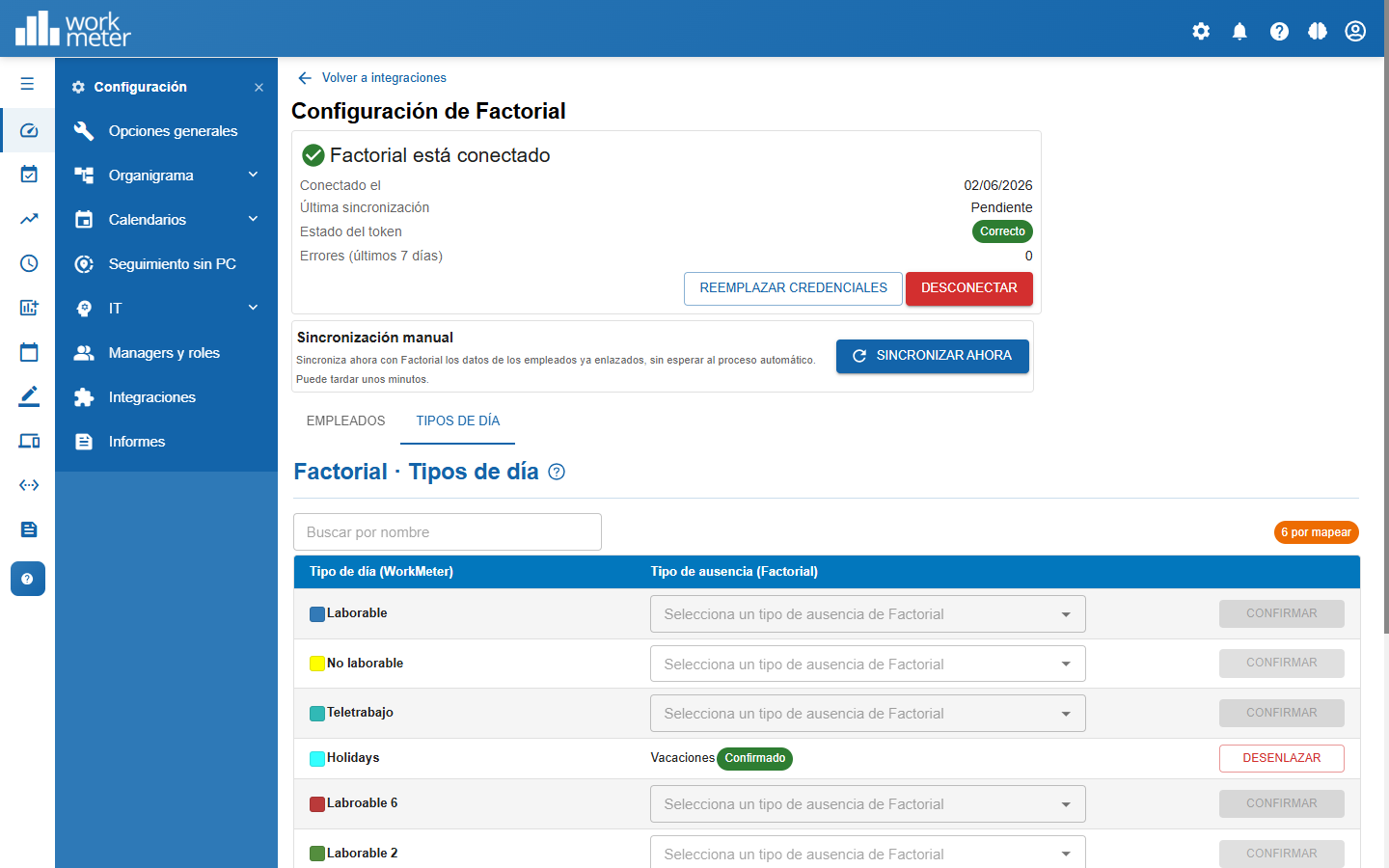
For each Factorial absence type you can:
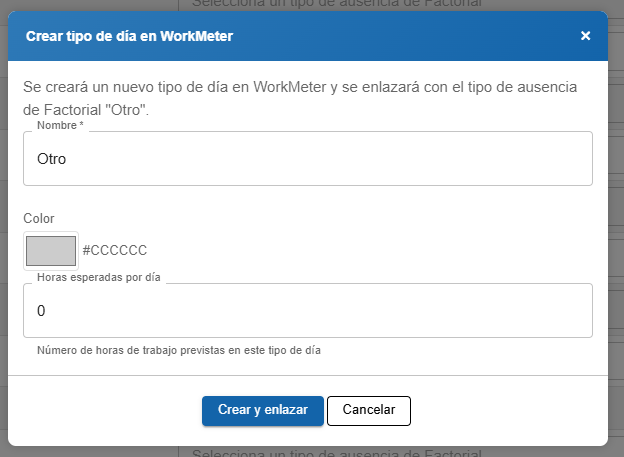
Enter the name, a color, and the expected hours per day (the planned working hours for that day type; for example `0` for a vacation day).
⚠️ As long as there are day types "to be mapped," those absences will not be synchronized. Make sure all relevant types are confirmed.
🛡️ Your manual edits are respected. If you manually modify an employee’s calendar in WorkMeter, the nightly reconciliation will not overwrite that change: it only manages days coming from Factorial.
In Settings → Integrations, the Factorial card should show the status Connected, with Token: Correct and Errors (7d): 0:
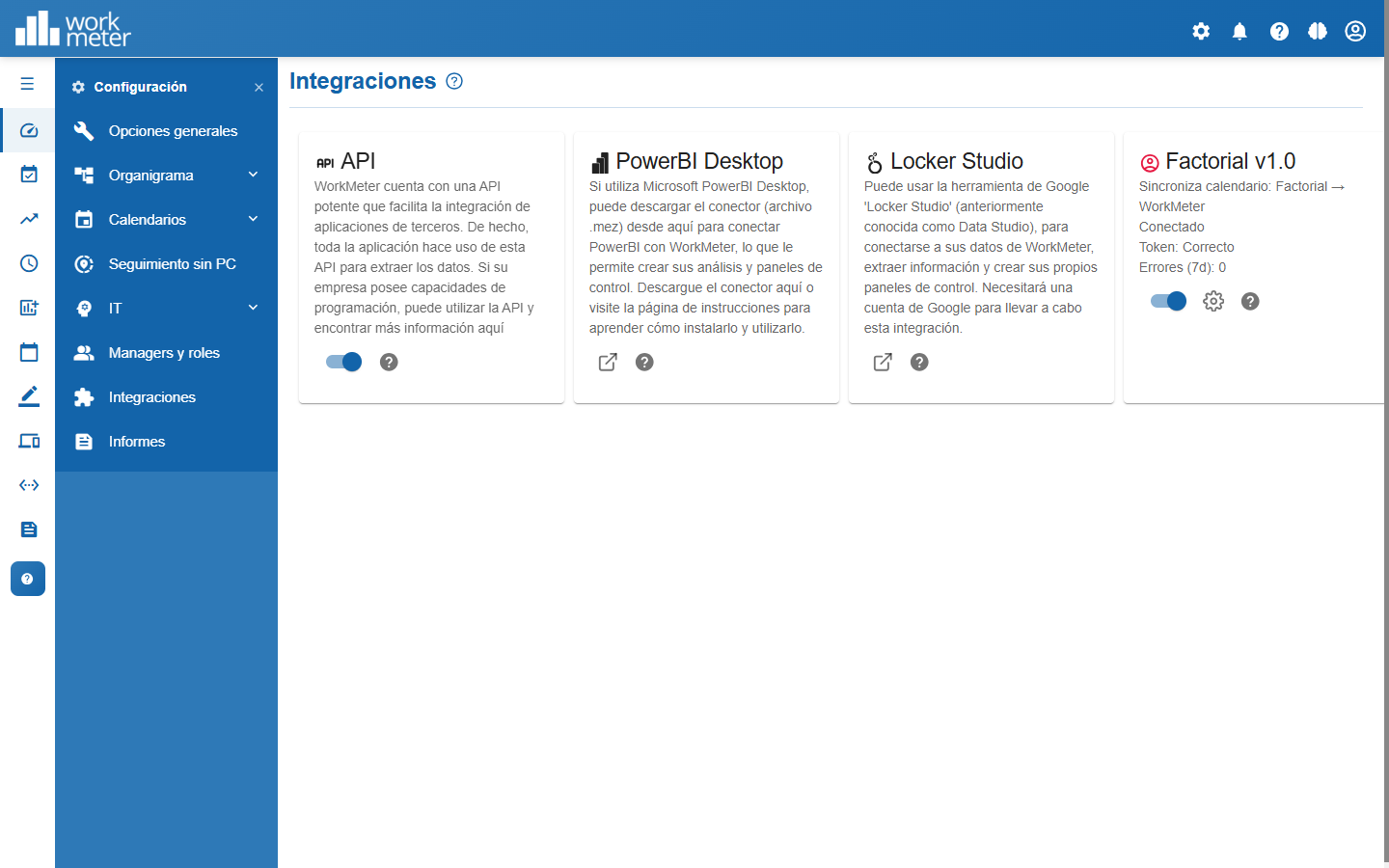
If the token status shows something else, check the following section.
From the Factorial settings screen you have:
ℹ️ When disconnecting, the already synchronized data and the links (mappings) of employees and day types are retained in WorkMeter; they simply stop exchanging new data. What is deleted are the OAuth credentials (Client ID/Secret), so if you reconnect later you will have to enter them again and reauthorize WorkMeter in Factorial.
| Message / symptom | Cause | Solution |
|---|---|---|
| “The Factorial URL is not valid” | The host entered in Connect is not a valid Factorial address. | Use `https://api.factorialhr.com` (or your regional cluster `https://api. |
| “Factorial is already connected. Disconnect first…” | There is already an active connection for your account. | Disconnect the current integration before starting a new one. |
| “The browser blocked the popup” | The pop-up blocker prevented the authorization window from opening. | Use the “Open the authorization page” link or allow pop-ups for `timework.workmeter.com`. |
| “The authorization has expired” / “The window … closed before completion” | The Factorial window was closed or the time ran out. | Click Connect with Factorial again and complete the authorization. |
| Token status: “Refresh recommended” / “Invalid or expired” or warning “The connection with Factorial has expired” | The access token became invalid (for example, after the service restarted). | Disconnect and reconnect the integration to renew it permanently. |
| The error indicates the redirect URI is missing / does not match | The Redirect URI registered in Factorial is not exactly the one from WorkMeter. | Check that Factorial shows `https://timework.workmeter.com/api/Integration/factorial/Callback`, without a trailing slash or case differences. |
| The Factorial card does not appear | The account does not have the time@work feature. | Contact your WorkMeter account manager. |
If the problem persists, contact WorkMeter support at https://help.workmeter.com.
Can WorkMeter modify data in Factorial?
No. At this stage, the integration is read-only from Factorial: data only flows from Factorial to WorkMeter.
What happens with my users' passwords?
WorkMeter never knows them. The OAuth authorization provides a revocable token; never user credentials.
Can I revoke access?
Yes, at any time: from WorkMeter using Disconnect, or from Factorial by deleting/revoking the OAuth application.
Do I have to create the Factorial OAuth app every time?
No. It is created only once. If you rotate the client secret in Factorial, use Replace credentials in WorkMeter.
Does it affect the activity data that WorkMeter already measures?
No. The integration only adds calendar, holidays, and absences so that the expected time calculation is more accurate; activity measurement continues to work the same.