An important area of WorkMeter products is notifications. In this area, the system centralizes the alerts that the employee or the manager must pay attention to. For example, when an employee requests a change in their calendar that requires authorization, or when there is an incident in the activity, the alerts appear in the notifications area, and the application can optionally send an email notifying that there are unread notifications.
Normally these notifications will be associated with requests, but they may also be notifications received from the system or from an integration with third-party products.

In your account settings, you can decide which email alerts you want to receive. The notifications you select will be sent in a grouped manner to your email address once a day.
In the default notifications panel, you can see the notifications that relate to you, whether you generated them or they require your intervention. Notifications can be read, left pending, and in some cases, approved or denied. Notifications can be filtered and bulk actions can be performed.
By clicking the button "see all proposals from my group," you can also see the notifications from the managers or employees who depend on you.
How request and notification assignment works 🔗
When a user generates a notification, it will now be assigned directly to a single manager. However, other managers in the group can see it if they activate the option "View notifications from my groups." The assignment process works as follows:
Priority selection:
First, if the employee's group has a manager assigned in the organizational chart, that manager will be checked first. If there is no assigned manager or they do not have permissions, the next step is taken.
Selection of the most specialized manager:
The system will analyze the list of managers in the group and assign the notification to the manager who has permissions to accept or reject the proposal and manages the fewest number of groups. This way, the most specialized manager in the employee's group who generates the notification is sought.
Assignment to an HR manager:
If no suitable group manager is found to handle the notification, it will be assigned to an HR manager
Escalation to Parent Groups:
If there is no manager in the group with the appropriate permissions, the system will look for an available manager in the parent group, and so on.
The assignment criteria will be:
Assignment to an Administrator:
If no manager with permissions is found in the group, its parent groups, or an HR manager, the notification will be assigned to an administrator.
Permission Management in Group Changes:
If a request has already been assigned to a manager, but the associated employee is moved to another group and the assigned manager does not have permissions over that group, the system will automatically deny the request when the manager tries to accept or reject it.
Automatic Request Review 🔗
If your company has Automations enabled, WorkMeter reviews calendar requests and pending activity edits every few minutes according to the policies defined by the company. In the notification list, you will see the Automation Review column, with one of these marks:
- Approved by automation: the request was approved automatically because it meets a policy.
- Would approve: it meets a policy, but the company has automation set to Suggest Only mode: you decide.
- Cannot be approved automatically, requires manual review: no policy approves it. You decide, as always.
- Does not yet meet the policy: it will meet it later (for example, when it has been pending for more days). It is reviewed again every night.
- Outside automation: it is a request that is never reviewed automatically (for example, a restricted day type to Human Resources).
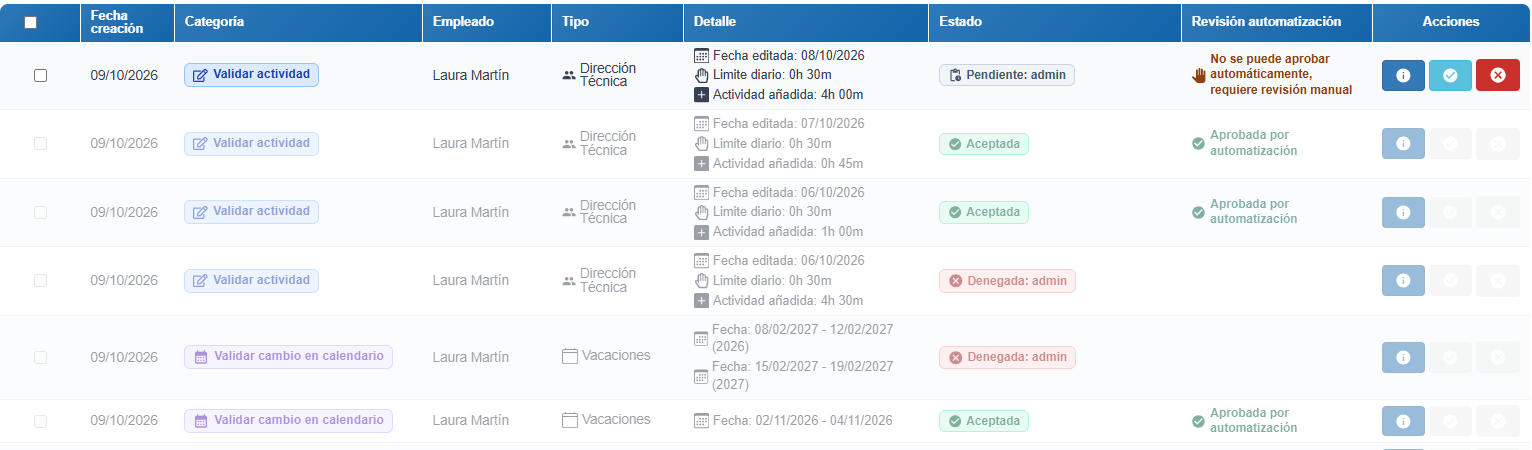
In the notification detail window you will see the reason for the review. When the request requires manual review, the reason is in the dropdown See reason: if the company has several policies, it states what the request lacks to comply with each one.
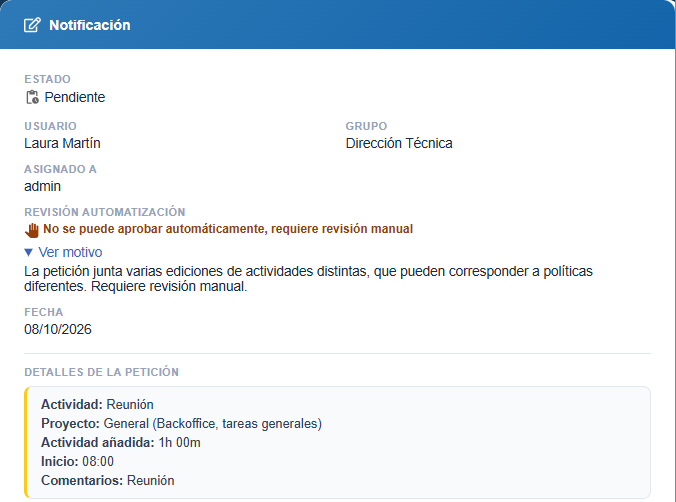
Automatic review never denies a request, and your decision always prevails: you can accept or deny any request, including those marked.
Note: the employee does not see the review or the reason. If their request is approved automatically, they see it as “Approved according to company policy”.