Reports - Hours Balance 🔗
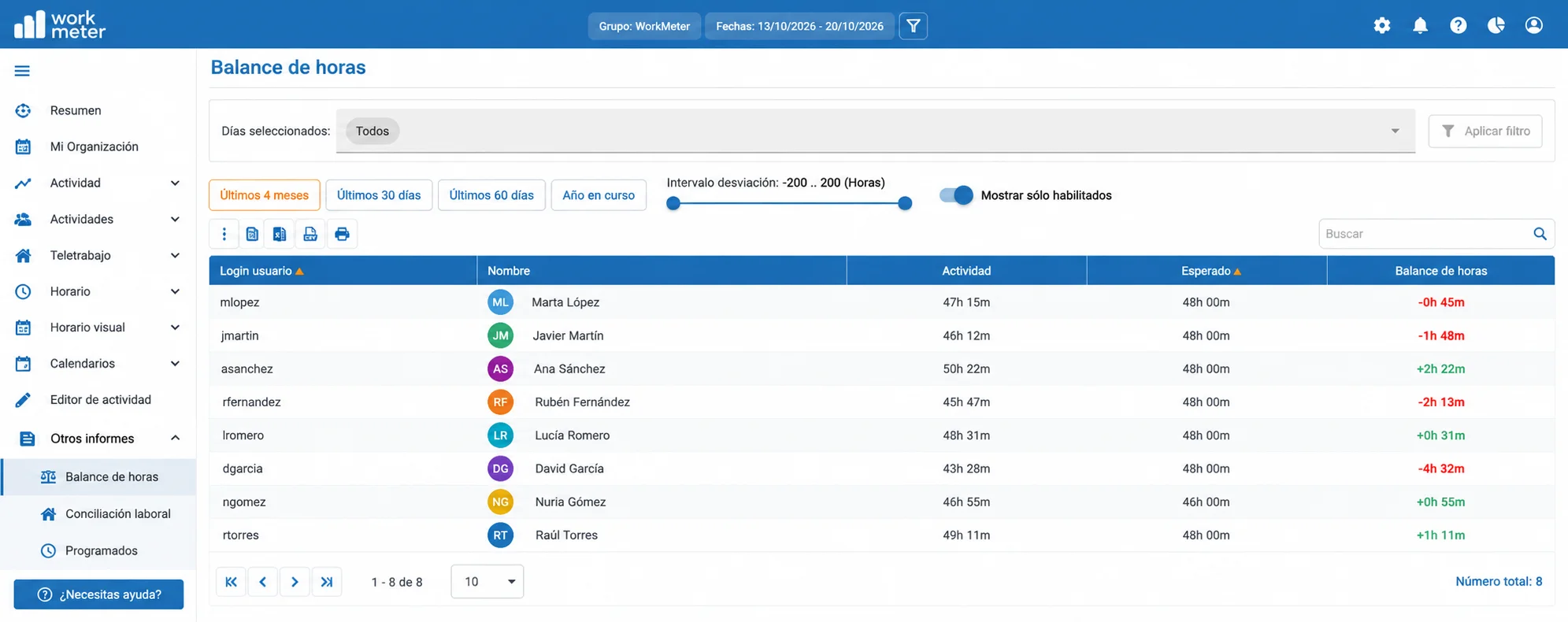
The purpose of this panel is to display the hours balance made by each employee and day within a specific date range. The software always calculates the hours balance based on the employee's actual activity, not on the active range time.
- Date: specific day
- Employee Name
- Activity: total activity for that day
- Expected: the daily expected activity configured in the group to which this user belongs
- Hours Balance: Total activity or productivity hours of the period - total expected for the selected period.
- Compensated: extra hours paid on the payroll corresponding to the report period. Hovering over the cell shows the details of each compensation.
- Net Balance: hours balance minus compensated, that is, what remains pending. It appears in red if negative.
- Actions: buttons to compensate hours and view the employee's compensations (see Compensate paid extra hours below).
In the hours balance report, you will find different filtering options at the top of the data table.
You will find 4 filter buttons:
- Last 30 days
- Last 60 days
- Last 4 months
- Current year
When entering the panel, the selected date filter is applied. If you select one of these four buttons, the filtered period will change automatically.
You will find a filter in "SLIDER" format
This filter is added to the selected date or period filter.
By default, it appears to show the positive hours balance (from 0h to the maximum). Moving it allows you to see the negative balance hours, filter between two ranges, etc., depending on the desired analysis. The slider filters by net balance, which is what remains after subtracting compensations.

Reports - Compensate paid overtime hours 🔗
When the company pays overtime hours in payroll for a period, you can register it in the balance report itself. Paid hours are deducted from the employee's balance and no longer count as pending. The recorded activity does not change: the compensation is noted separately and remains in a history.
Administrators and HR can register and cancel compensations. Group managers and employees see the Compensated and Net balance columns and the history, but cannot modify them.
To register a compensation:
- Set the period being paid in the report and select the group or employee.
- In the employee's row, click the bill icon, Compensate hours.
- Review the Compensated period (From and To): the report period is sufficient and you can change it.
- In Period status you see the Gross balance, the Already compensated hours in those dates, and the Available hours. It recalculates when changing the dates.
- Enter the Hours to compensate (maximum 999 h), the Payment date (payroll), and the Reason. The comment is optional.
- Click Save compensation. The table reloads with the hours in Compensated and the Net balance already deducted.
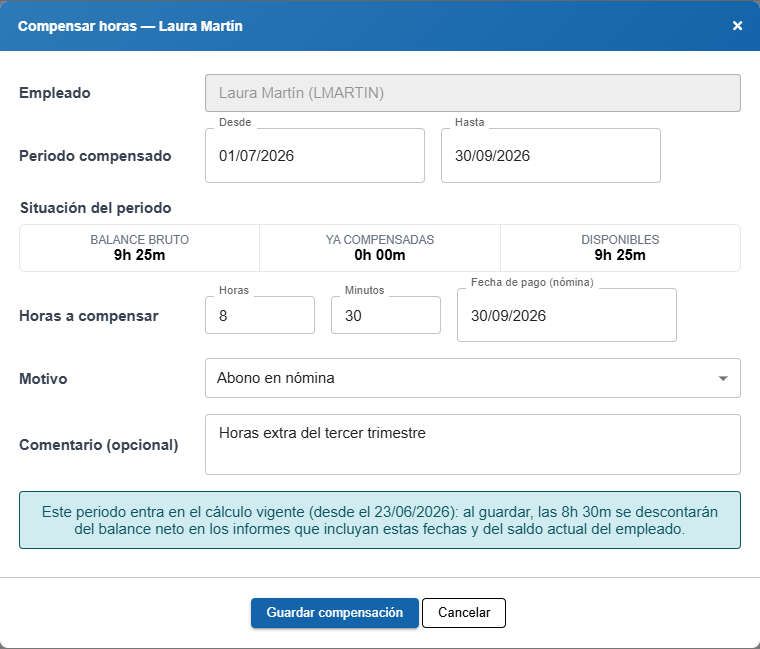
A compensation cannot be edited: if there is an error, cancel it and record the correct one. A paid hour deducts one hour from the balance, also in the accounts that calculate the balance by productivity.
Warnings when saving
If the period falls within the current calculation, the window indicates it: when saving, the hours will be deducted from the net balance in the reports for those dates and from the employee's current balance.
The window warns you in these cases, but you can still save:
- The hours to compensate exceed the available hours for the period (for example, by agreement with the worker).
- The employee already has compensations on those dates. Compensations are added: check that you do not deduct the same hours twice.
- Part of the period no longer falls within the current calculation period (option Computation days for flexibility): the compensation corrects the reports for those dates, but not the employee's current balance.
- The period includes days after today: those extra hours have not yet been generated.
- The period has no expected hours (vacation, leave, before start date): the compensation is recorded but does not deduct anything.
How the hours are distributed
If the report does not cover the entire compensation period, the proportional part is deducted according to the employee's expected hours on the report dates. For example, 10 paid hours from the first quarter (496 expected hours) consulted in February and March (336 expected hours) deduct 10 h × 336 / 496 = 6h 46m. Consulting the entire quarter deducts the 10 hours, and January, February, and March separately always add up to the 10 hours.
Where else it is deducted: the compensation also deducts from the balance the employee sees in their app (card Balance, with the line includes Xh Ym compensated) and in the flexibility and digital disconnection rules, which use the account's calculation period and not the report's. The scheduled balance report also includes the columns Compensated and Net balance, just like the export to Excel, CSV, and PDF.
If you compensate overtime with days off, continue doing so from the calendar, as before.
View and cancel compensations
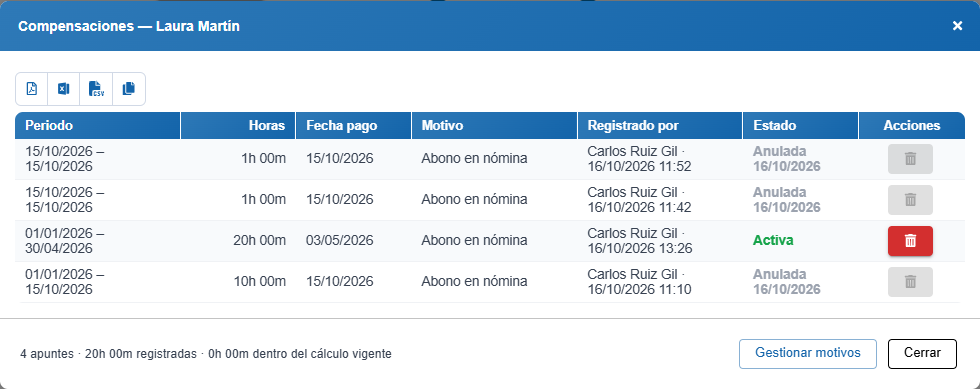
In the employee row, click the list icon, View compensations. You will see all their compensations, including canceled ones: Period, Hours, Payment date, Reason, Registered by and Status (Active or Canceled with its date). The comment is visible when hovering over the reason.
To cancel an active compensation, click the trash can in its row (Cancel) and confirm. It stops subtracting from the balance but remains in the history: showing who registered it, who canceled it, and when.
Reasons
There are two default reasons: Payroll credit and Manual adjustment. To change them, in the compensations window of any employee click Manage reasons:
- Add: type the name in New reason and click Add.
- Rename: click the pencil and change the text. The new name is also shown in compensations that already used it.
- Delete: click the trash can and confirm. The reason can no longer be selected, but compensations that already use it keep it.
There cannot be two reasons with the same name. If you delete all, you will not be able to register compensations until you add one.
Reports - Work-life balance 🔗
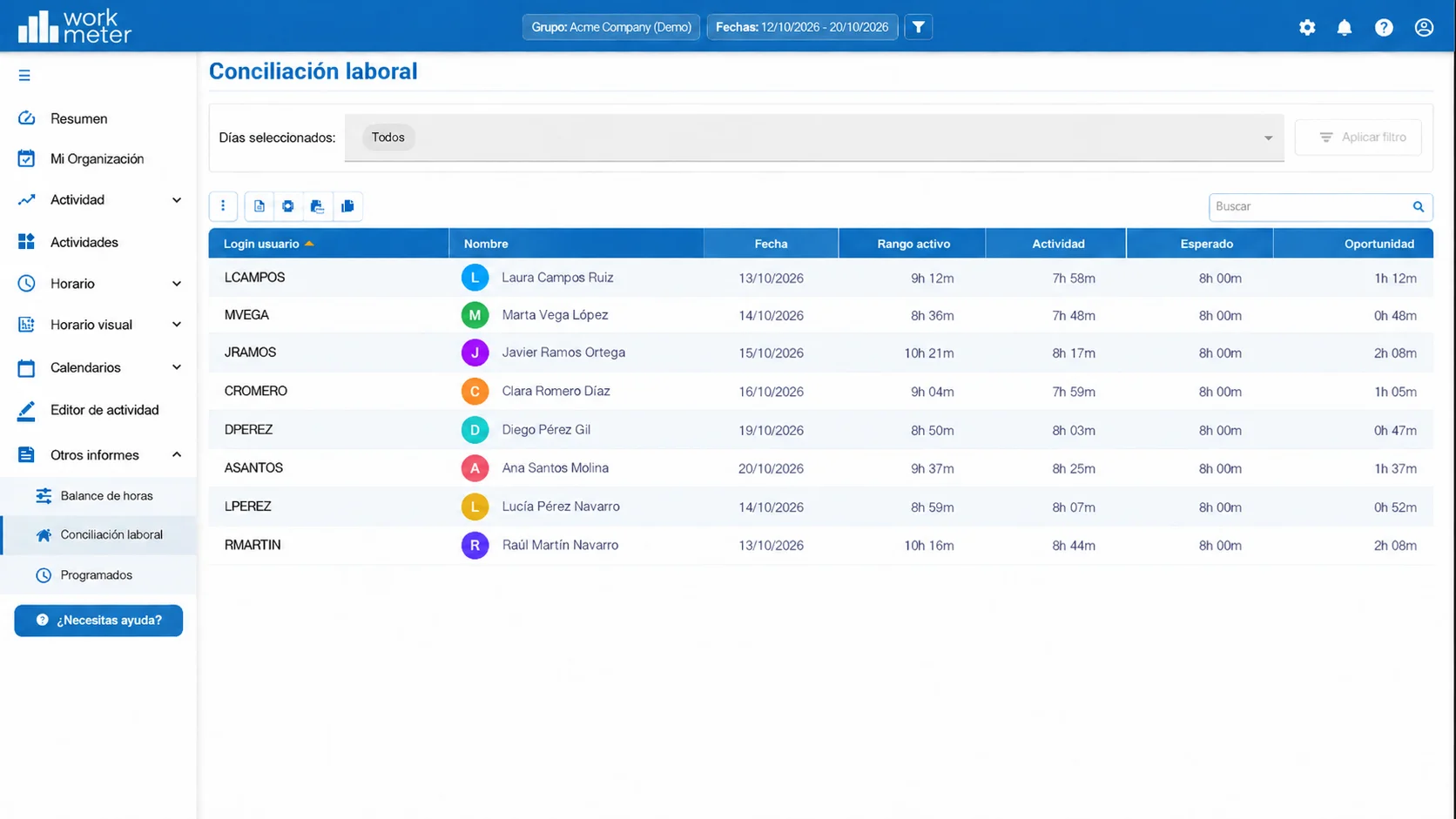
The purpose of this report is to identify work-life balance opportunities for employees by trying to understand and reduce the active range to only what is strictly necessary in the workplace.
- Date : specific day
- Employee Name
- Active Range : presence time. It is calculated by subtracting the end time from the start time.
- Activity : total activity for that day
- Expected : the daily expected activity configured in the group to which this user belongs
- Opportunity : calculated by subtracting the daily expected from the active range time.
Reports - Scheduled 🔗
In this panel you can see the scheduled reports you have enabled from your profile.
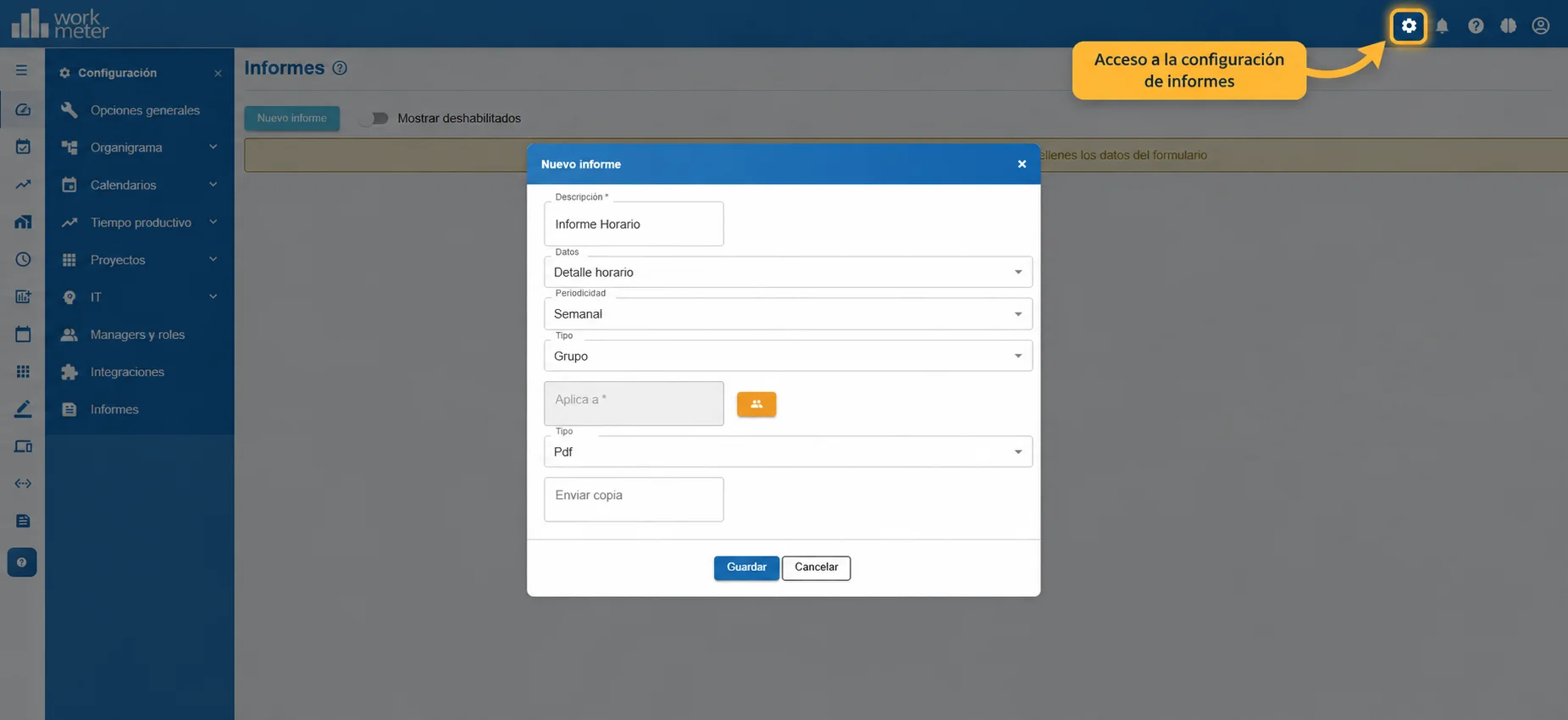
To see disabled reports, just drag the command until it appears in blue.
